
Choose a booking mode for your event
Compare time-slot, full-day, multi-day, and multi-slot bookings before you create an event.
On this page
Choose how customers select time when you create an event or service. The booking style changes the widget and the capacity settings available later.
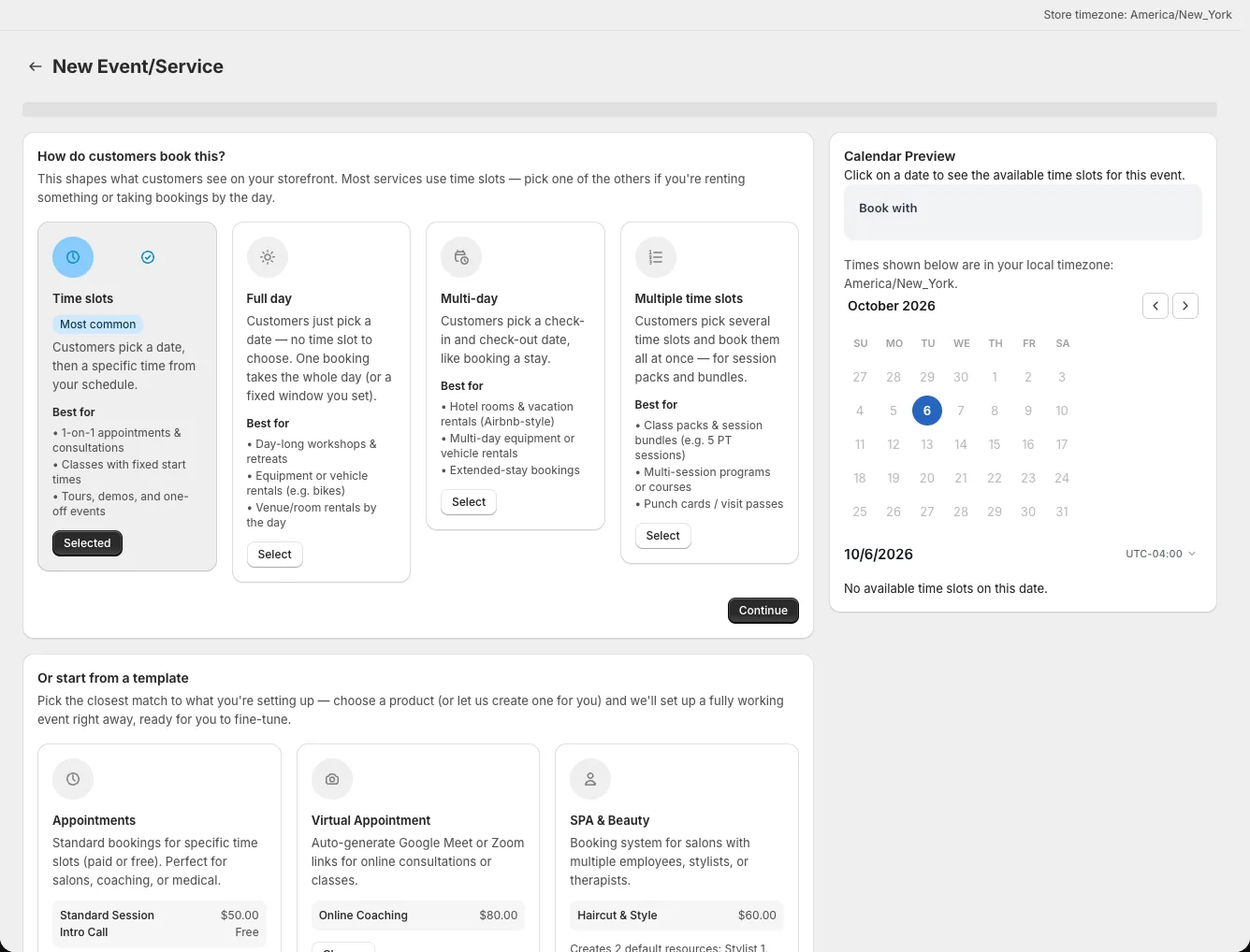
Time-slot appointments
Choose time-slot when the customer must select a date and a specific start time, such as for a haircut, consultation, or class. Configure duration, spacing between offered slots, buffer time, and the attendee limit. Capacity applies to each bookable time. The customer's choices depend on assigned availability schedules and existing bookings.
Full-day bookings
Choose full-day when a customer selects a calendar date without choosing a start time. A day pass or a single-day rental can use this mode. Set Bookings per day to control how many bookings share a date. You can display check-in or check-out times as information, but the customer is choosing the date, not an appointment time.
Multi-day stays and rentals
Choose multi-day for a check-in/check-out date range, such as a room or equipment rental. Set the number of rooms or units available, a minimum and maximum stay, and whether billable units are nights or days. A one-day selection is supported when the event counts days; do not assume that a same-date selection is a night. See Set up multi-day bookings for the date and price rules.
Multi-slot bundles
Choose multi-slot when customers should select several sessions before completing one purchase. Set a fixed session count or an allowed range. Each selected session creates its own booking, so its time and capacity are handled separately. Use this for a course or package in which the customer schedules sessions up front.
Decide before saving
Choose the booking style and whether customers pay through Shopify or book without payment in the creation flow. Both choices are locked after the event is created. You can change many other settings later in the event editor.