
Spend more, save more
Tiered order discounts: "Spend $100 save 10%, spend $200 save 15%", with a progress bar in the cart.
Available on every plan.
Create a tiered order discount
- Go to Offers → Create offer and click Use template under Tiered order discount (or type
Spend 100 save 10, spend 200 save 25and click Build it). - Name and Discount message ("Spend more, save more").
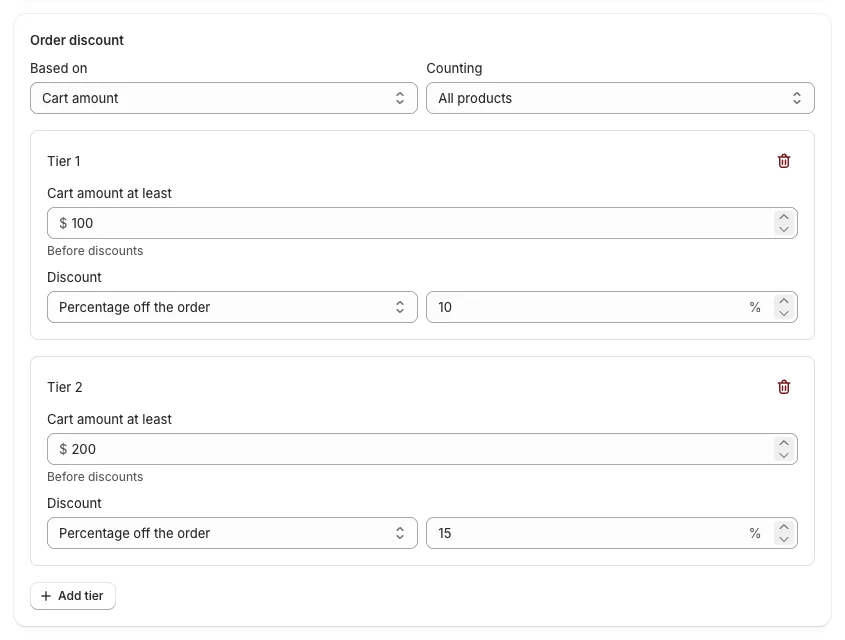
- In Order discount:
- Based on: Cart amount or Number of items.
- Counting: All products, or only some products or collections count toward the tiers.
- Each tier: Cart amount at least (before discounts) and Discount — Percentage off the order or Amount off the order — with the value. Click Add tier for more.
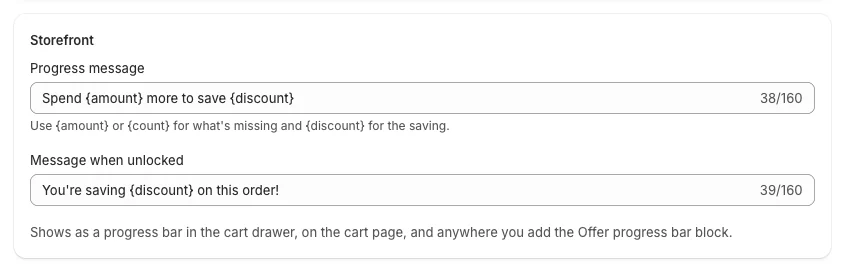
- Storefront: the Progress message ("Spend {amount} more to save {discount}") and the Message when unlocked ("You're saving {discount} on this order!").
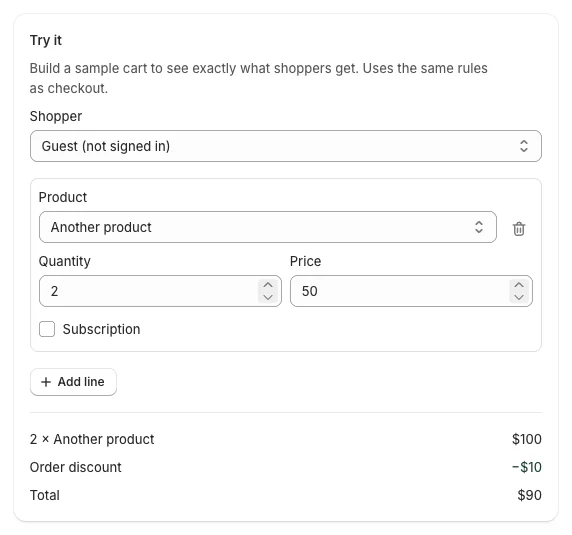
- Check Try it: add products until the total passes $100.
- Click Create offer.
What shoppers see
- In the cart drawer, on the cart page and in the floating deals button: "Spend $42.00 more to save 10%", with a progress bar.
- Once a tier is reached, the discount applies to the order total at checkout.
Good to know
- Tier amounts use the cart subtotal before discounts.
- Order discounts combine with product discounts only when both offers allow it (Combinations).
- You can A/B test the tier discounts (Pro): A/B test an offer.