
Floating deals button (Growth)
The floating deals button is pinned to the edge of the screen on every page.
It shows how close the shopper is to their next reward, for example "Spend $58.00 more to get Paper Filters free", with a ring that fills as they add to cart. A small badge counts the deals until the shopper first opens the panel.
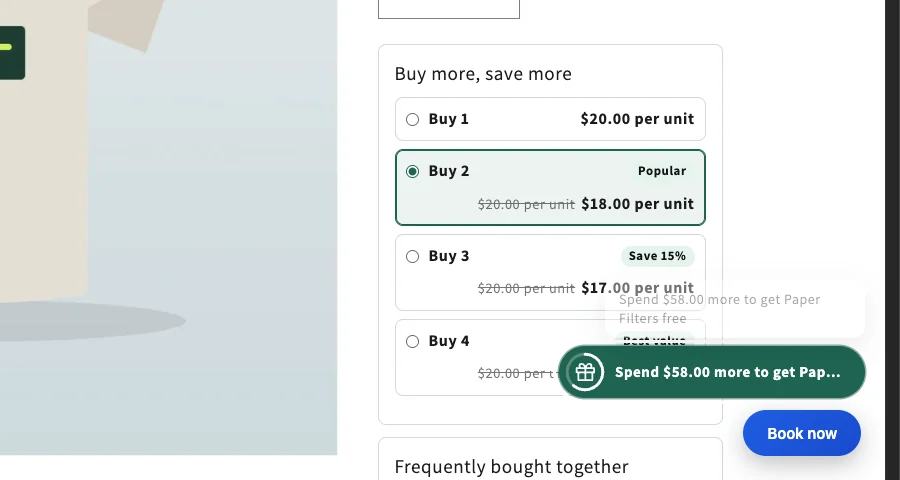
Turn it on
- Go to Placements and scroll to Floating deals button.
- Switch on Show the floating deals button.
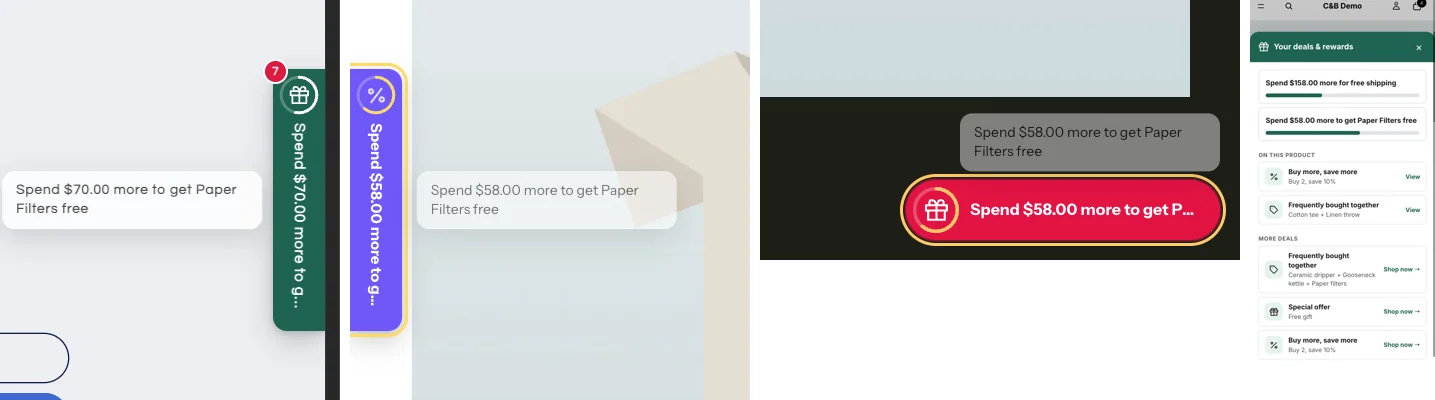
- Pick one of the Looks: Match my design, Ruby, Midnight, Sunny, Mint, Violet or Clean white.
- Adjust the position, style, icon, size and colors if you like (table below).
- Use the preview on the right: switch between desktop and phone, and between states (deals, progress, gift ready, reward unlocked). Click Open panel to see the panel.
- Click Save floating button.
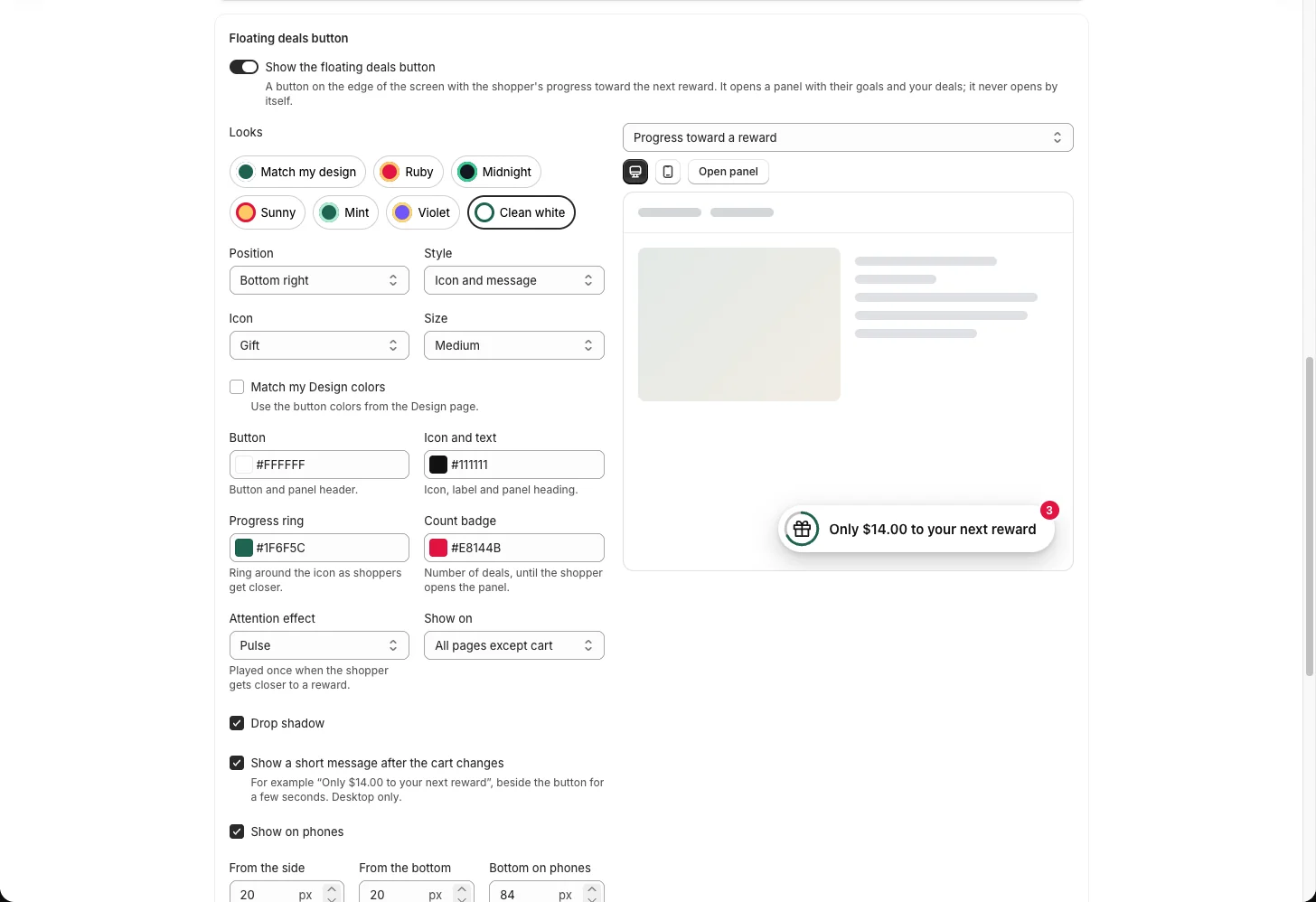
| Setting | Options |
|---|---|
| Looks | Match my design, Ruby, Midnight, Sunny, Mint, Violet, Clean white; or your own colors for the button, icon, progress ring and count badge |
| Position | Bottom right, bottom left, or a tab in the middle of the right or left edge |
| Style | Icon and message, or icon only |
| Icon and size | Gift, price tag, percent, delivery truck or star; small, medium or large |
| Attention effect | Pulse, bounce or wiggle, played once when the shopper gets closer to a reward; or none |
| Show a short message after the cart changes | For example "Only $14.00 to your next reward", beside the button for a few seconds (desktop) |
| Show on | All pages except the cart, or only home, collections, products and search |
| Phones and spacing | Show or hide on phones; distance from the side and from the bottom (separately for phones) |
Reset style goes back to the default look; Discard drops unsaved changes.
The panel
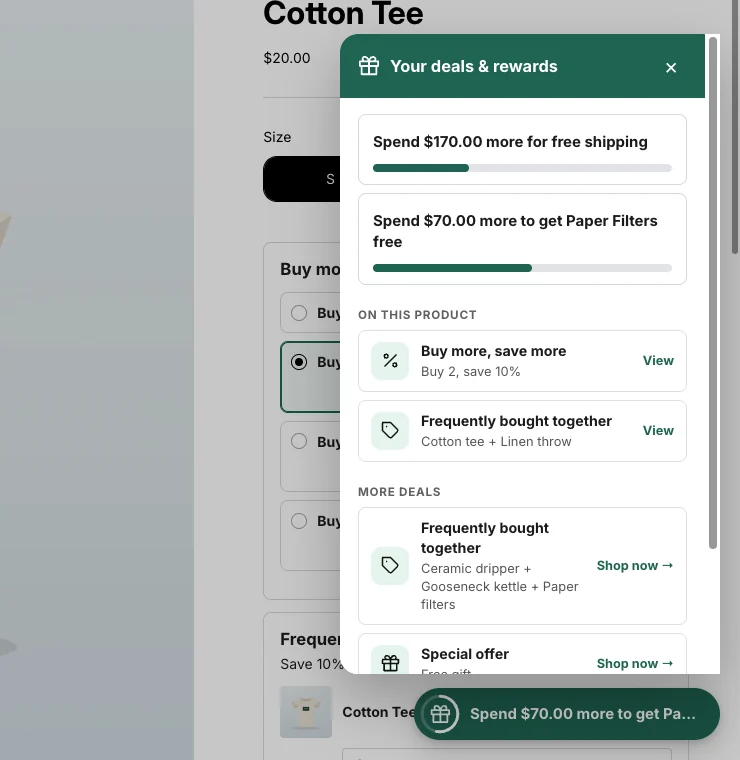
Clicking the button opens a panel with:
- the shopper's goals: the same progress bars as the cart, including Choose your free gift;
- On this product: the offers on the page they are viewing; View scrolls to the offer box;
- More deals: quantity breaks, bundles and Buy X get Y on other products, with a link to each product.
It stays out of the way
- It never opens by itself, and it is not shown on the cart page.
- It hides while the cart drawer is open.
- It moves up when a chat button or another app's button sits in the same corner.
- Shoppers can hide it for their visit from the bottom of the panel.
Change the button label ("Deals") and the panel heading under Texts (Design and texts).