
Control how the booking widget behaves
Set widget buttons, slot display, temporary holds, checkout flow, and theme selectors.
On this page
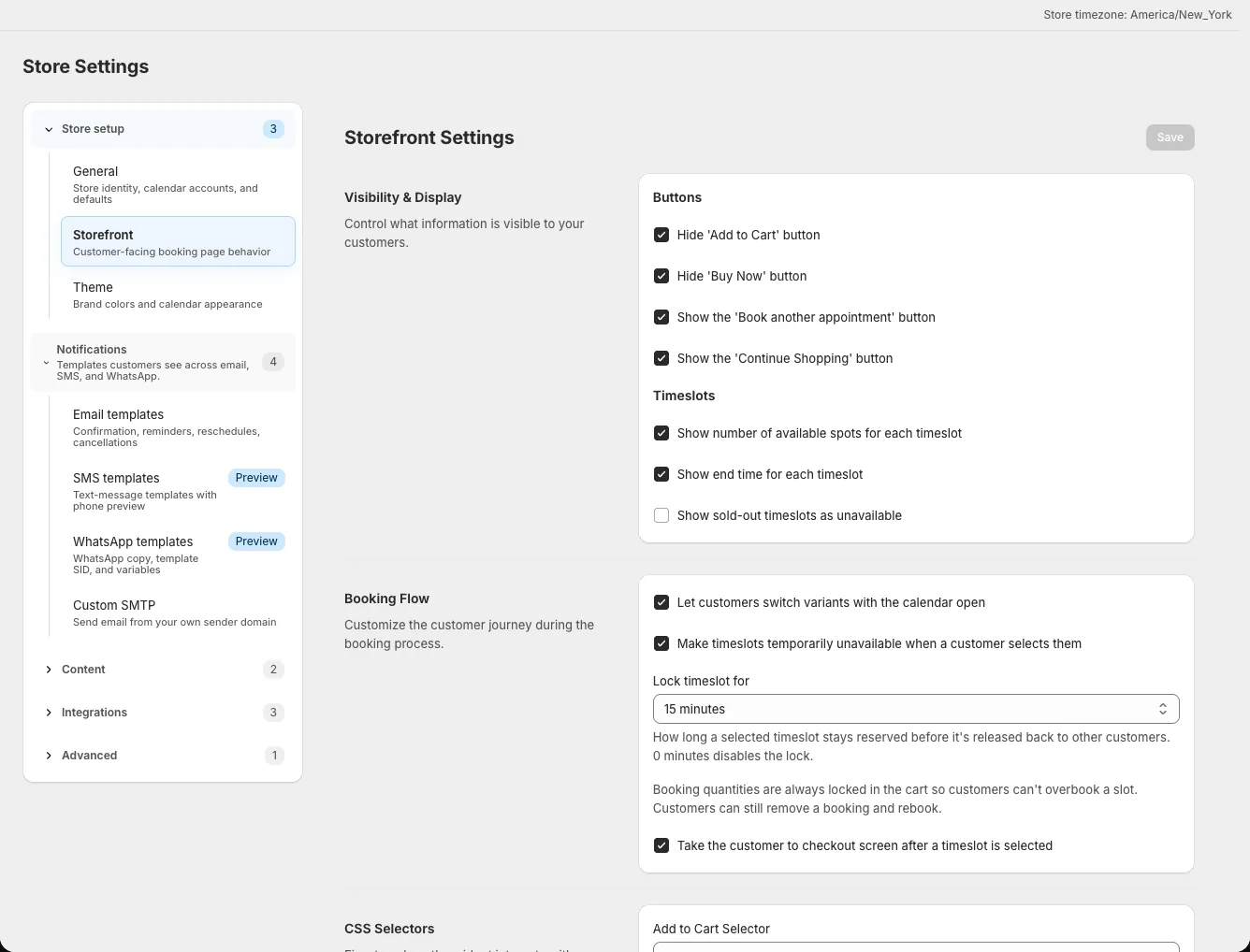
Settings → Storefront controls what customers see after choosing a bookable event or service. Change one group of options at a time and test on a live product page.
Choose buttons and labels
- Open Settings → Storefront.
- Under Visibility & Display, set Hide 'Add to Cart' button, Hide 'Buy Now' button, Show the 'Book another appointment' button, and Show the 'Continue Shopping' button as needed.
- Change Default Add to Cart Button Text if you want a different call to action, then click Save.
Check the resulting button on the actual product template. A theme can place its own purchase controls beside the booking widget.
Show timeslot information
Use Show number of available spots for each timeslot to display remaining capacity, Show end time for each timeslot for a time range, and Show sold-out timeslots as unavailable to keep full slots visible but unavailable. Save and view an event with both open and full slots to compare the result.
Configure the booking flow
Under Booking Flow, choose whether customers may switch variants with the calendar open. Make timeslots temporarily unavailable when a customer selects them holds a selected slot. Lock timeslot for sets the hold duration; 0 minutes disables it. An event can override the duration on its Advanced tab.
Take the customer to checkout screen after a timeslot is selected controls the direct checkout path. Test the complete cart or checkout flow after changing it. The widget also limits booking quantities in the cart, so shoppers can't book more than the capacity they selected.
Adjust a non-standard theme
Under CSS Selectors, use Add to Cart Selector and Buy Now Button Selector when the widget cannot identify your theme's buttons. Developer Customization provides Custom CSS Classes and Custom CSS. Start with the built-in behavior on Dawn or Horizon, then change selectors only for a specific theme conflict.