
Collect booking details and offer add-on products
Create reusable intake questions and offer Shopify product add-ons with an event booking.
On this page
Ask for information your team needs before an appointment and offer related products during booking. Create questions once, then attach them to the appropriate events.
Create an intake question
- Open Resources → Intake Questions and select Create new Intake Question.
- Choose the field type and write a clear prompt. Available types include Number, Email, Text, Date, Datetime, Dropdown, Multiple Choice, Confirmation Checkbox, and Signature.
- Turn on Set this field as required when the customer must answer.
- Select Create Field.
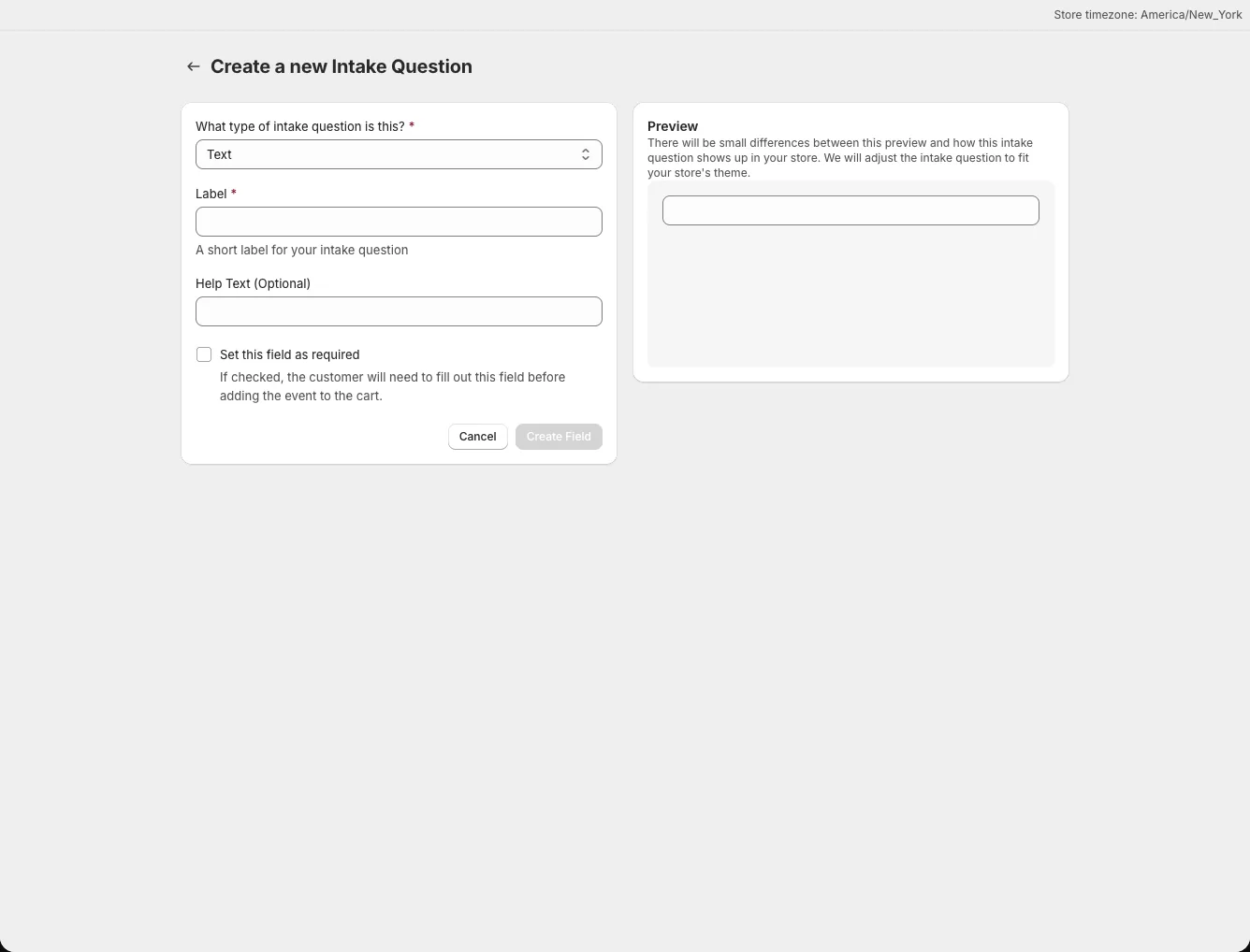
Use a confirmation checkbox for a yes/no acknowledgement and a signature field only when the booking needs one. Keep the prompt short and explain why you need sensitive information in your own store policy.
Attach questions to an event
Open the event's General tab and find Available Questions, or select questions during the creation flow's location and intake screen. Add the reusable questions relevant to this event, save, and complete a test booking in the live widget. Required answers are checked before a booking is accepted; do not rely on an optional field for essential information.
Find customer answers
Open the booking under Bookings → All Bookings and inspect its details. Use the answers to prepare for the visit or review a customer's request. Check a test booking first so your team knows where the fields appear.
Offer add-on products
- Create the add-on as a Shopify product with the variant you want to sell.
- Open the event and select Upsells.
- Turn on Enable Upsells, select Add Upsell Products, and choose the product variants.
- Save and test the storefront cart and checkout.
An accepted add-on appears as a separate Shopify line item in the order and does not consume a booking slot. The editor does not provide a before/after-slot placement or required/optional switch. If the event takes a deposit, test the cart carefully: with the default deposit setting, a deposit booking can't include upsells. Turning on Use the Shopify Discount Function for deposits (V2) (beta) removes that limit. See Payment types and deposits.