
Refund a booking and update its payment status
Record money received outside Shopify and use cancellation options for a real Shopify refund.
On this page
The payment status on a booking helps your team track what has been paid. Changing it only updates the record in the app. To return money to the customer, refund them on Shopify when you cancel the booking.
Read the payment status
Open a booking under Bookings → All Bookings. Its payment badge may show Paid, Pending, Partially Paid, Unpaid, or Refunded. Compare the badge with the Shopify order before taking action. A pending or unpaid booking has no paid amount to refund through the booking cancel dialog.
Record a payment collected elsewhere
- Open the booking detail page.
- Change Payment status to the state that matches money actually collected.
- Read the confirmation warning and confirm the change.
Refund while cancelling a booking
- Open the paid booking and start Cancel.
- In the cancellation dialog, select Also refund this booking on Shopify if it is offered.
- If the order contains other items, choose whether to refund only this booking's line item or the whole order when your permissions allow it.
- Confirm cancellation, then verify the Shopify refund and booking status.
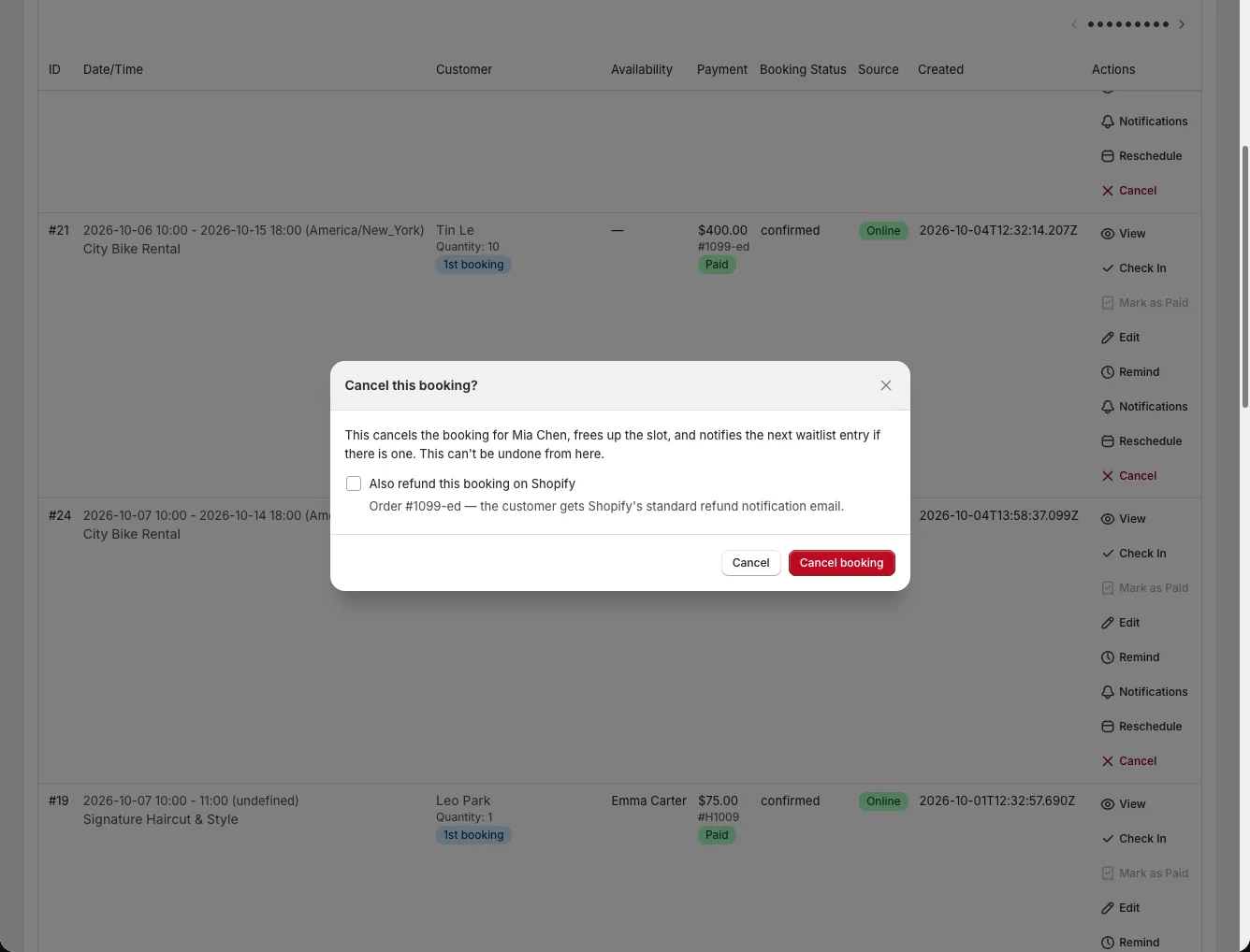
The full-order option can require broader booking-management permission. When a refund fails, the booking can still be cancelled; the error reports that the refund failed. Check Shopify before retrying or promising the customer a refund.
Set automatic refunds carefully
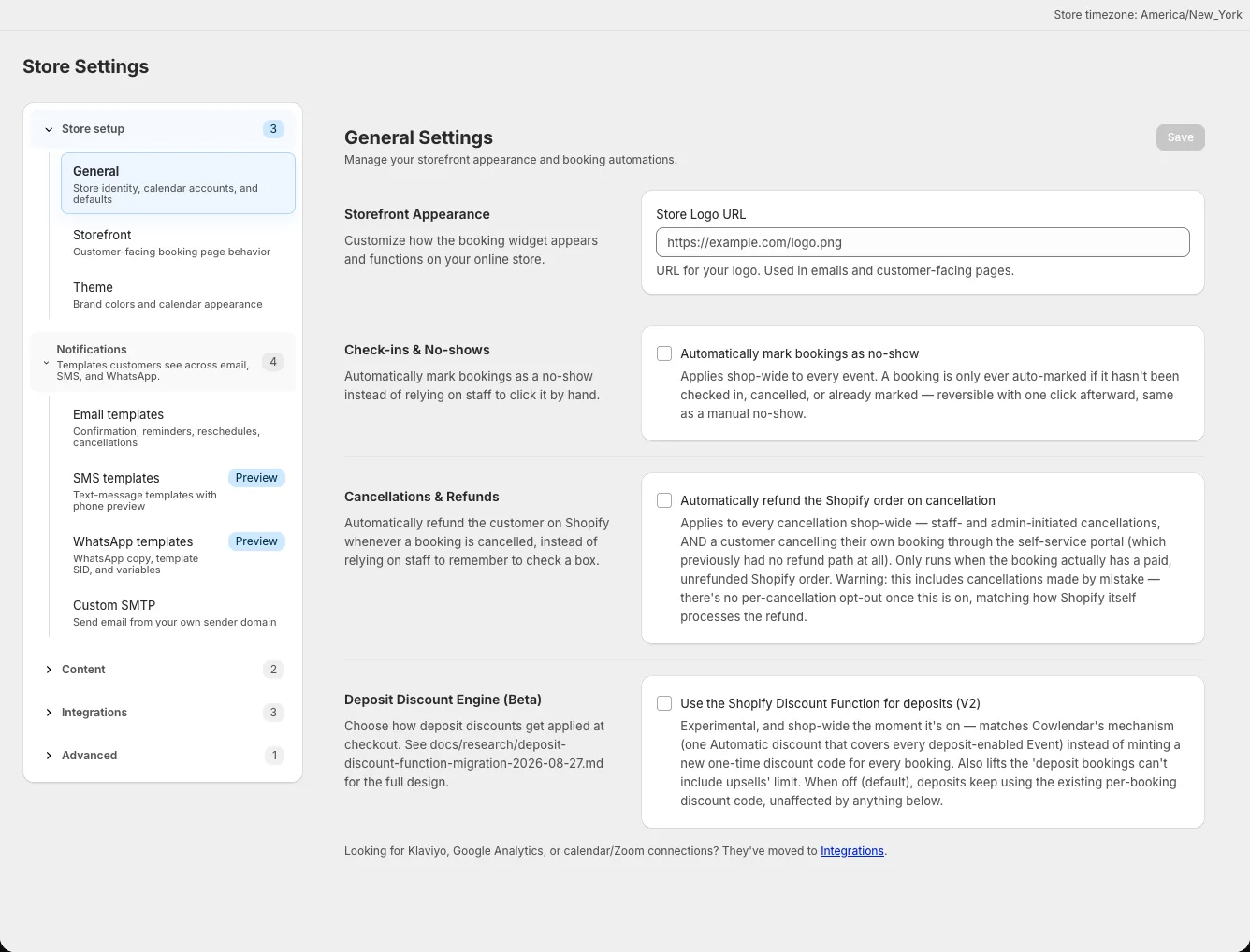
Open Settings → General, turn on Automatically refund the Shopify order on cancellation, and choose What to refund. This shop-wide policy applies to eligible paid Shopify orders when an admin, staff member, or customer cancels through the supported paths. The cancellation dialog then explains the automatic refund instead of offering a redundant checkbox.
When there is nothing to refund
For a Pending or Unpaid booking, the cancel dialog explains that there is no paid Shopify amount to refund. You can still cancel the booking. Review its Shopify order separately if the badge and order disagree.