
Where offers appear
The Placements page shows every place shoppers can see your offers, and switches each one on or off.
On this page
Nothing here needs theme code.
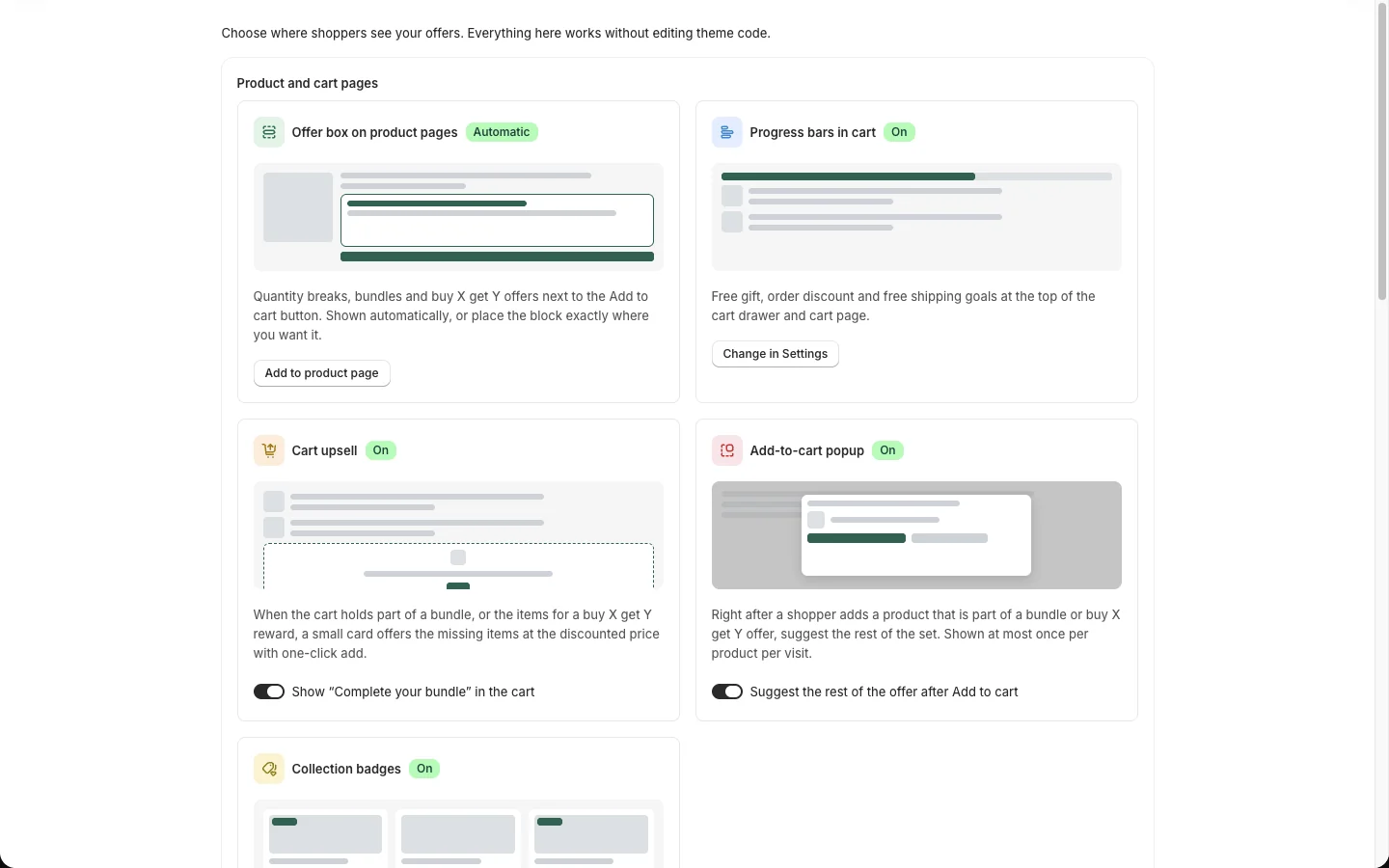
Product and cart pages
Offer box on product pages
Quantity breaks, bundles and Buy X get Y offers show in a box next to the Add to cart button.
- Automatic (default): the box is placed just above Add to cart.
- To place it yourself, click Add to product page: the theme editor opens; add Apps → Offer box in the product information section, drag it where you want it and click Save. When the block is on the page, the automatic box is not added.
Progress bars in cart
Free gift, spend-more and free shipping goals show at the top of the cart drawer and the cart page ("Spend $18.00 more for free shipping"). Switch them under Settings (Settings), or in the app embed.
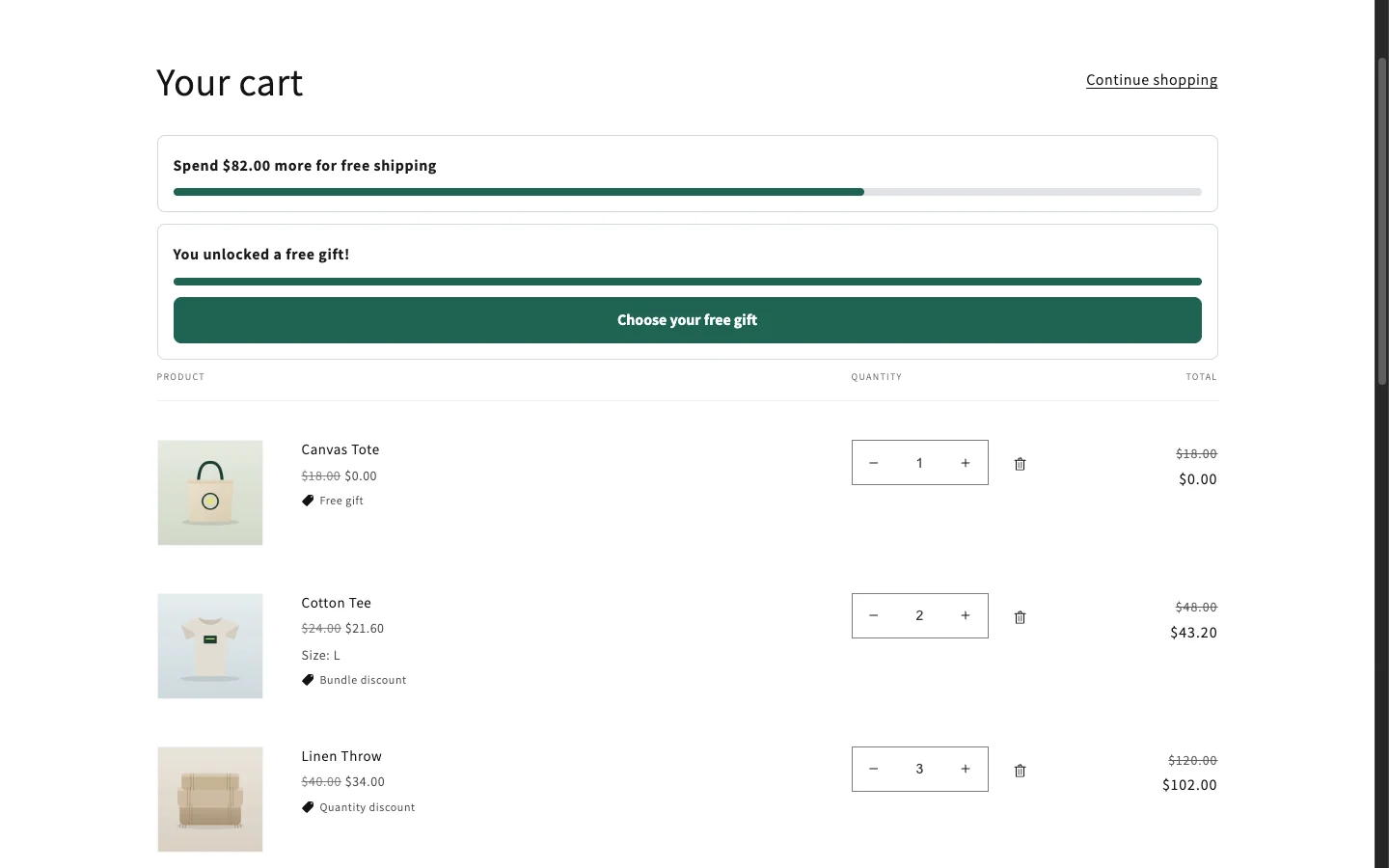
To show a progress bar somewhere else (for example on the cart page under the items), add the Offer progress bar block in the theme editor.
Cart upsell
When the cart holds part of a bundle, or the items for a Buy X get Y reward, a small card offers the missing items at the discounted price with one-click add ("Complete your bundle and save 15%").
Switch: Show "Complete your bundle" in the cart.
Add-to-cart popup
Right after a shopper adds a product that is part of a bundle or Buy X get Y offer, a popup suggests the rest of the set. It shows at most once per product per visit.
Switch: Suggest the rest of the offer after Add to cart.
Collection badges
Small labels such as "Bundle & save" or "Free gift" on product cards in collections and search results. Skipped on themes whose product cards are not recognized.
Switch: Show badges on product cards.
Floating deals button
A button on the edge of the screen on every page, with the shopper's progress to the next reward and a panel listing your deals. See Floating deals button.
Theme blocks
Under Anywhere in your store on the Placements page, and in the theme editor under Add block / Add section → Apps:
| Block | What it shows | Settings |
|---|---|---|
| Offer box | The offers of the current product (product pages) | — |
| Offer progress bar | Goal progress for gifts, spend-more and free shipping | — |
| Deals showcase | A grid of your active bundles and deals | Heading, Offers to show (all, bundles, Buy X get Y, quantity breaks), maximum offers |
| Single offer | One bundle or Buy X get Y offer on any page: homepage, landing page, blog post or cart | Offer ID (copy it from Placements) |
| Flash sale | A flash sale with its countdown and products | Heading, Flash sale ID, products to show (Flash sales) |
Build a "Bundles & deals" page
- In Shopify admin, go to Online Store → Pages → Add page, name it "Bundles & deals" and save.
- Go to Online Store → Themes → Customize, open the page template, and click Add section → Apps → Deals showcase.
- Choose which offers to show and click Save.
- Add the page to your menu under Online Store → Navigation.