
Show or hide fields with conditional logic
Set conditions on a field or group of fields so they appear only when they are relevant. Available on the Pro and Advanced plans.
Conditional logic shows or hides a field — or a group of fields — depending on how the visitor answers other fields. Use it to keep long forms short: only ask for a company name if the visitor says they're a business, for example.
Add a condition to a field
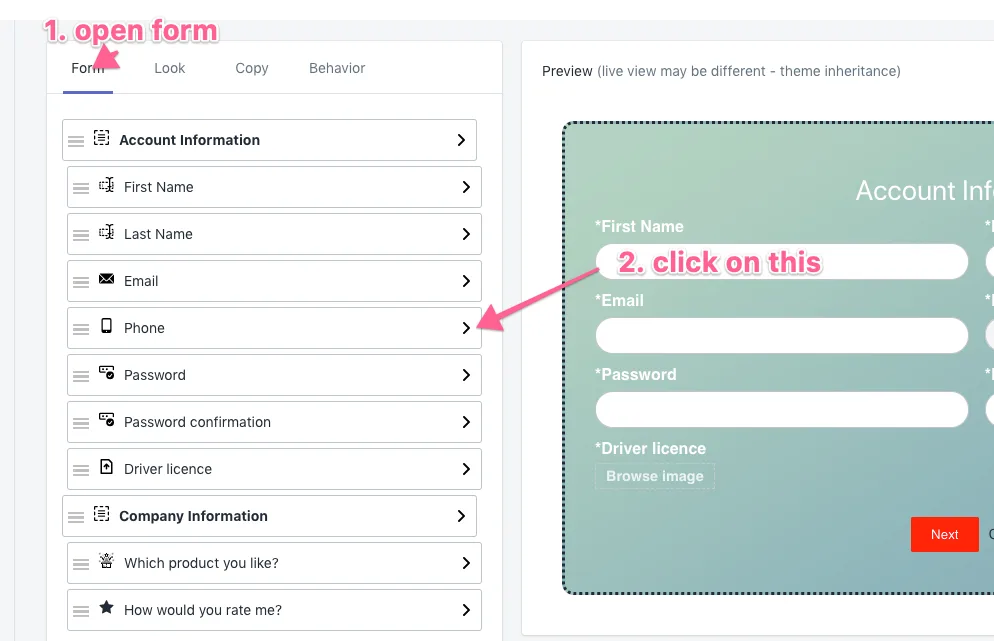
- Open the form in edit mode and click the field (or field group) in the Form tab.
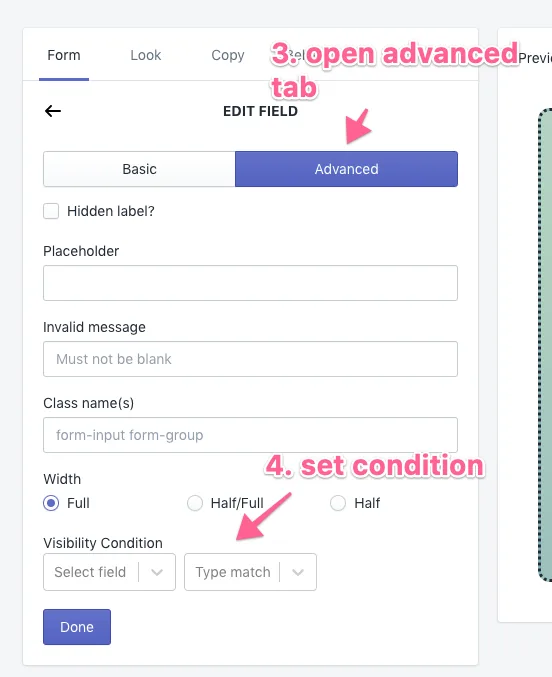
- Open the Advanced tab of the field settings.
- Under Visibility condition, choose the field to check and the value it must match.
- Click Done and save the form.
Check the preview: the field now appears only when its condition is met.