
Free gifts
Reward bigger carts with a free product.
On this page
Two templates:
- Free gift over a spend: the gift is added to the cart automatically when the cart qualifies, and removed again if it no longer does.
- Choose a free gift: once the cart qualifies, shoppers click Choose your gift and pick one gift from your list.
Available on every plan.
Create a free gift over a spend
- Go to Offers → Create offer and click Use template under Free gift over a spend (or type
Free gift over $75and click Build it). - Name, for example "Free tote over $75", and Discount message ("Free gift").
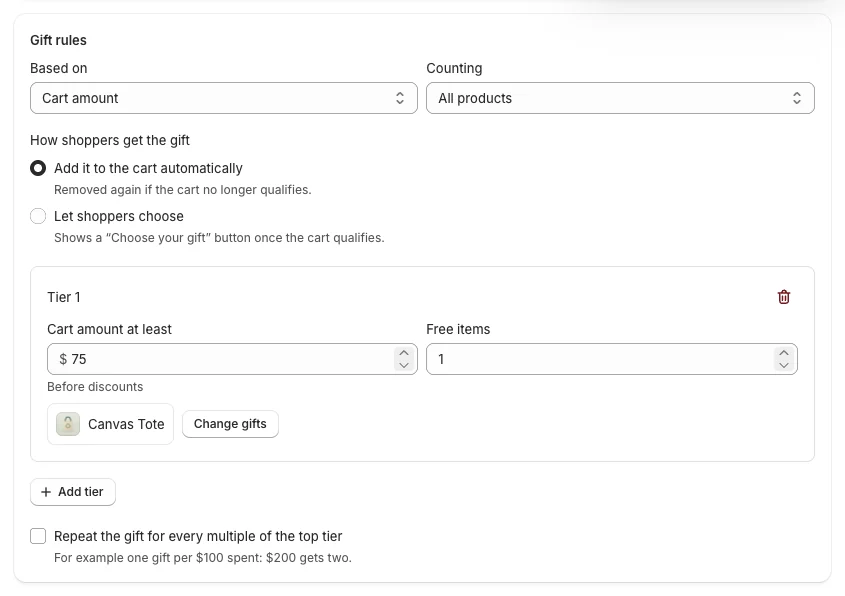
- In Gift rules:
- Based on: Cart amount (spend $75) or Number of items (buy 3 items).
- Counting: All products, or only Specific products / Specific collections count toward the goal.
- How shoppers get the gift: Add it to the cart automatically (removed again if the cart no longer qualifies) or Let shoppers choose.
- Click Add tier, then set Cart amount at least (75) and click Choose gifts to pick the gift product. Add more tiers for bigger gifts (a mug over $75, a blanket over $150).
- Repeat the gift for every multiple of the top tier: one gift per $100 spent, so $200 gets two.
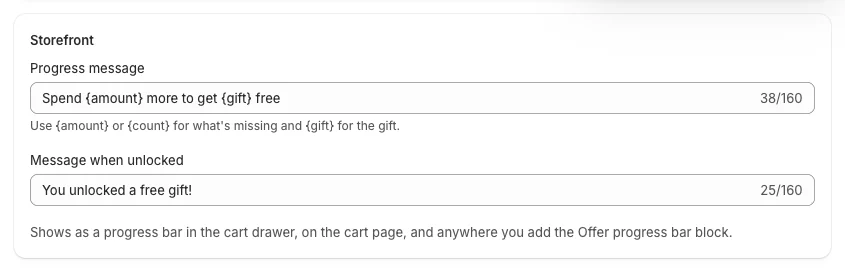
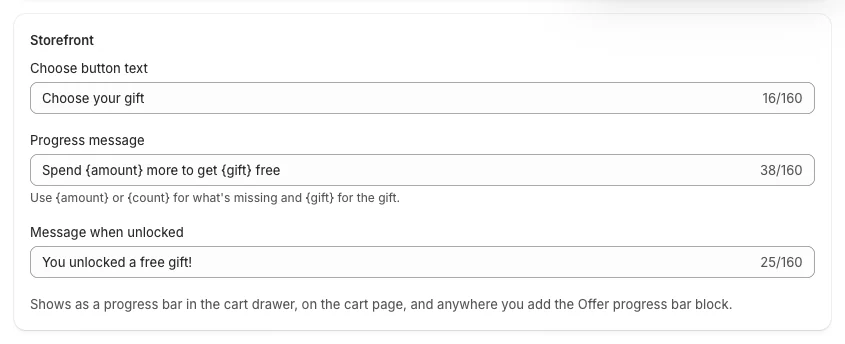
- Storefront: the Progress message ("Spend {amount} more to get {gift} free") and the Message when unlocked ("You unlocked a free gift!").
- Click Create offer.
Create a "choose a free gift" offer
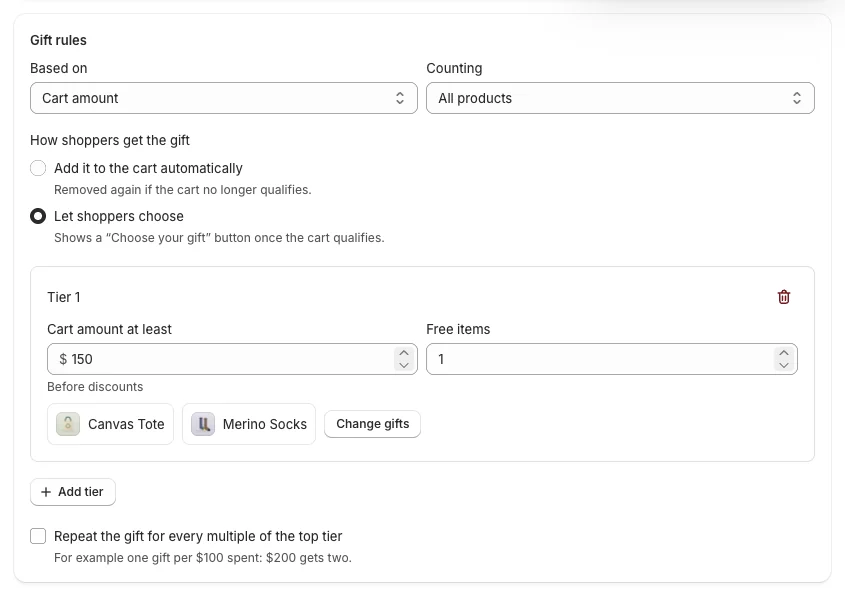
Same steps with the Choose a free gift template. How shoppers get the gift is Let shoppers choose:
- In each tier, Choose gifts and pick several products; set Free items (how many the shopper can pick).
- With several tiers, Gift tiers decides what shoppers get: Gifts of the highest tier reached or Gifts of every tier reached.
- Storefront adds Choose button text ("Choose your gift").
What shoppers see
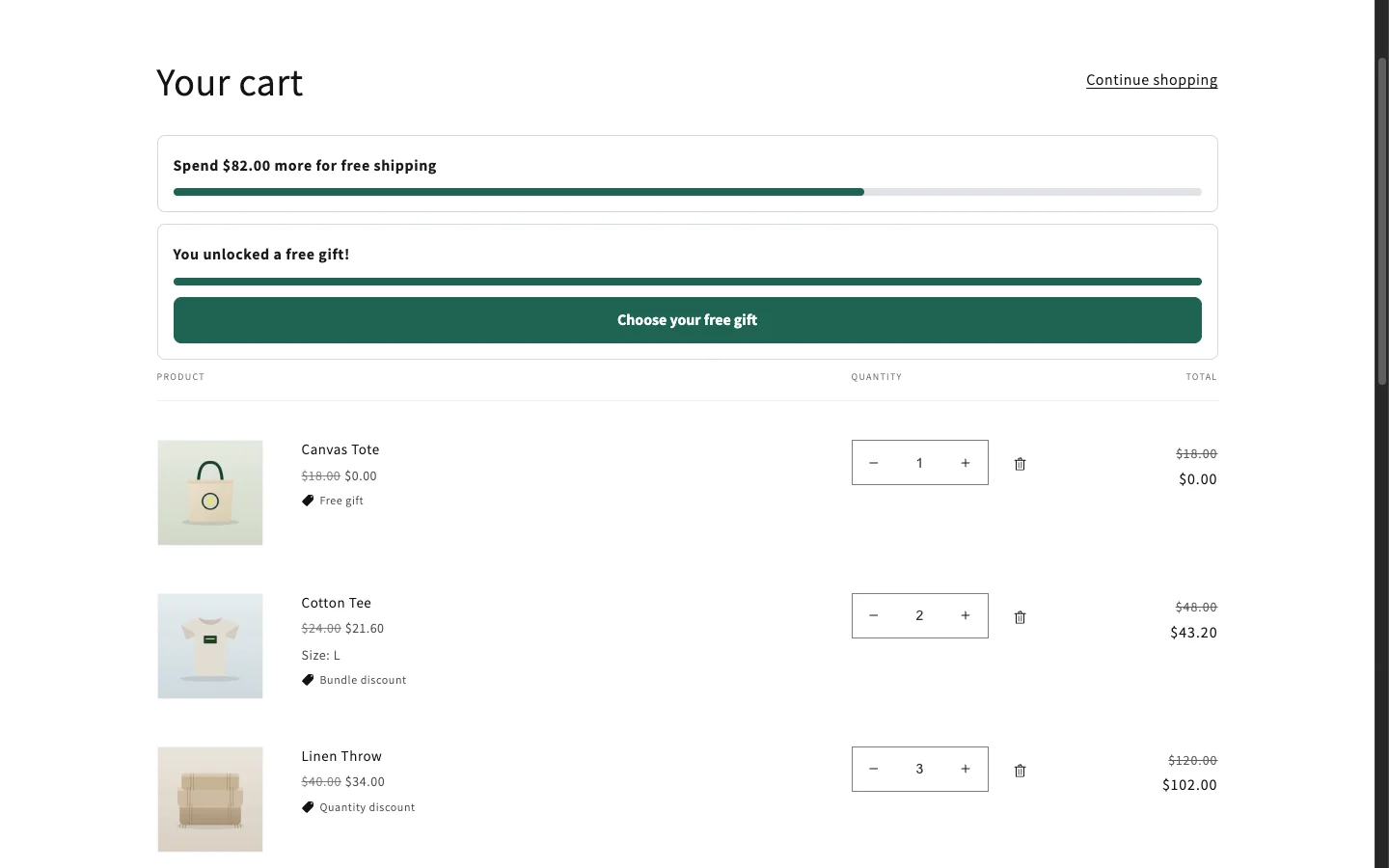
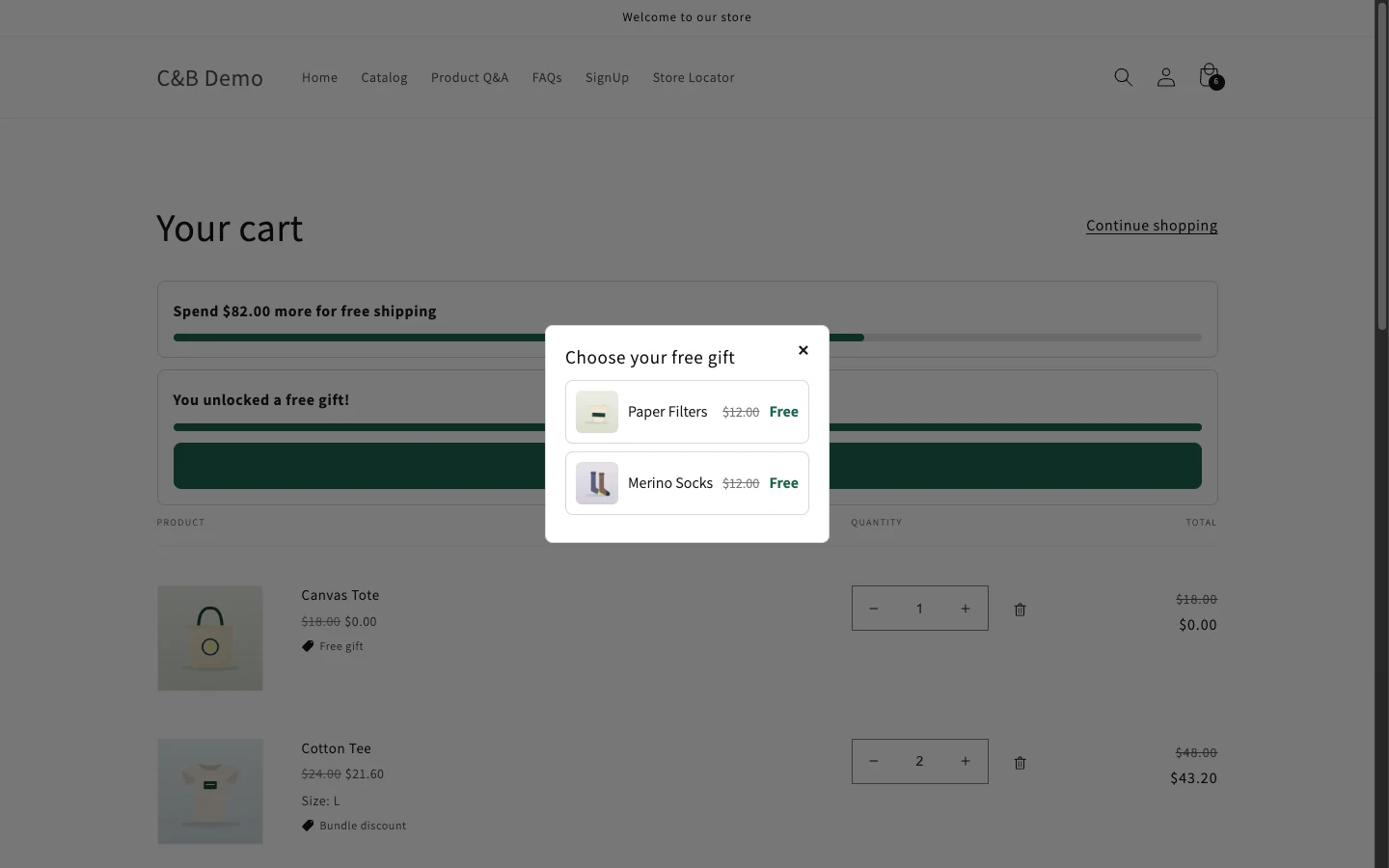
- In the cart drawer and on the cart page: a progress bar toward the gift ("Spend $57.00 more to get Canvas Tote free").
- Automatic gift: once the cart qualifies, the gift is added at $0 with a "Free gift" label. If the cart drops below the goal, the gift is removed.
- Choose a gift: the bar shows Choose your gift; the picker lists your gifts and the shopper picks one.
- The floating deals button (Floating deals button) shows the same progress on every page.
Good to know
- Only gifts that Kitalo adds are free, and only while the cart still qualifies. A gift product the shopper adds themselves is charged as usual.
- The goal uses the cart subtotal before discounts.
- Quantity breaks, bundles and BOGO are created with Other product discounts off. Turn it on on those offers so the free gift can apply together with them (Combinations).
- If a discount code that does not combine with the gift is in the cart, Kitalo removes the gift and tells the shopper in the cart.
- Free gifts cannot be A/B tested and have no maximum discount.