
Give staff their own login with the Staff Portal
Invite employees to manage the bookings and availabilities you grant them without sharing Shopify access.
On this page
The Staff Portal gives employees a separate booking login. Create availabilities first so you can choose the schedules each person should access.
Invite a staff member
- Open Staff in the app navigation.
- Enter their Name and Email.
- Choose Access and select Which availabilities they can see and manage.
- Click Send invite.
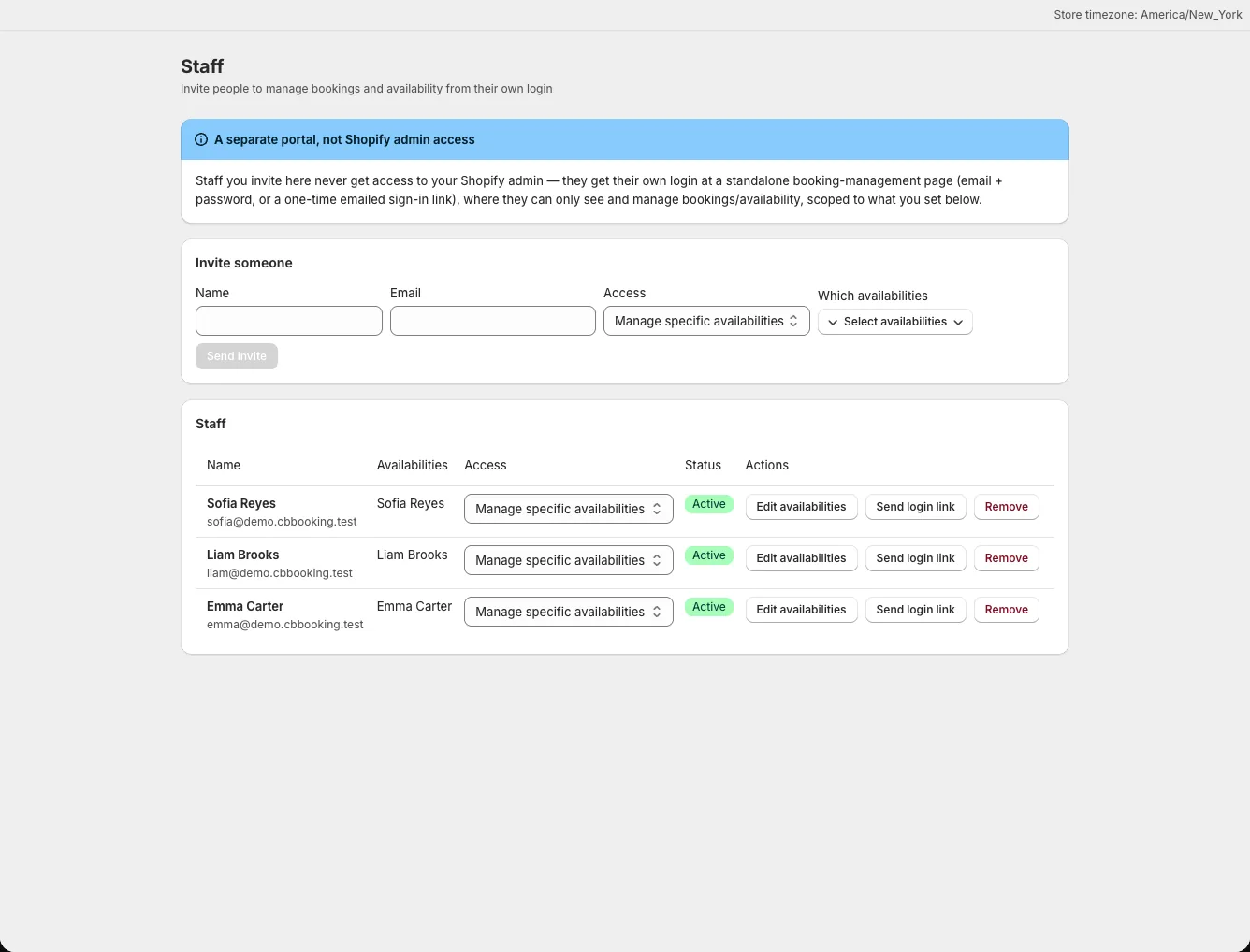
The invite lets the employee set their own password. You do not create a temporary password for them. You can resend an invite or revoke access from the staff list.
Scope their access
A staff member with access limited to selected availabilities sees bookings tied to those schedules. Choose the appropriate Access role before sending the invite, and review it when their duties change. A role that can manage all bookings has broader booking access than a schedule-limited role.
Sign in to the Staff Portal
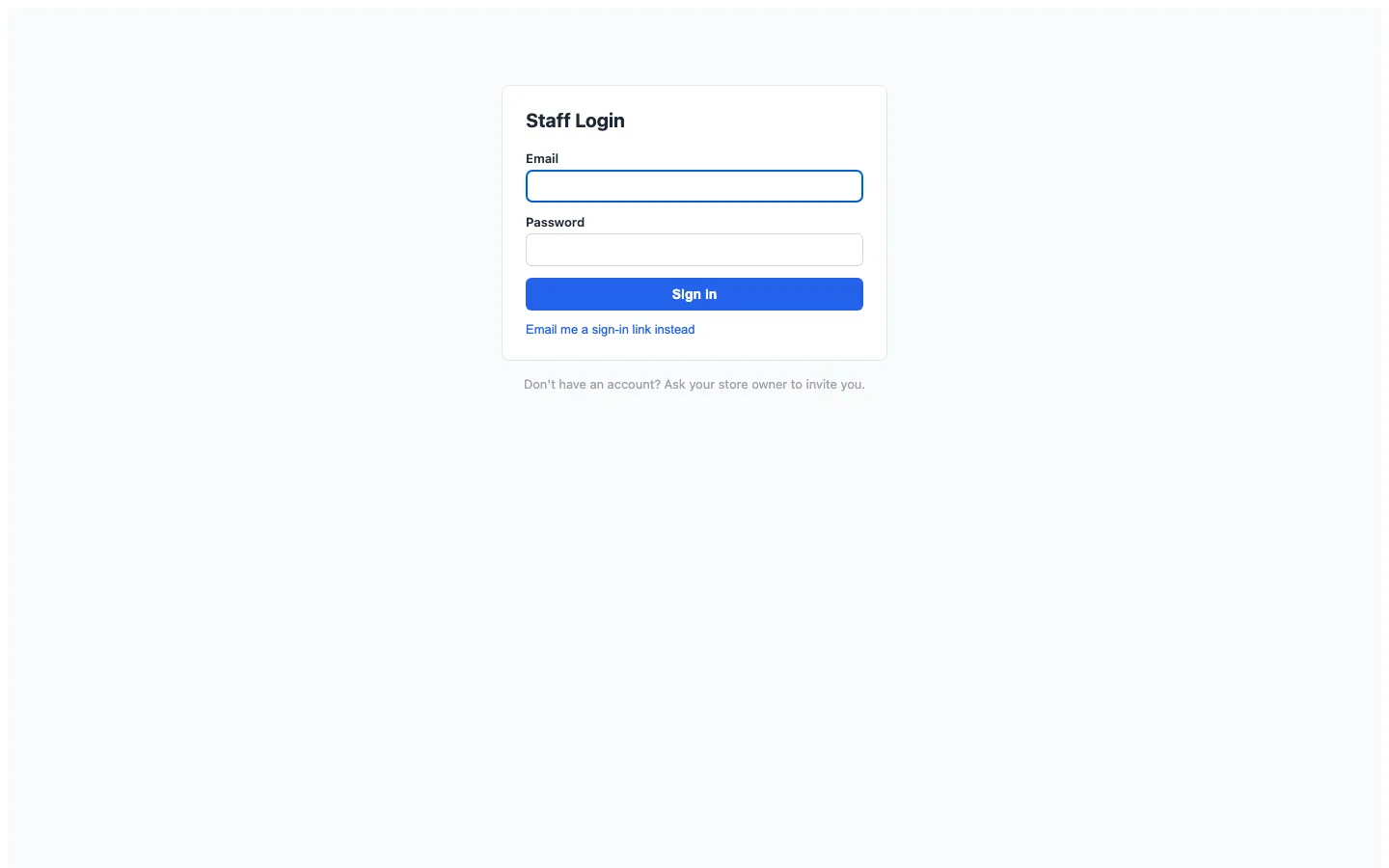
Staff sign in at https://bookings.cleverbooster.com/staff/login, separately from Shopify admin. The invitation email opens a page where they set their password; after that, they should bookmark the sign-in page. After accepting the invitation and setting a password, they can use email and password or request a one-time email sign-in link. A sign-in link opens a confirmation page; the employee clicks Continue signing in to complete it.
Manage bookings and schedules
The portal has a filtered bookings list, booking details, intake answers, notes, rescheduling and cancellation actions. Staff can check customers in or out, mark no-shows, and open the QR scanner to look up a booking before taking an attendance action. Schedule editing depends on the access granted to them.
In Account, staff can change their password and sign out other sessions. They cannot use the portal to open your Shopify admin or change app billing.