
Bundles and frequently bought together
Sell 2 to 6 products together at a bundle discount, with one Add bundle to cart button.
Frequently bought together is the same offer with a smaller default discount, for a main product and its add-ons. Available on every plan.
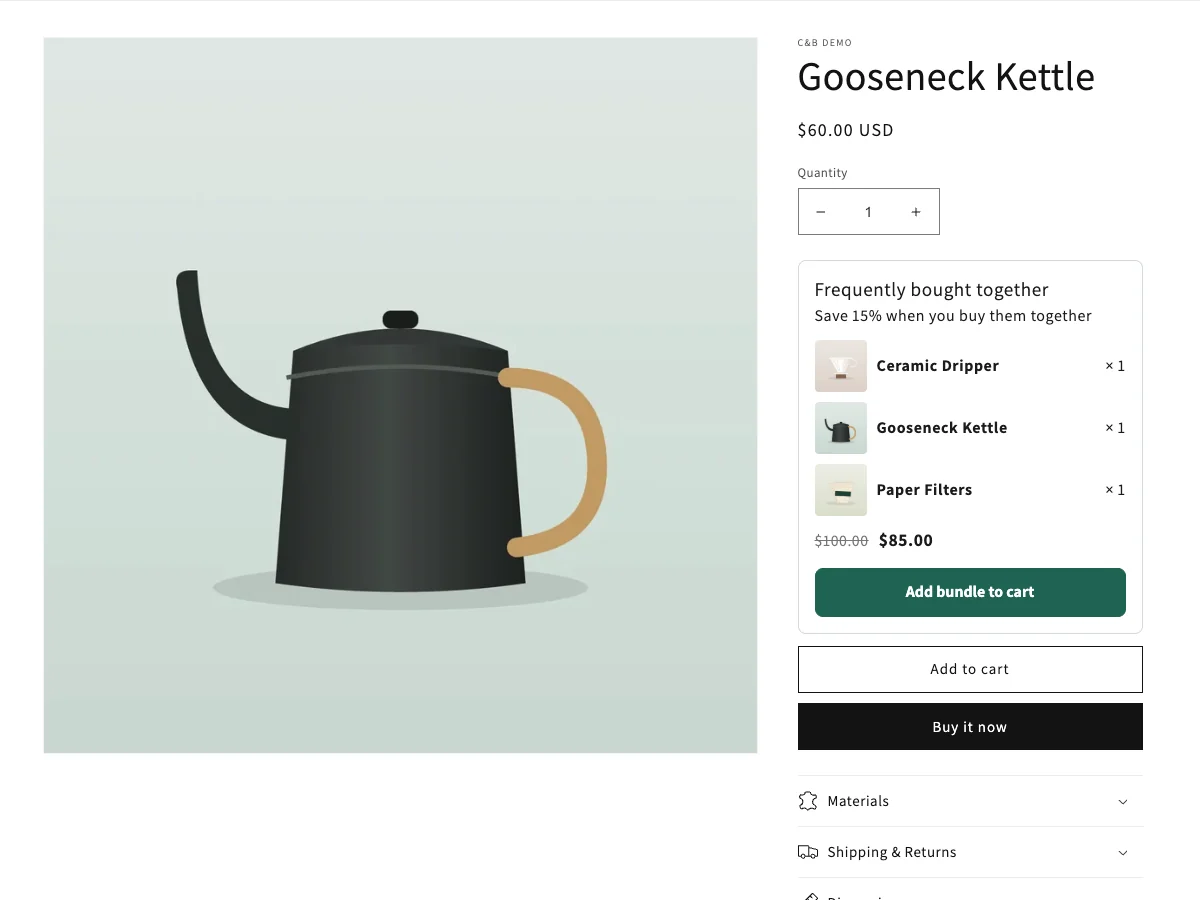
Create a bundle
- Go to Offers → Create offer and click Use template under Product bundle (or Frequently bought together).
- Name, for example "Pour-over set", and Discount message, for example "Bundle discount".
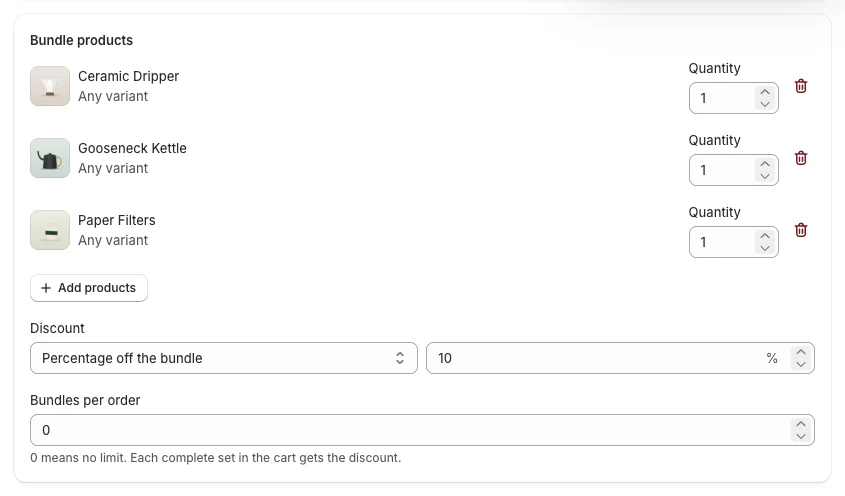
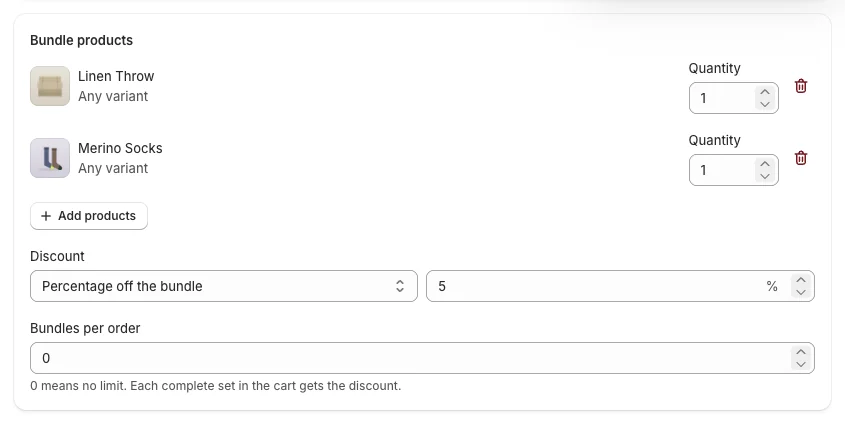
- In Bundle products, click Add products, tick 2 to 6 products in the picker and click Select.
- Each product shows Any variant or the variants you picked, and a Quantity (how many of it are in one set).
- Use the trash icon to remove a product.
- Discount: Percentage off the bundle, Amount off the bundle or Bundle price (the whole set for a fixed price), and the value.
- Bundles per order: 0 means no limit (each complete set in the cart gets the discount); 1 means once per order.
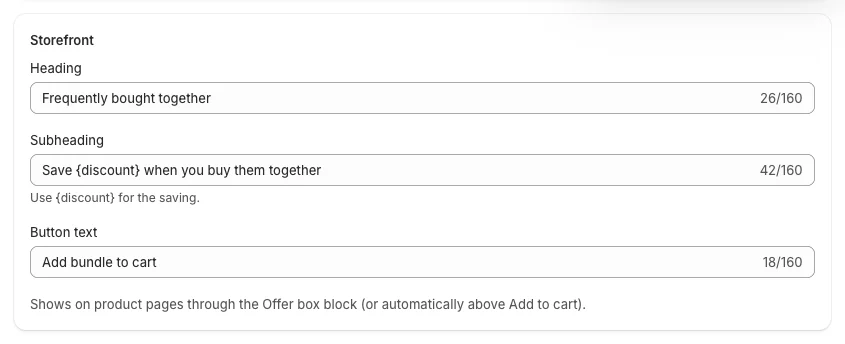
- Storefront: Heading ("Frequently bought together"), Subheading ("Save {discount} when you buy them together") and Button text ("Add bundle to cart").
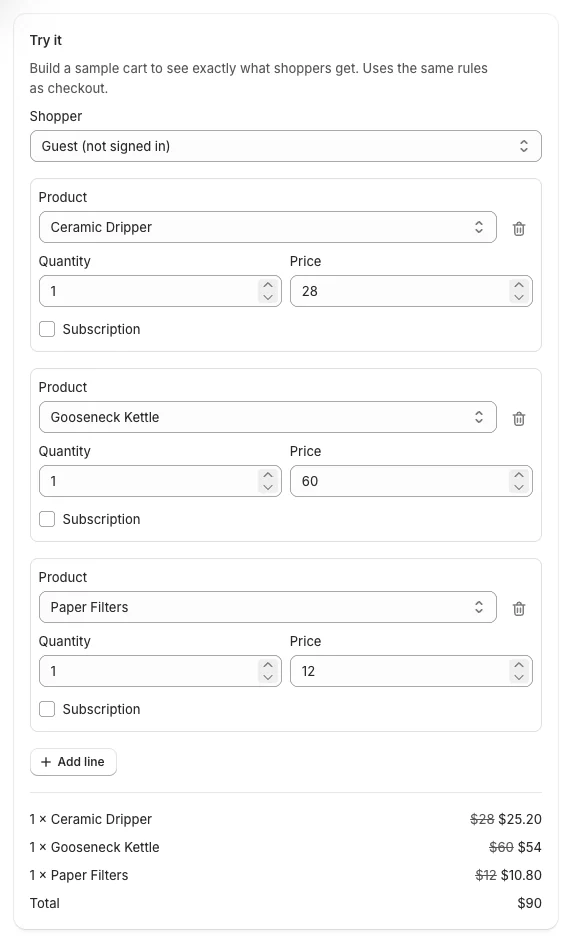
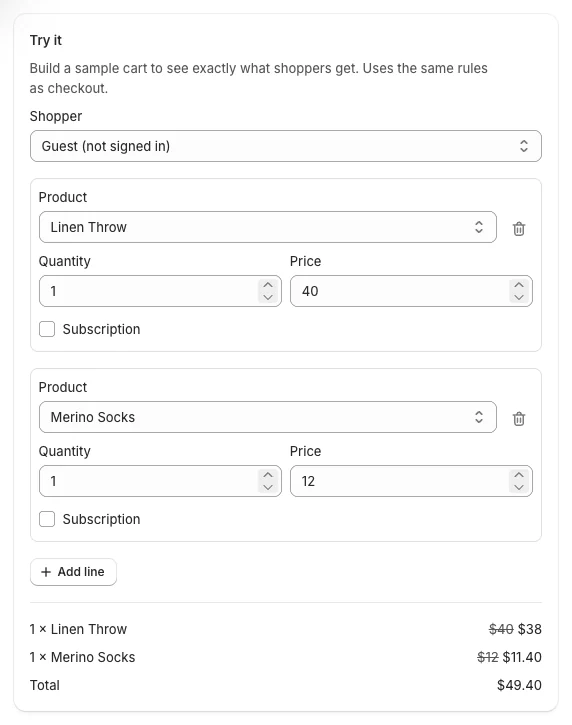
- Check Try it: the sample cart holds one of each product, with the bundle price.
- Click Create offer.
Frequently bought together
The template starts with 5% off and the same texts. Add the main product first, then its add-ons:
What shoppers see
- The bundle box shows on the product page of each product in the bundle: the items, the set price and the regular price struck through, and Add bundle to cart.
- Products with variants get a menu for each item, so shoppers pick the size or color before adding.
- Add bundle to cart adds every item in one click. What happens next (open the cart drawer, go to the cart page or stay) is set in the app embed (Getting started).
- The discount also applies when a shopper adds the items one by one. If the cart holds part of a bundle, the cart upsell card offers the missing items (Where offers appear).
Good to know
- A product in a bundle and in a quantity break gets one product discount per unit, not both. Turn on Other product discounts on both if they should stack on different units (Combinations).
- To feature a bundle anywhere (homepage, landing page), use the Single offer or Deals showcase theme block (Where offers appear).