
Fix a booking calendar with no available times
Check assigned schedules, capacity rules, timezones, and Debug Timeslots when a widget shows no bookable slots.
On this page
If the widget appears but offers no time, inspect the schedule and run the diagnostics tool.
Symptom: Widget shows no bookable slots
Check 1: The assigned schedule
- Check: The event might lack an assigned schedule. The selected day might be outside the normal schedule.
- Fix:
- Open Events/Services.
- Select the event and open Availability.
- Verify an availability is assigned.
- Open that availability under Resources → Availabilities.
- Check its hours and timezone.
- Confirm the event is active.
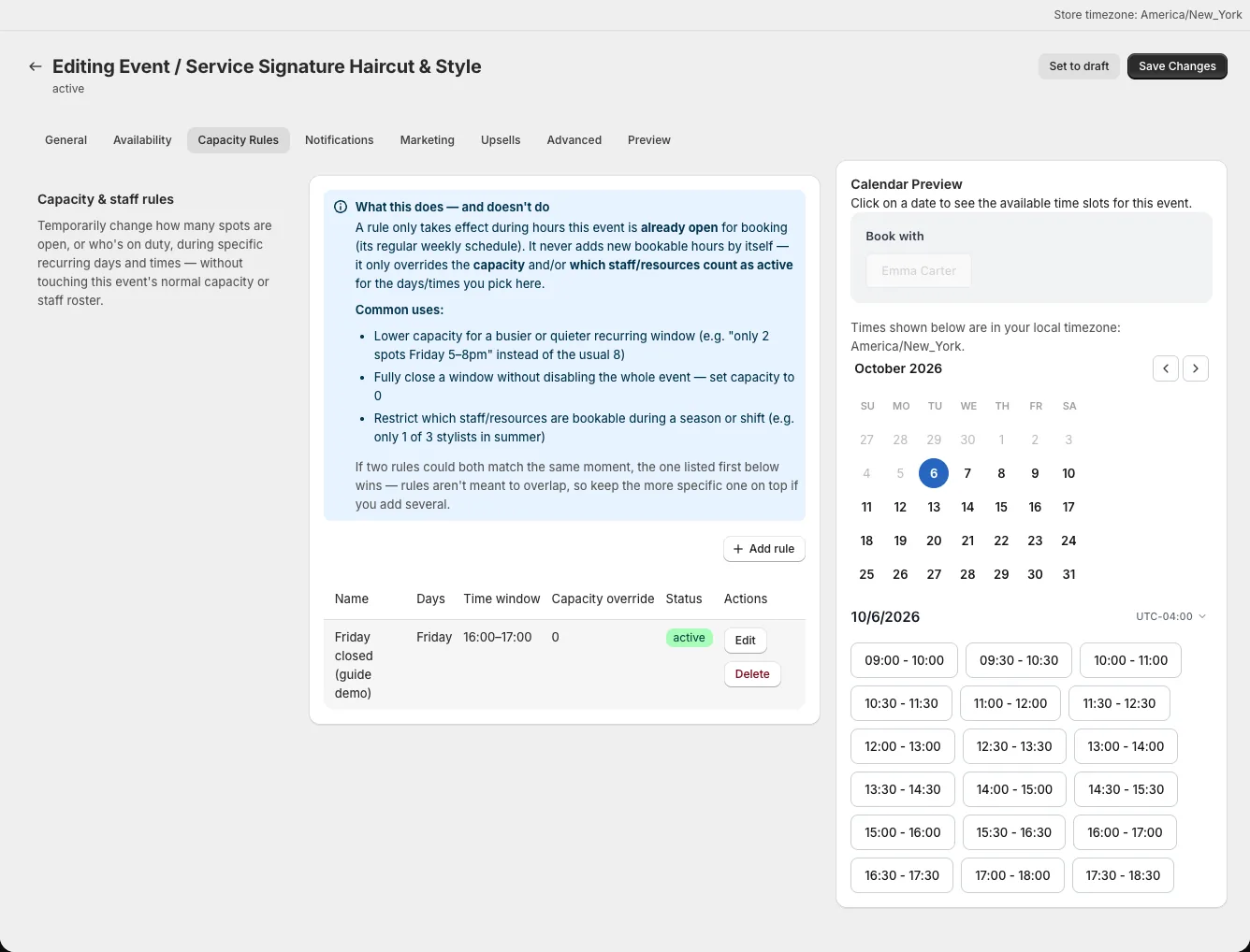
Check 2: Capacity Rules
- Check: A capacity rule might close a time window. A rule with 0 capacity overrides the weekly schedule.
- Fix:
- Open the event's Capacity Rules tab.
- Find any rule with capacity set to 0.
- Review the rule's days, time window, and ordering.
- Delete or edit the rule to open the time.
Check 3: The schedule timezone
- Check: The availability timezone might differ from your browser timezone. A time can look open but fall on another day in the schedule timezone.
- Fix: Compare the availability timezone, event default timezone mode, and the tested date. See Fix wrong booking times.
Check 4: Debug Timeslots
- Check: You need to find the exact reason a slot is hidden.
- Fix:
- Open Settings → Debug Timeslots.
- Select the Event and Date.
- Click Run diagnostic.
- Read Status, Booked / Capacity, and Reason(s) hidden.
- Correct the reported issue.
- Reload the live product page.
Include the event, date, timezone, and the reported hidden reason if you contact support.