
Track the booking funnel in Google Analytics 4
Configure GA4 Measurement Protocol and choose the booking events to forward.
On this page
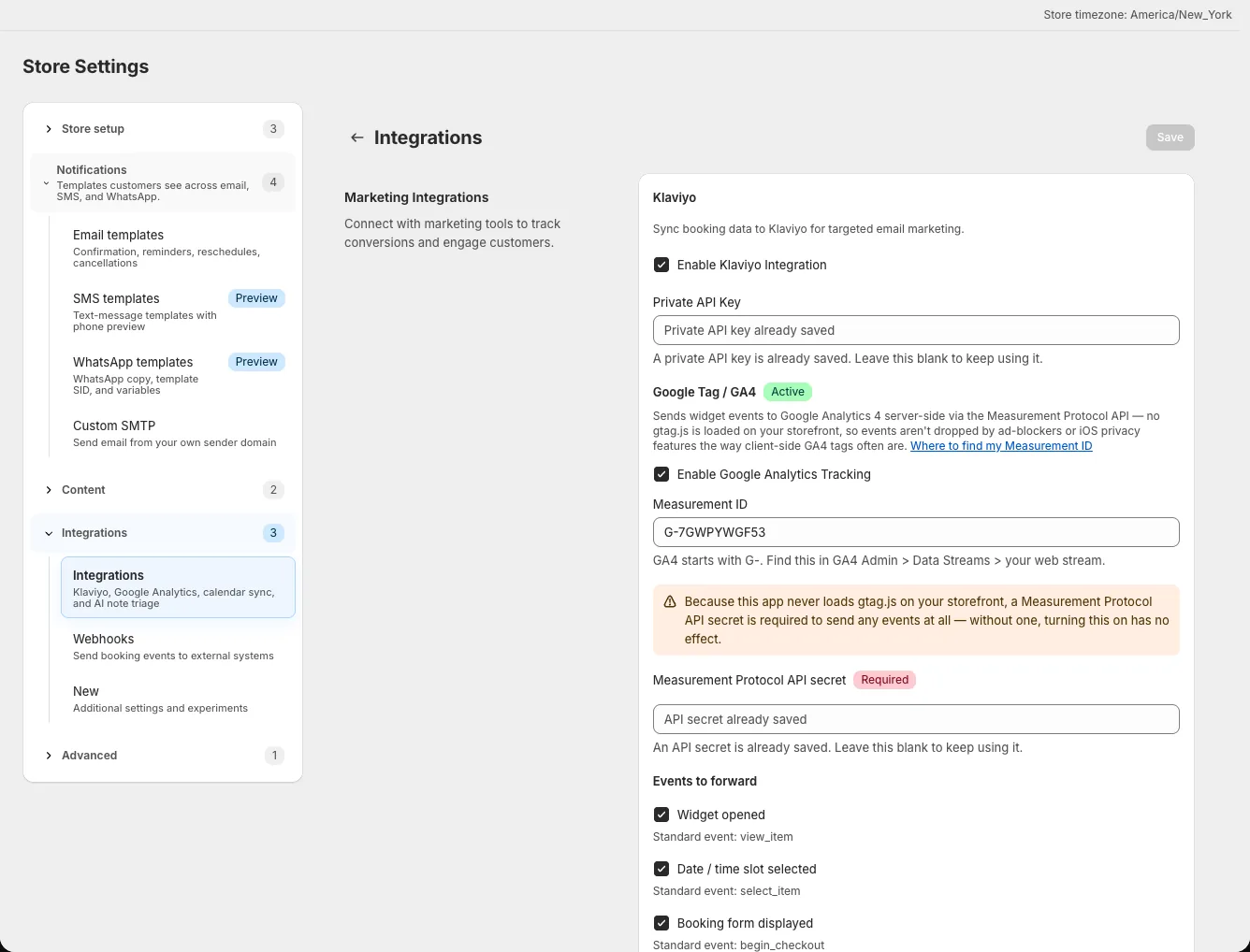
Connect GA4 to measure widget and booking actions. You need a GA4 web stream's Measurement ID and Measurement Protocol API secret; turning on the switch without the secret sends no events.
Connect GA4
- Open Settings → Integrations and find Google Tag / GA4.
- Turn on Enable Google Analytics Tracking.
- Enter the Measurement ID from GA4 Admin → Data Streams.
- Create a Measurement Protocol API secret for that web stream in GA4 and enter it in the app.
- Click Save.
The saved secret is not shown again. Leave its field blank on later edits to keep the stored value.
Choose events to forward
Under Events to forward, select the events that match your measurement plan: Widget opened (view_item), Date / time slot selected (select_item), Booking form displayed (begin_checkout), Added to cart (add_to_cart), Booking confirmed (purchase), Booking rescheduled (booking_rescheduled), and Booking cancelled (booking_cancelled). Save after changing the checkboxes.
Understand widget and checkout tracking
The widget sends its booking events to the app backend, which forwards enabled events to GA4 through Measurement Protocol. It does not require adding gtag.js to the storefront. The app also installs a Shopify web pixel for standard commerce events, visible under Shopify Settings → Customer events. You do not paste a custom pixel script for this app.
Check results in GA4
Use a demo booking and inspect Realtime in GA4. Allow for reporting delay, then compare the event names with the checkboxes you enabled. If nothing arrives, check the Measurement ID, required secret, and the integration switch before changing your storefront theme.