
Choose pooled or per-teammate capacity
Decide whether assigned staff share an event capacity or customers choose a teammate with an individual slot.
On this page
When several people can deliver one event or service, decide how bookings use their schedules. Assign the relevant availabilities before choosing the mode.
Use per-service capacity for a shared pool
Per service (default) — best for a team of 1 applies the event's attendee limit to each time slot as a shared pool. Customers select a time without selecting a particular teammate. Use it when any available qualified person can fulfil the booking, or when the event represents a group class with a shared limit.
Check the event's slot capacity as well as the assigned schedules. The number of people assigned does not automatically mean that every person can accept unlimited simultaneous bookings.
Use per-teammate capacity for individual choices
Per teammate — best for a team of 2-99 gives each assigned teammate an independent one-booking-per-slot pool. The storefront widget lets the customer choose a person. A booking for one teammate does not consume another teammate's slot at the same time. The selected teammate still has to be available for that time.
Set the mode on the event
- Open the event in Events/Services.
- Select Availability and find Capacity & Rules.
- Confirm the intended people are assigned, then choose the per-service or per-teammate option.
- Save and test the widget at a time when at least two teammates are available.
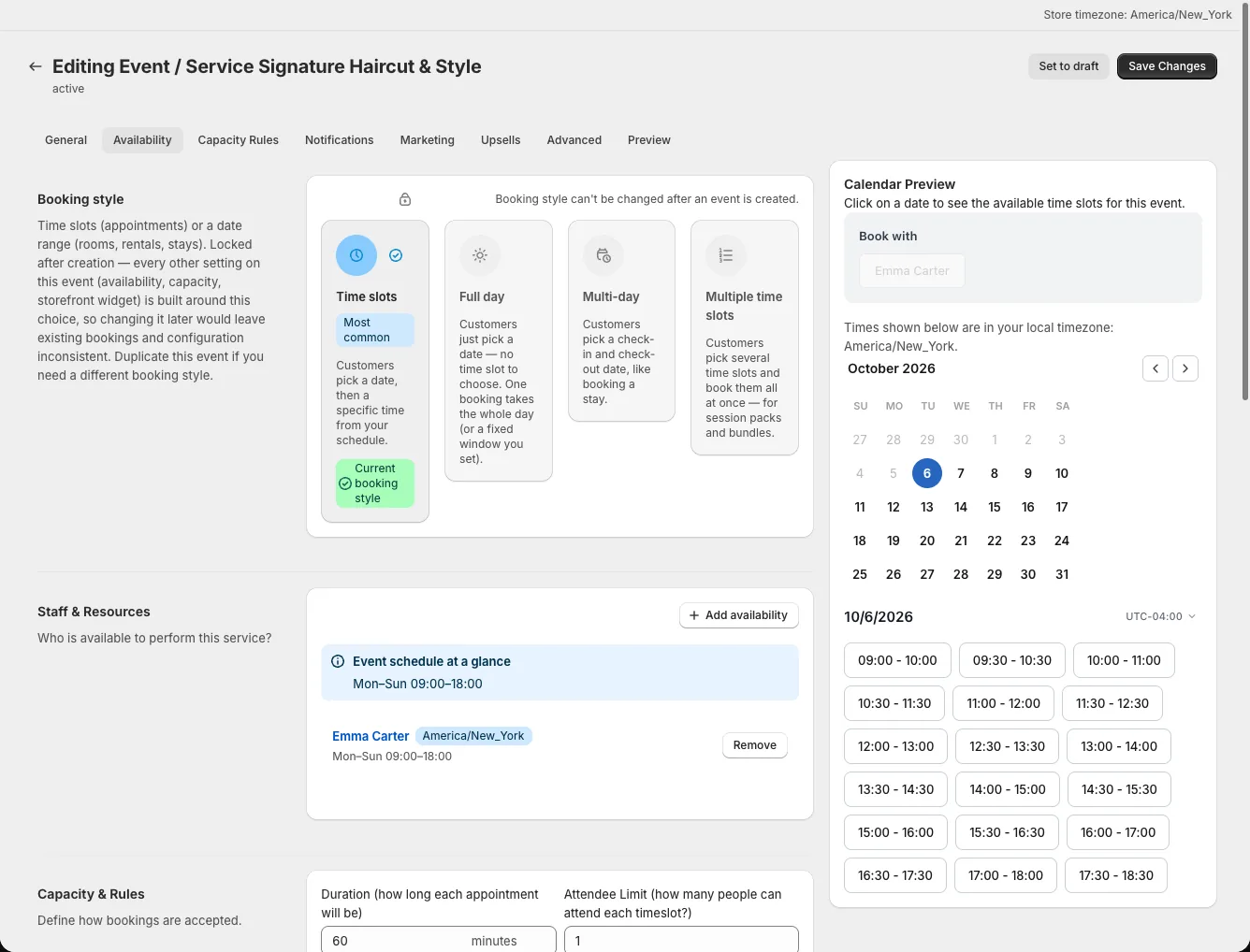
The setting is on Availability, not General. If you want customers to select a specific person, check the live widget after saving. Also test a time when one person is busy and another is free. Staff logins for the Staff Portal are a separate setup from these schedules.