
Discount codes and bulk unique codes (Pro)
By default an offer applies automatically.
You can instead make it apply only when the shopper types a code at checkout, and create many one-time codes for the same offer.
Make an offer apply with a code
- Open the offer (or create one).
- In Activation, choose With a discount code.
- Type the Discount code ①, for example
SUMMER15, or click Generate code. - Optional: Limit total uses (how many times the code can be used in total) and Limit to one use per customer.
- Click Save.
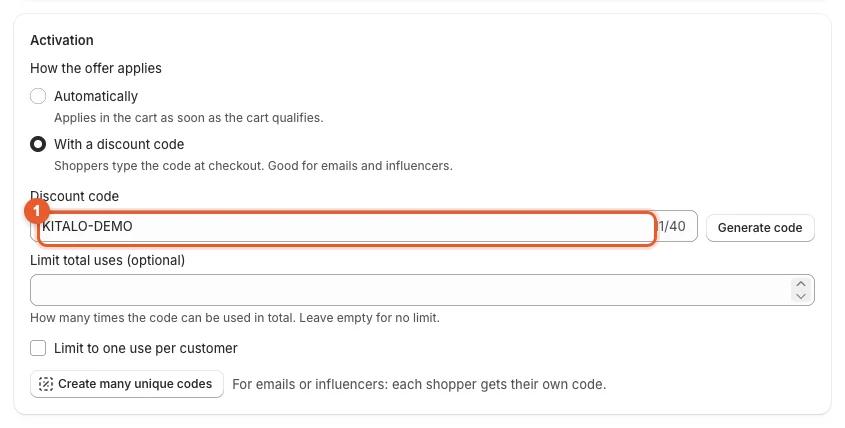
Shoppers type the code at checkout (or in the cart, if your theme has a code field). Kitalo's widgets show the offer only once the code is in the cart, so other shoppers do not see a deal they cannot get.
Create many unique codes
For emails or influencers, give each shopper their own code. Every code gives the same offer.
- Save the offer with a discount code first (above).
- In Activation, click Create many unique codes. The Discount codes page opens.
- Set How many codes ①, a Prefix (optional) such as
VIP-, the Code length and the Characters (Letters and numbers, Letters only or Numbers only). - Click Create codes. Shopify adds them to the offer's discount; large batches take a moment.
- The Codes list shows each code and how many times it was used. Click Download CSV to export them.
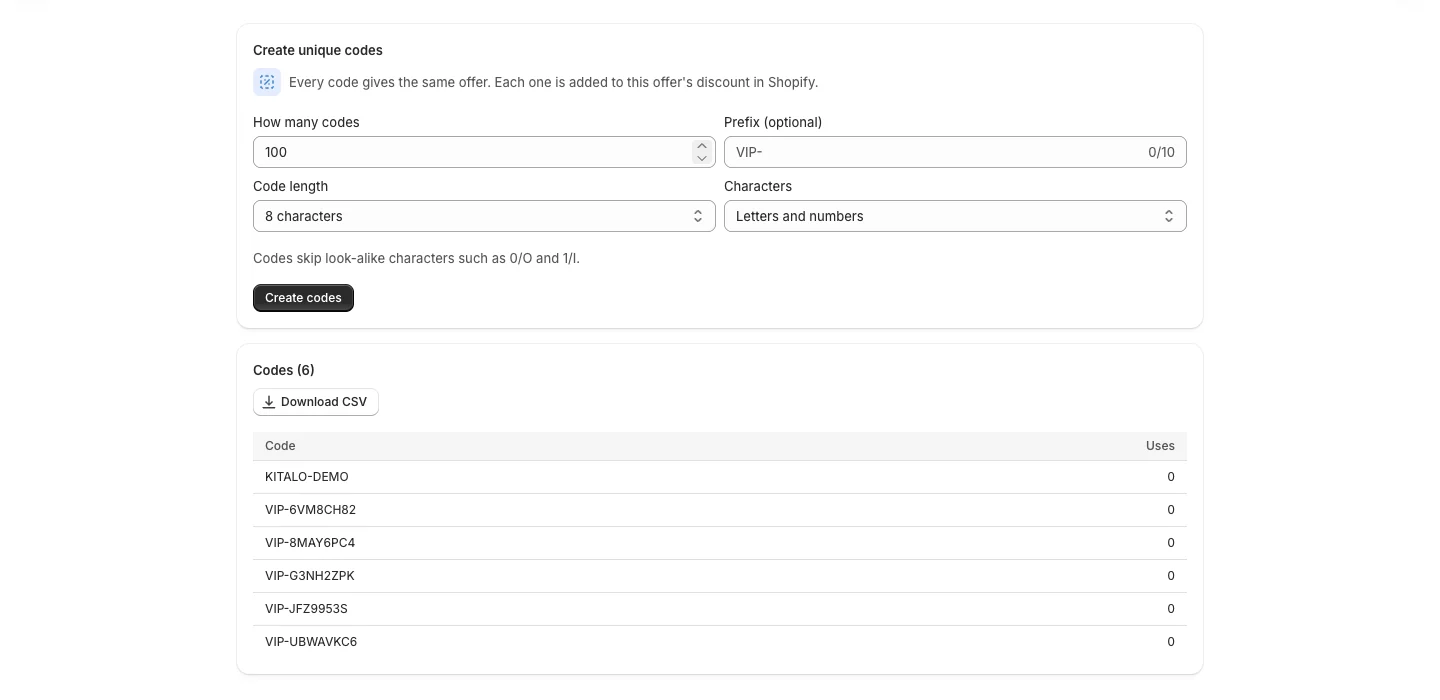
Codes skip look-alike characters such as 0/O and 1/I.
Good to know
- Analytics can group results by code (Analytics).
- A shopper can also arrive with a private link instead of a code (Who gets an offer).