
Send SMS and WhatsApp booking notifications
Edit message templates, enable channels per event, and check delivery against your credit balance.
On this page
SMS and WhatsApp can send booking messages alongside email. Buy message credits first, then enable each channel on the events that need it. These channels start off per event.
Turn on the channels you need
- Open Settings → SMS templates or Settings → WhatsApp templates and edit the shop-wide message copy.
- Select a demo booking in the preview picker and check the phone-style Preview.
- Open Events/Services, select the event, and open Notifications.
- Enable the specific SMS or WhatsApp messages for that event and click Save.
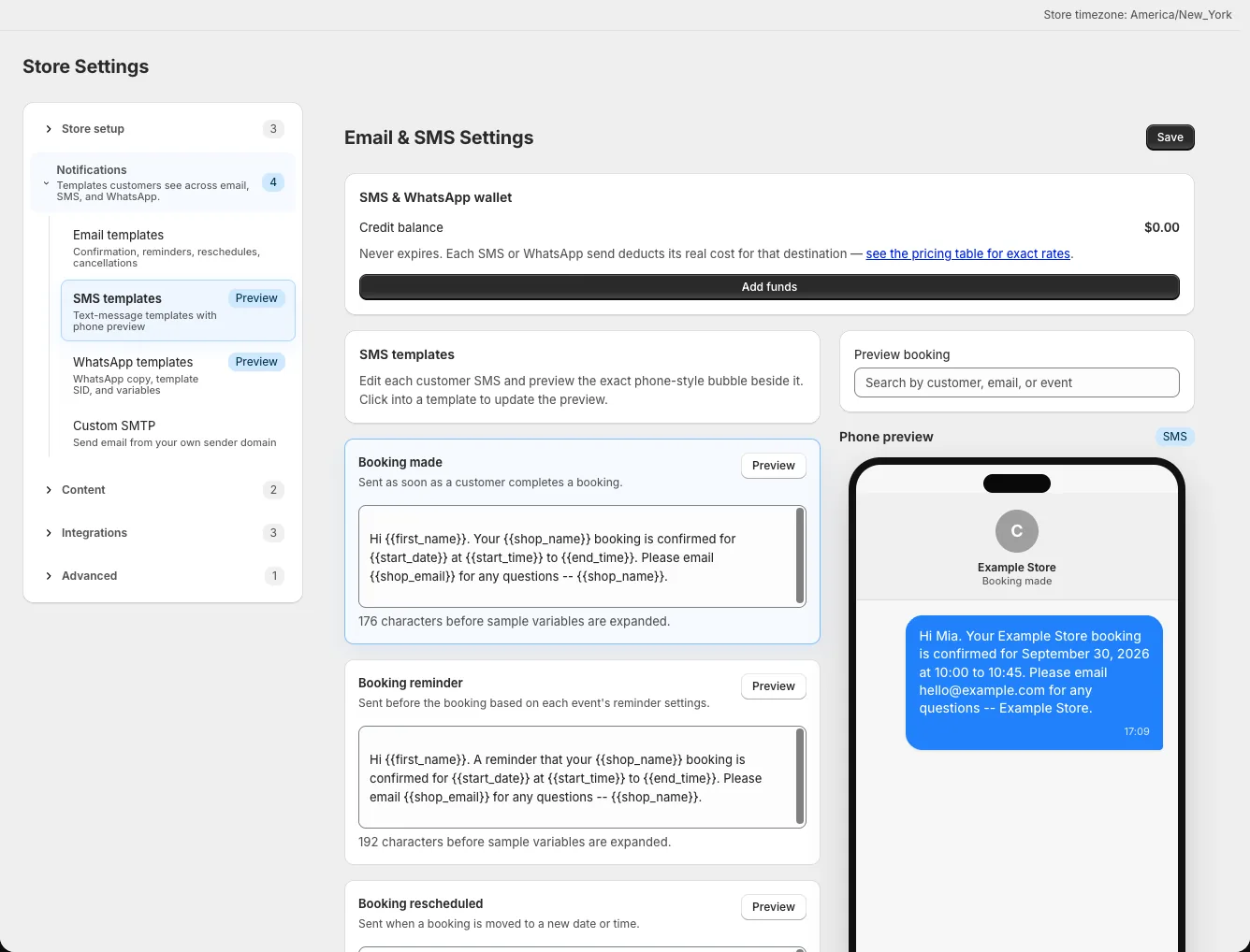
The template controls wording; the event's Notifications tab controls whether that channel sends for that event. Email has separate settings.
Write short, useful messages
Use the supported {{variable}} placeholders to include booking details. Preview with a demo booking to check length, dates, and links. The waitlist template is different: there is no booking yet, so it supports only {{event_name}} and {{requested_date}}.
Configure proactive WhatsApp messages
For messages sent outside a customer's 24-hour WhatsApp conversation window, create and get a Meta Content Template approved through your provider. In Settings → WhatsApp templates, enter its Content Template SID and map its numbered {{1}}, {{2}} placeholders to booking fields.
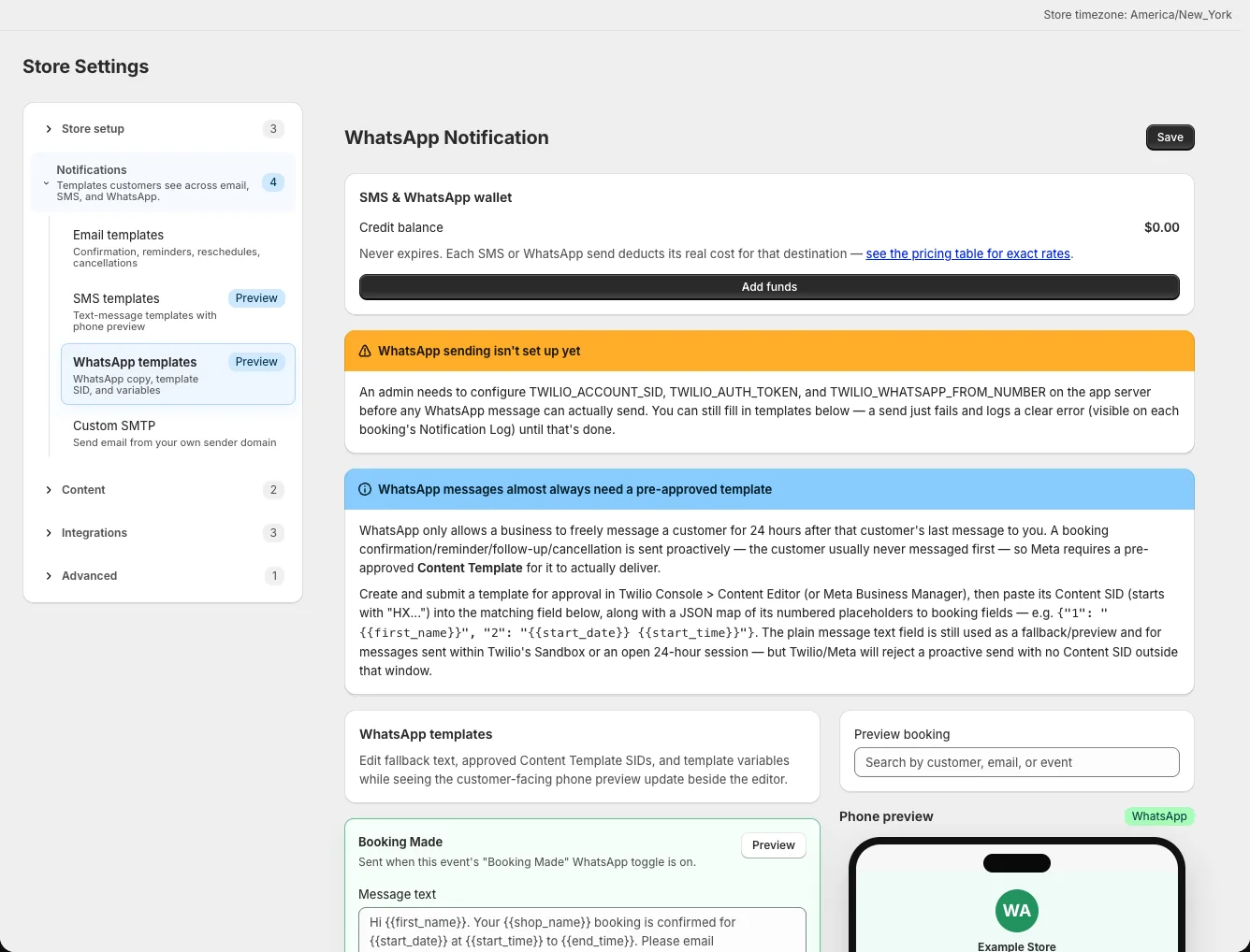
Check credits and resends
SMS and WhatsApp draw from a shared purchased balance. Open Account → SMS & WhatsApp credits to see it and buy more. When troubleshooting a missing message, check both the balance and that event's channel toggle. Email messages have their own enablement and queue; do not assume every failed text is replaced by an email.
From a booking's Notification Log, click Resend to send stored content again. A WhatsApp resend reuses the stored freeform text, not the approved Content Template; it may fail if the customer's 24-hour window has closed. A successful new send uses credits.