
Choose how customers pay for bookings
Choose checkout or no-payment booking, configure deposits, and verify the amount charged in Shopify.
On this page
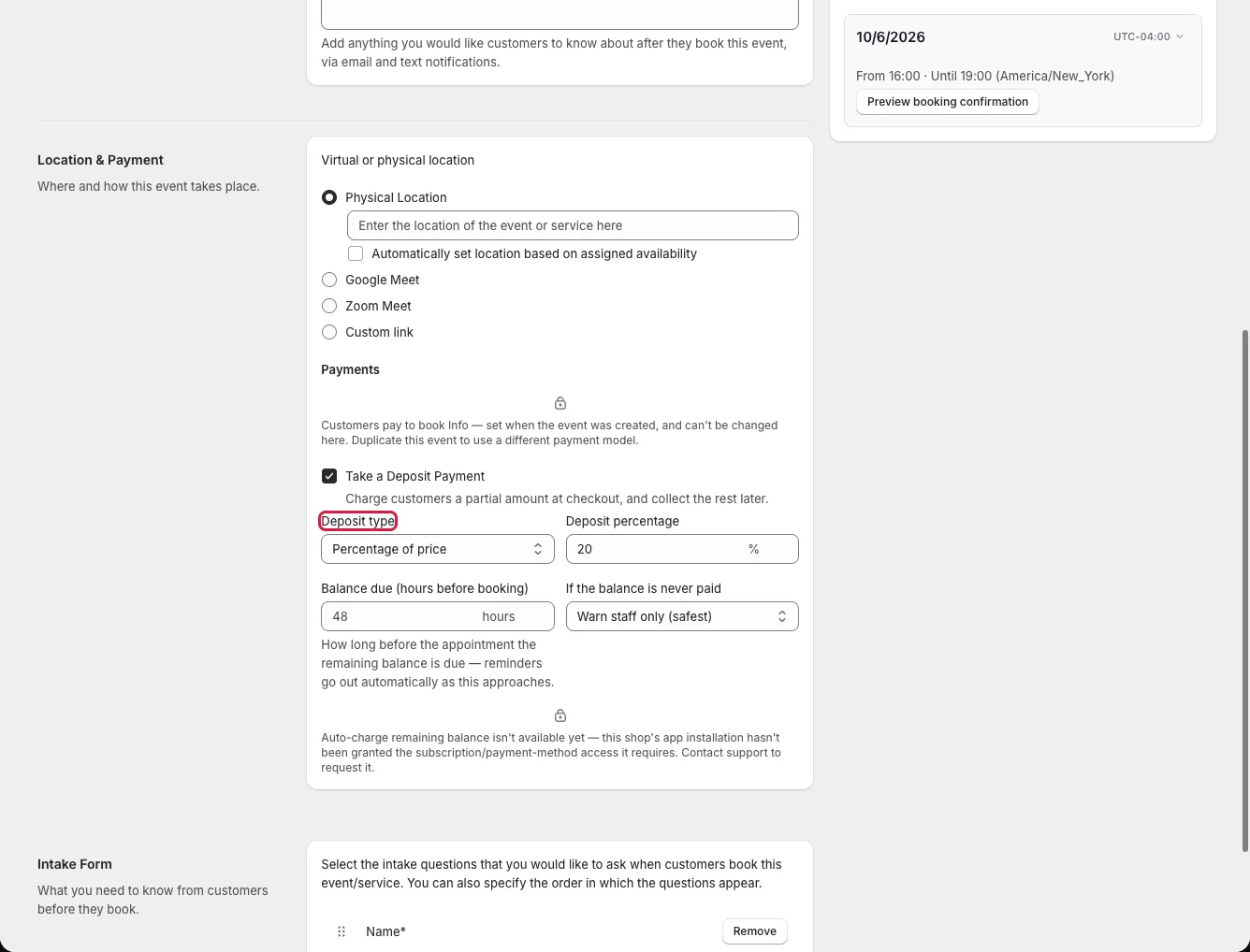
Choose the payment type while creating an event or service. For an event that uses Shopify checkout, you can later collect a deposit and leave a balance due.
Choose a payment type
Customers pay to book sends the customer through the Shopify cart and checkout. Use it when you want to charge the product price, or a deposit, before the booking is completed. Customers book without payment collects booking contact details in the widget and confirms without Shopify checkout. Use that path for a free booking or payment you collect separately.
Turn on a deposit
- Open a pay-to-book event from Events/Services and select General.
- Turn on Take a Deposit Payment.
- Choose a percentage or fixed amount and enter the deposit value.
- Set Balance due (hours before booking) and choose how an unpaid balance is handled.
- Save, then test the widget, cart, and Shopify checkout.
The widget can show Pay Deposit & Book. The deposit path applies a checkout discount so the Shopify order total reflects the amount collected now. Always verify the actual checkout total before accepting customer orders.
Handle an unpaid balance
Choose Warn staff only (safest) to leave the booking in place and show staff a warning. Block check-in until paid prevents check-in until the balance is settled. Automatically cancel the booking can free the slot when the due time passes. Balance reminders depend on your notification setup.
Allow upsells with deposits
The app applies deposits at checkout using the Shopify Discount Function. This registers an automatic discount and allows deposit bookings with upsell products. If the deposit reduction is missing, go to Settings → General → Deposit Discount Engine and check the status line or click Activate now if it is not active. Test a deposit checkout after making any changes.
The app validates deposit cart lines so an edited cart cannot obtain an unearned deposit discount. No merchant setup is required for that check. Inspect the product, discount, and total on Shopify checkout whenever you change deposit settings.