
Fix booking confirmations or reminders that are not arriving
Use a booking's Notification Log to diagnose missing email, SMS, and WhatsApp messages.
On this page
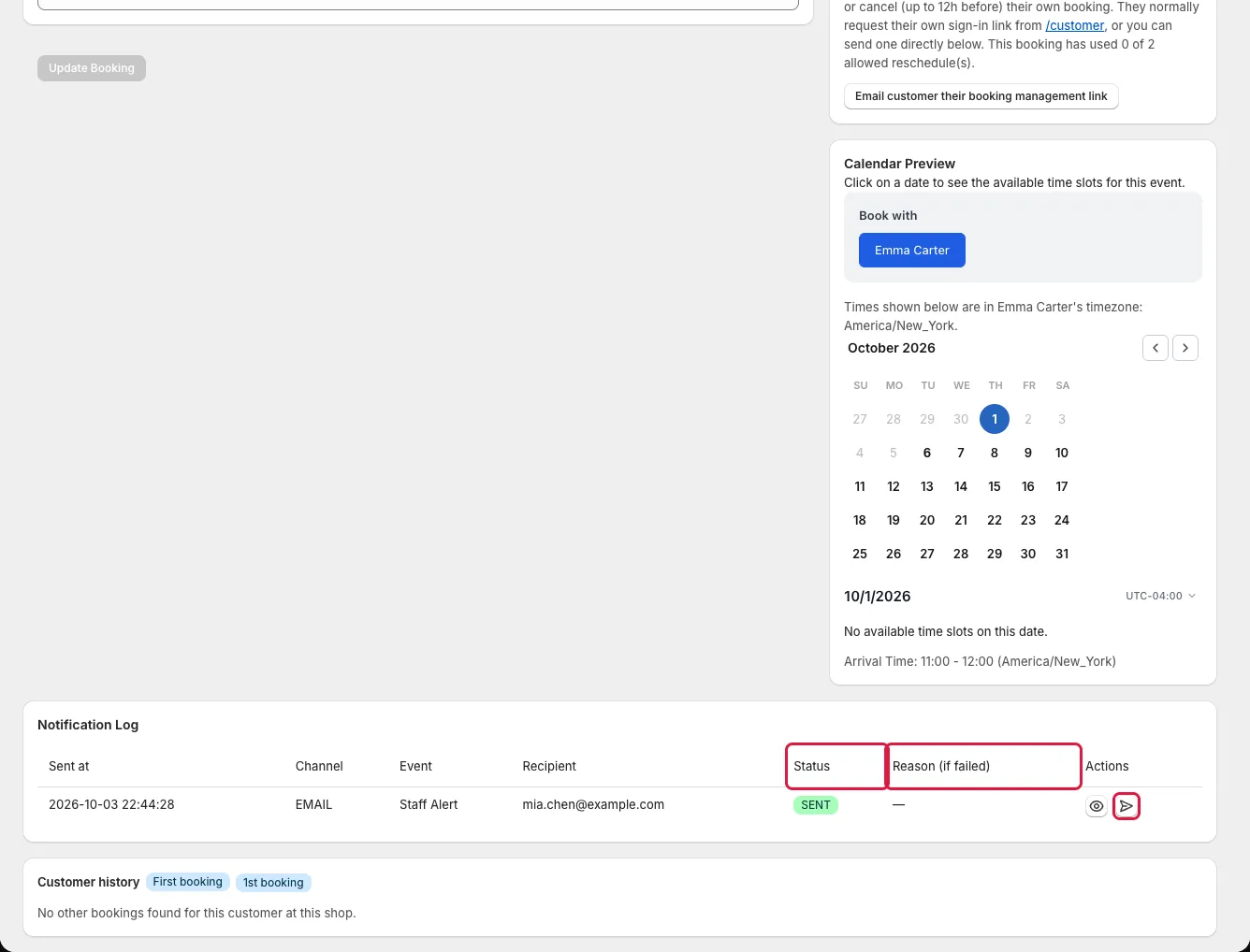
Start with the affected booking. Its Notification Log tells you which messages were recorded, their channel, their status, and any failure reasons.
Symptom: Booking notifications are not arriving
Check 1: The Notification Log
- Check: The message might have failed to send. The recipient address might be wrong.
- Fix:
- Open Bookings → All Bookings.
- Find the booking.
- Click Notifications on its row, or open the detail page and scroll to Notification Log.
- Check Channel, Event, Status, and Reason (if failed).
- Open View content to inspect the message.
- Fix the underlying problem. Confirm the address or number.
- Click Resend.
Check 2: Email settings
- Check: The email automations might be turned off or missing. Custom SMTP settings might be wrong.
- Fix:
- Open the event's Notifications tab.
- Turn on Send Automatic Confirmation Emails or Send Automatic Reminder Emails.
- Open Settings → Email templates.
- Use Initialize Defaults if no automations exist.
- If you use Settings → Custom SMTP (requires the Growth plan or above), verify the host, port, username, and password. Send a test. Ask the customer to check spam folders.
Check 3: SMS and WhatsApp settings
- Check: SMS and WhatsApp toggles might be off for the event. The credit balance might be empty.
- Fix:
- Open the event's Notifications tab.
- Turn on the specific SMS and WhatsApp toggles.
- Check the customer's phone number.
- Check Account → SMS & WhatsApp credits. Add credits if needed.
- Read the failure reason in the log.
WhatsApp messages outside the customer's session window require an approved Content Template. Resending an old log entry sends its saved text. It may fail if the window is closed. See SMS and WhatsApp notifications.