
Translate the booking widget and override its text
Add storefront languages and customize widget phrases for each visitor locale.
On this page
Use Settings → Text & Language to change the words customers see in the booking widget. English is always available; you can add built-in translations or supply your own wording for another locale.
Add a language
- Open Settings → Text & Language.
- Use Add a built-in language to add French, Spanish, German, Portuguese, Italian, Vietnamese, or Dutch. For another locale, add its language code and provide the text you need.
- Click the new language tab to review its phrases, then save your changes.
The widget detects the visitor's storefront locale, including a locale selected through Shopify's storefront language controls. Test the published storefront language you expect customers to use.
Override a phrase
- Select the language tab and use Search phrases to find the wording.
- Enter your replacement in that phrase's field. The page shows how many phrases have been customized.
- Click Save and reload a booking-enabled product page in the matching locale.
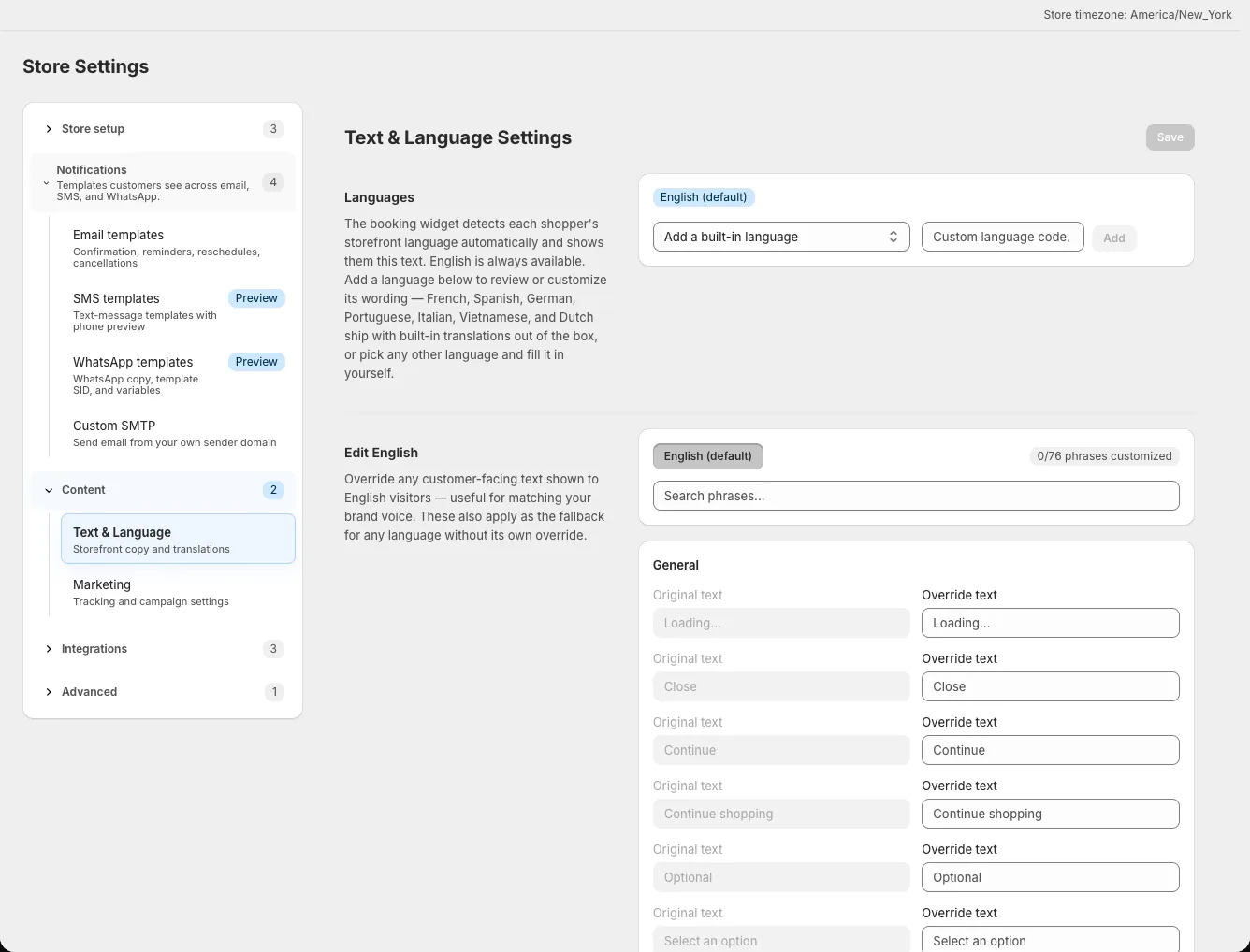
An English override can act as the fallback where another locale has no specific override. Built-in translations supply the rest for supported languages; a custom locale needs your text where no built-in translation exists.
Override text outside the catalog
For dynamic text that does not appear in the phrase list, use the custom override fields. Enter the exact Original text as it appears on the storefront and your Override text. The original match is case-sensitive. A count such as “3 events” is one example; check the rendered page to capture the exact string.
Check locale detection
The widget prefers the storefront locale exposed by Shopify. If you test by changing only your browser's language, the storefront's selected locale may still win. Visit the product page using the store's language switcher or locale URL and repeat a booking flow to verify the wording.