
Let customers reschedule and cancel bookings themselves
Use the password-free customer portal and set event rules for self-service changes.
On this page
The customer portal lets customers review their bookings without a password. Their event's self-service rules determine whether rescheduling and cancellation are available.
Help customers sign in
- Direct the customer to https://bookings.cleverbooster.com/customer (the portal is hosted by the app, not on your store's domain), or include
{{manage_booking_link}}in a booking email. - Ask them to enter the email address used for the booking and request a sign-in link.
- Ask them to open the email, review the confirmation page, and click Continue.
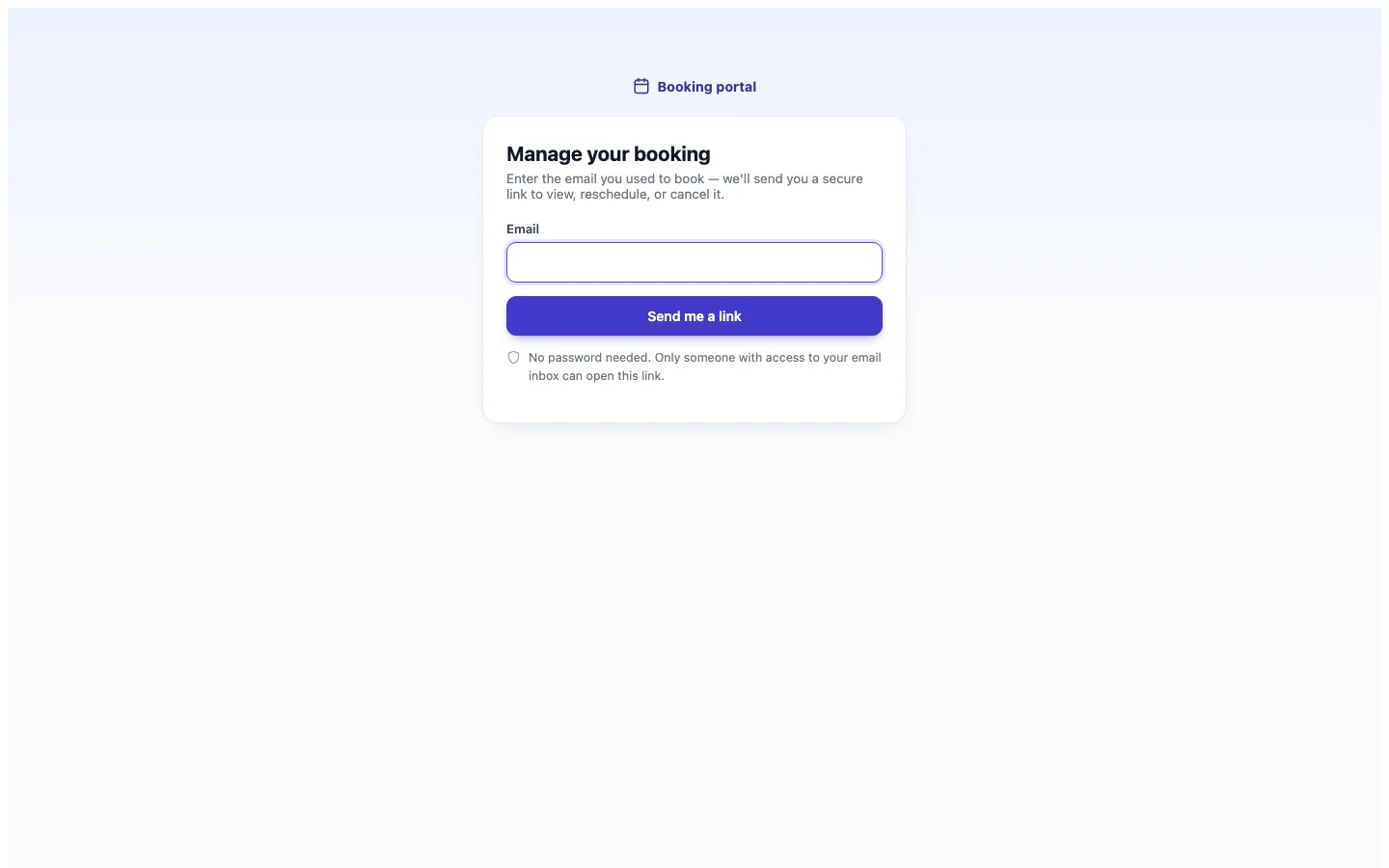
Each link works once and expires after 15 minutes. One email can contain links for bookings at multiple stores. The portal session lasts two hours. Opening the link alone does not consume it; the confirmation action does.
Review a booking
Once signed in, customers can see their booking details and check-in QR code. If the event allows changes, the booking page offers a live calendar for rescheduling and a cancellation action. Cancellation releases the booking's capacity; an eligible waitlist can then be notified.
Set the event's change rules
- Open the event in Events/Services.
- Open Advanced and review the customer reschedule and cancellation settings.
- Set the notice windows and maximum reschedule count that fit the service, then click Save.
The portal checks these rules when the customer visits. A customer can move a booking only later than its current time or day, subject to available capacity. When an action is blocked, the page explains why. After a booking is checked in, the customer can no longer change it. The booking page only shows the actions that are still allowed.
See what changed
When a customer changes or cancels their own booking, the app sends an internal email with the customer and timing details. Review the booking in Bookings to see its current status. If a customer cannot use self-service, see self-service problems before making an admin change.