
Flash sales
A lower price on chosen products for a set time, with a live countdown on product pages and product cards.
On this page
Available on the Growth and Pro plans.
Create a flash sale
- Go to Offers → Create offer, click Flash sales at the top, then Use template under Flash sale.
- Name, for example "Flash sale: Canvas Tote", and Discount message ("Flash sale").
- In Products and price:
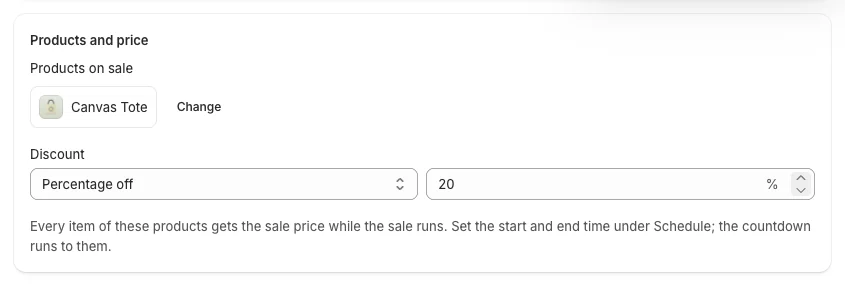
- Click Choose products, tick the products on sale and click Select. Every item of these products gets the sale price while the sale runs.
- Discount: Percentage off, Amount off each item or Fixed price per item, and the value (20%).
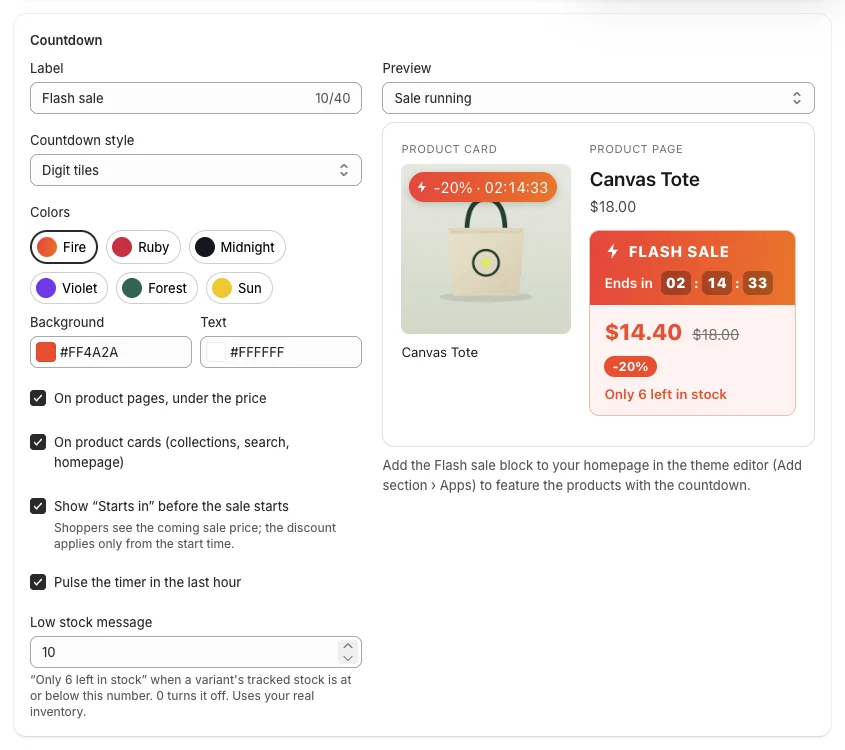
- In Countdown:
- Label shown on the countdown ("Flash sale");
- Countdown style: Digit tiles, One line or Plain text;
- Colors: Fire, Ruby, Midnight, Violet, Forest, Sun, or your own Background and Text colors;
- where it shows: On product pages, under the price and/or On product cards (collections, search, homepage);
- Show "Starts in" before the sale starts: shoppers see the coming sale price; the discount applies only from the start time;
- Pulse the timer in the last hour;
- Low stock message: "Only 6 left in stock" when a variant's tracked stock is at or below this number (0 turns it off). It uses your real inventory.
- Preview: see the product card and product page Sale running or Before the start.
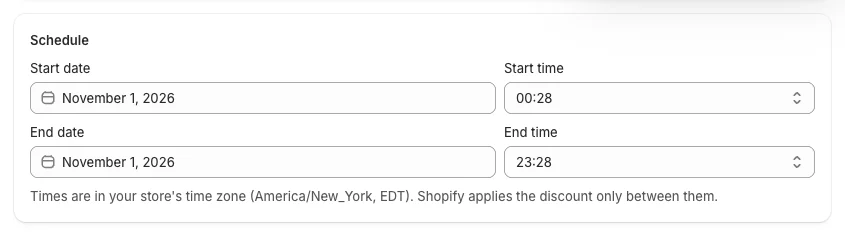
- In Schedule, set the Start and End date and time, in your store's time zone. A new flash sale runs for 24 hours from now; a flash sale can last up to 31 days.
- Click Create offer.
What shoppers see
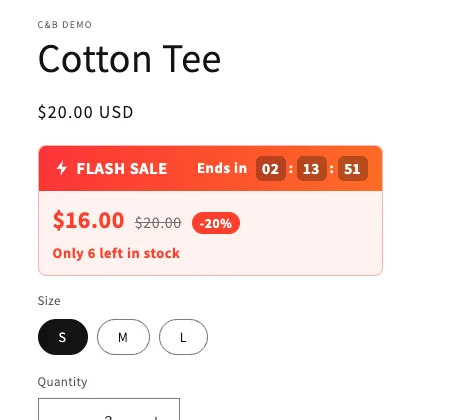
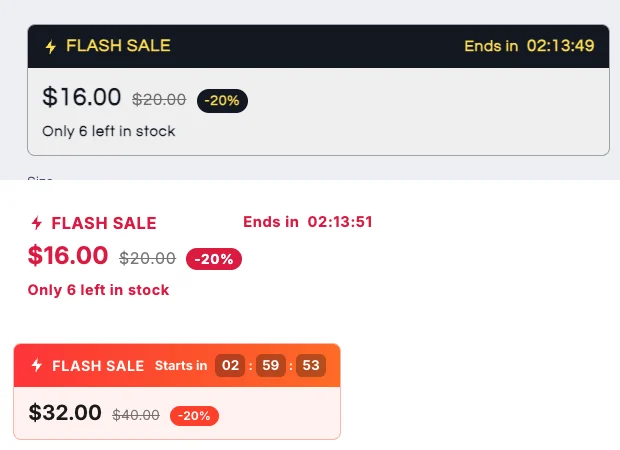
- Product page: the countdown under the price, the sale price, the regular price struck through, the saving, and the low-stock message if it is on.
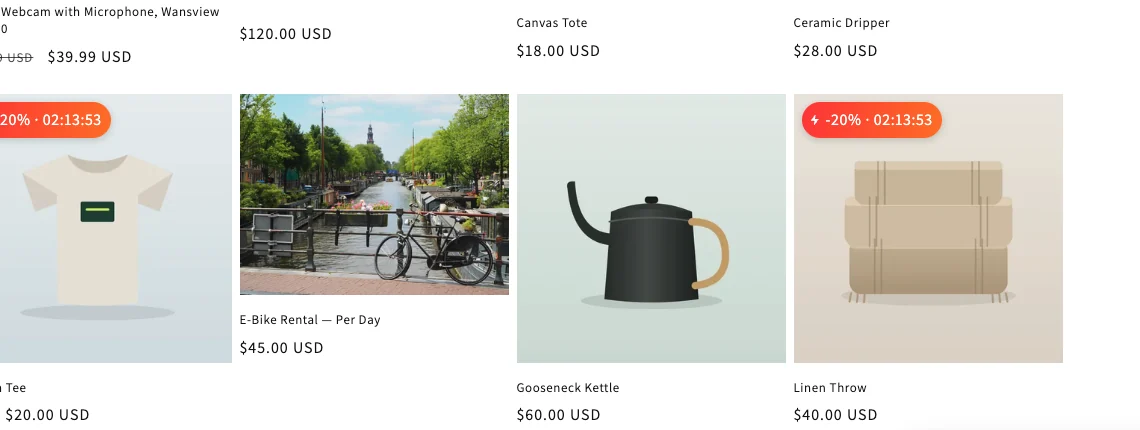
- Product cards in collections, search results and on the homepage: a badge with the saving and the time left.
- Before the start (if "Starts in" is on): a "Starts in" countdown with the coming price.
Feature the sale on your homepage
- In Shopify admin, go to Online Store → Themes → Customize.
- On the homepage, click Add section → Apps → Flash sale.
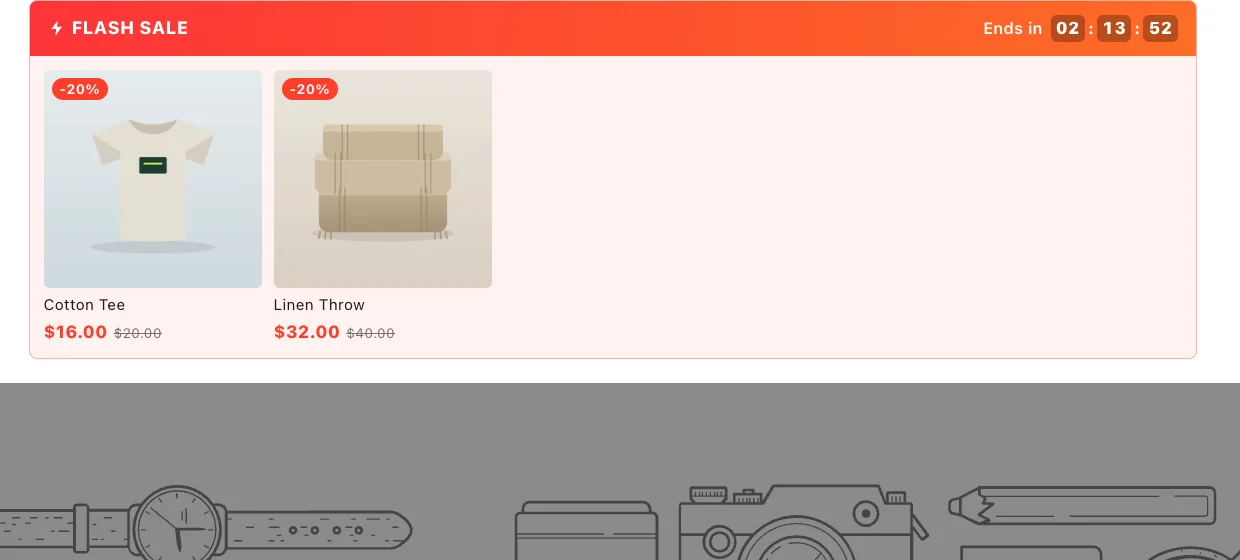
- Optional: set a Heading (empty uses the flash sale's label), a Flash sale ID (empty shows the sale that ends soonest; copy the ID from the offer page in Kitalo) and Products to show (up to 8).
- Click Save.
Good to know
- The countdown always runs to the real start or end time: every shopper sees the same deadline, and it does not reset.
- When the time is up, Shopify stops the discount and the countdown disappears from the page by itself. The offer then shows as Expired on the Offers list.
- Change the "Ends in", "Starts in" and low-stock texts under Texts (Design and texts).
- Flash sales cannot be A/B tested.