
Quantity breaks
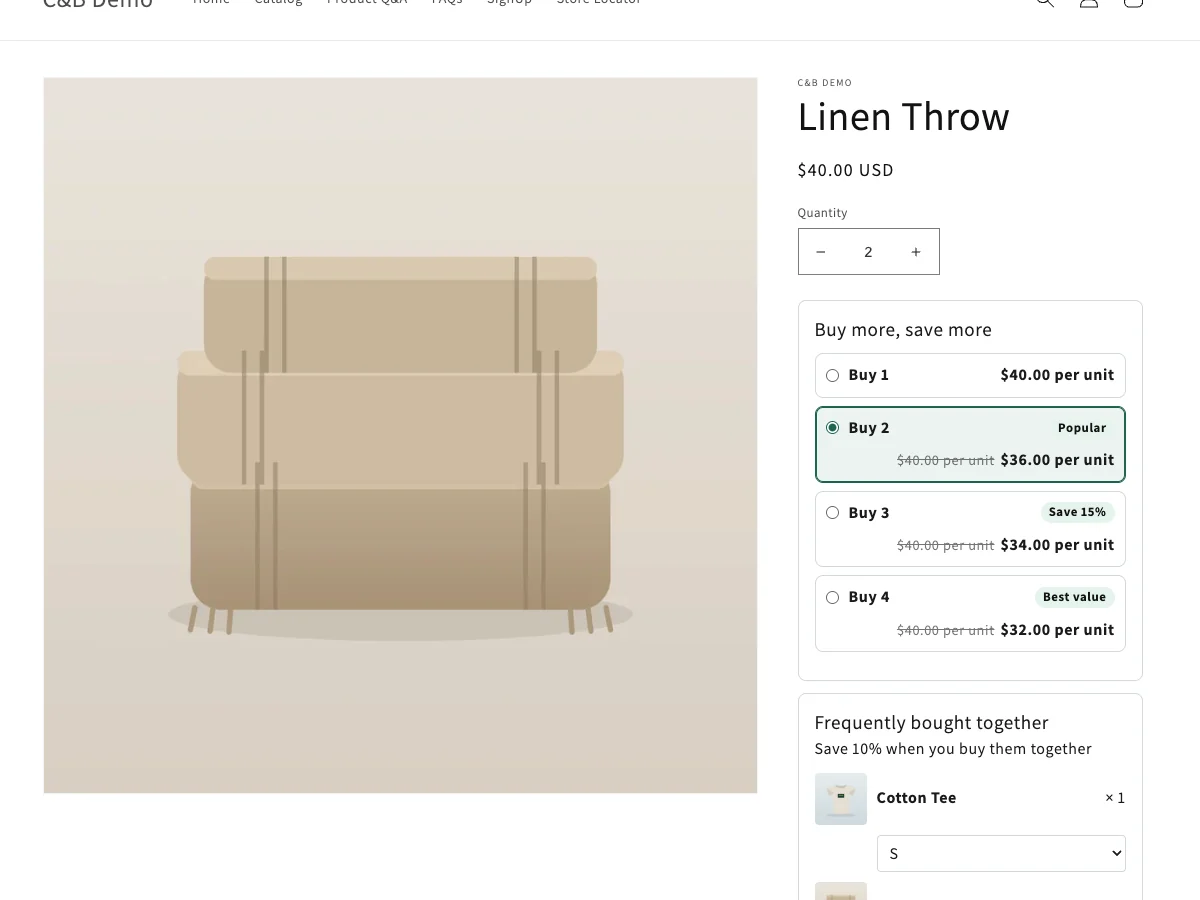
"Buy 2 save 10%, buy 3 save 15%, buy 4 save 20%." Shoppers pick a tier on the product page and see the price per unit before they add to cart.
Available on every plan.
Create a quantity break
- Go to Offers → Create offer and click Use template under Quantity breaks (or type
Buy 3 save 15%in Describe your offer and click Build it). - Name: for example "Linen Throw quantity breaks". Discount message: what shoppers see in the cart, for example "Quantity discount".
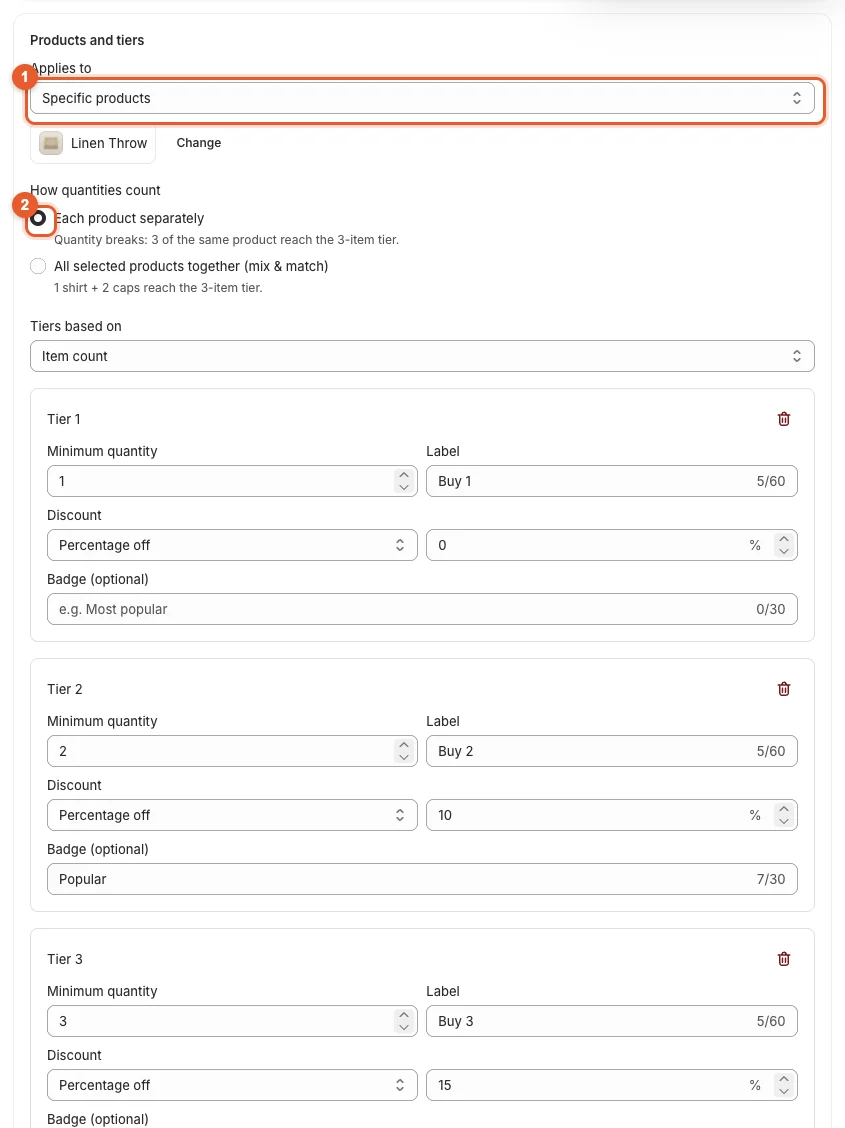
- In Products and tiers, set Applies to ①:
- All products: every product in your store gets the tiers.
- Specific products: Shopify's product picker opens. Search, tick the products and click Select.
- Specific collections: pick one or more collections.
- How quantities count ②:
- Each product separately: 3 of the same product reach the 3-item tier. This is the classic quantity break.
- All selected products together (mix & match): 1 shirt + 2 caps reach the 3-item tier. See Mix & match.
- Tiers based on: Item count (buy 3) or the amount spent on these products (spend $100).
- Set each tier:
- Minimum quantity (or minimum amount);
- Label, shown on the tier ("Buy 3");
- Discount: Percentage off, Amount off each item or Fixed price per item, and the value;
- Badge (optional), for example "Popular" or "Best value".
Click Add tier ③ to add one, or the trash icon to remove one. Tier 1 with 0% shows the regular price as the first choice.
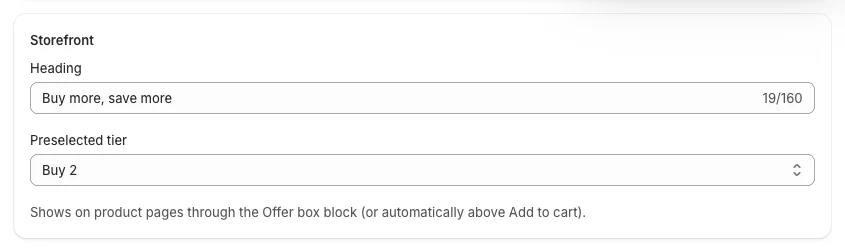
- In Storefront, set the Heading ("Buy more, save more") and the Preselected tier: the tier that is selected when the page opens (or None).
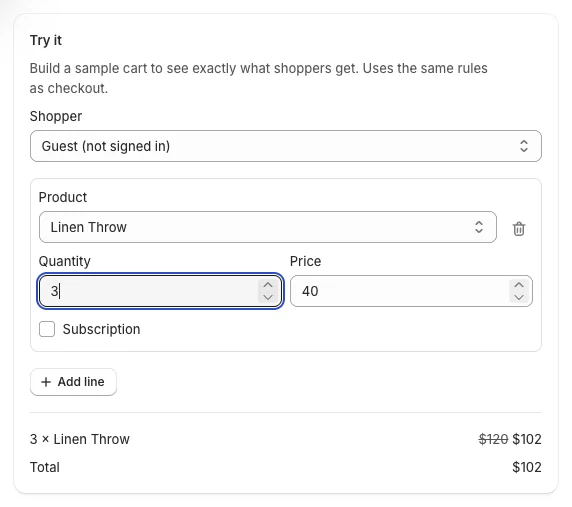
- Check the result in Try it: pick the product, set the quantity, and read the total.
- Click Create offer.
The other cards (eligibility, schedule, combinations, targeting, activation) work the same for every offer: see Create and edit an offer.
What shoppers see
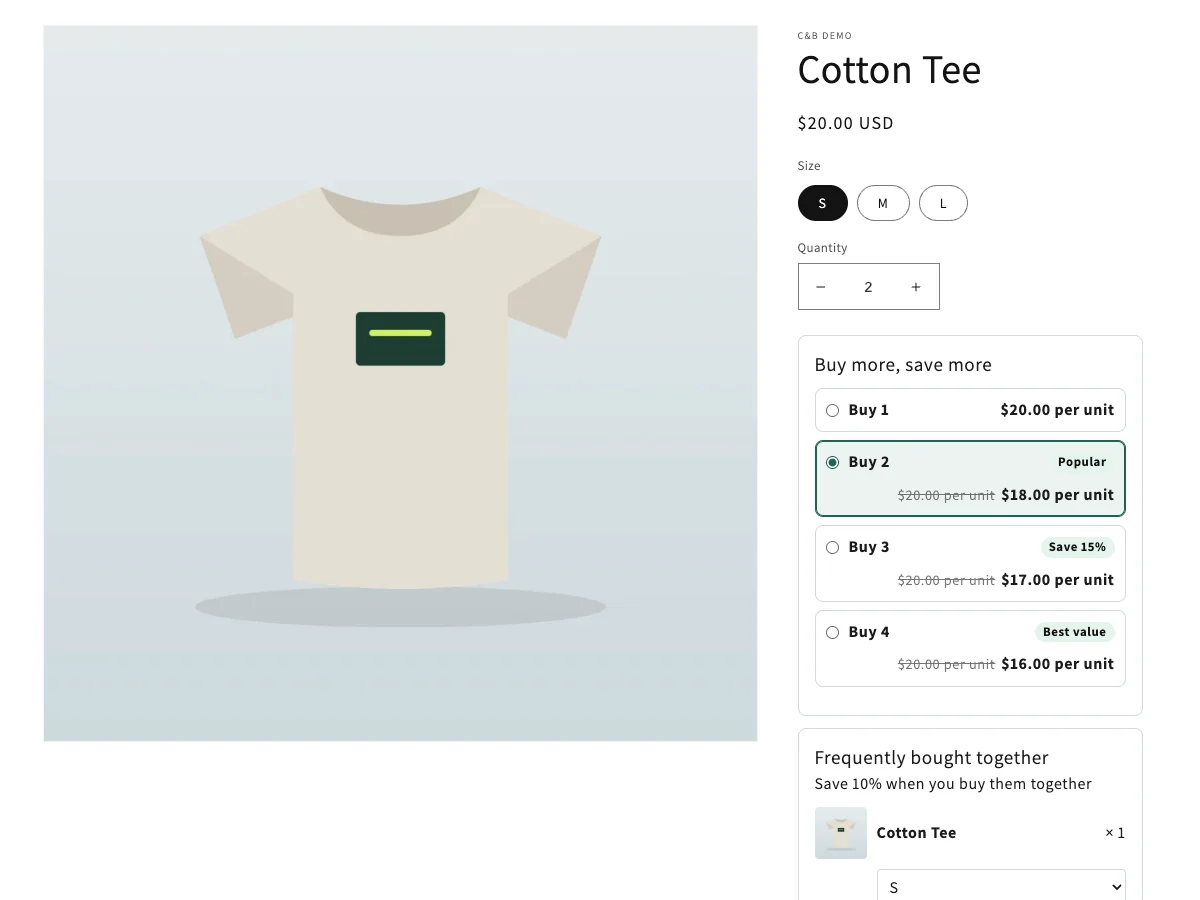
- On the product page, the offer box lists the tiers with the price per unit, the regular price struck through and the badges. The preselected tier is chosen.
- Picking a tier puts its quantity in the theme's quantity box. Add to cart works as usual.
- For products with variants (size, color), the per-unit prices follow the variant the shopper selects.
- In the cart and at checkout, the discount shows under your Discount message.
Good to know
- Quantity breaks are created with Other product discounts off. If you also run a free gift, turn it on so both apply (Combinations).
- A product in two quantity breaks gets the better discount, not both.
- You can A/B test the tier discounts (Pro): A/B test an offer.
- A flash sale is a quantity break with one tier and a countdown: Flash sales.