
Getting started
Set up Kitalo in about five minutes: install the app, turn on the app embed, create an offer and check it on your store.
On this page
1. Install Kitalo
- Open Kitalo on the Shopify App Store and click Install.
- Approve the permissions. Kitalo needs products (to show offers on the right pages), discounts (to create the Shopify discount for each offer), and markets and customers (only to list your markets and customer segments when you target an offer).
- Kitalo opens on Home inside your Shopify admin. There is no account to create.
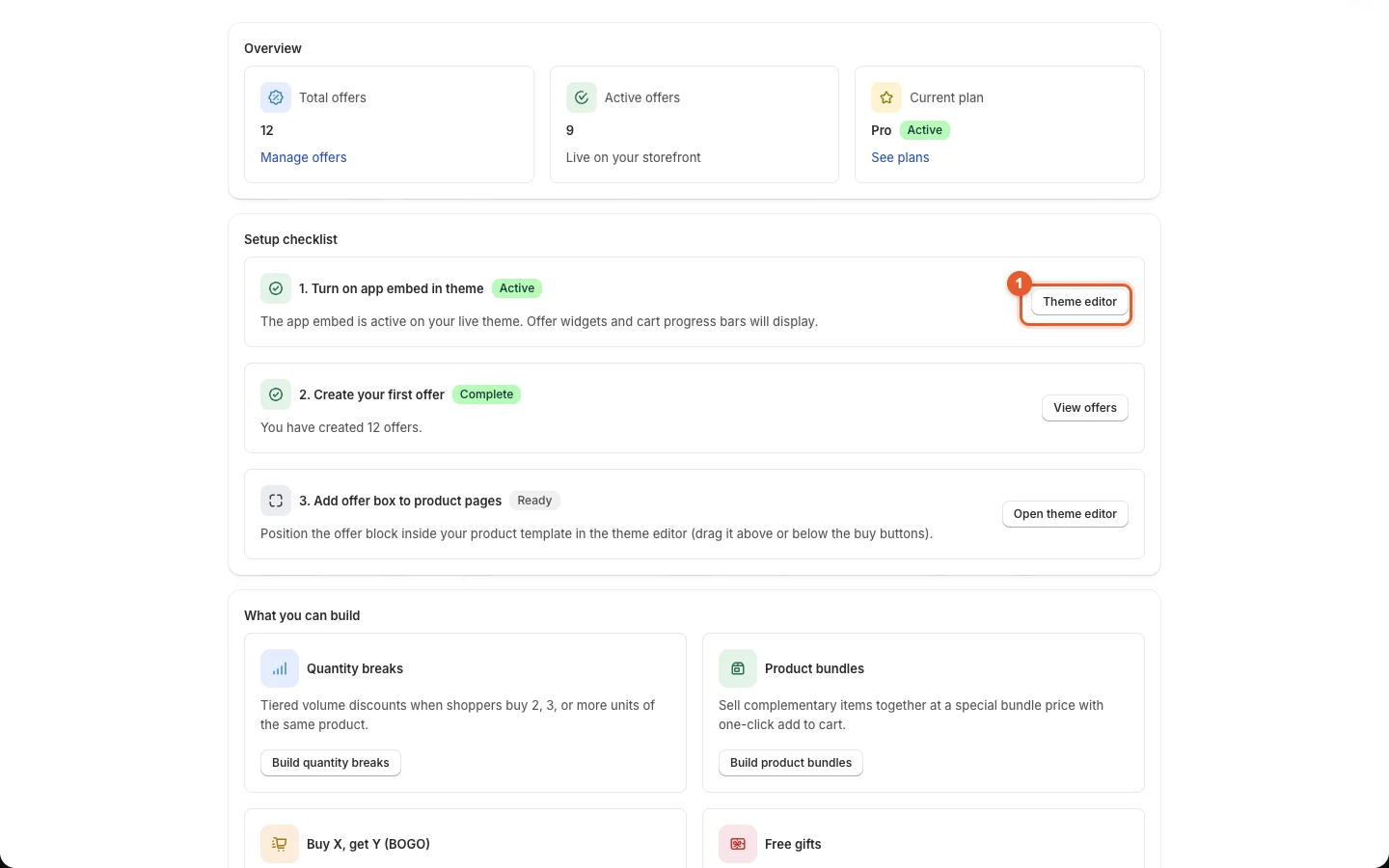
Home shows:
- Overview: total offers, active offers and your plan.
- Setup checklist: three steps, each with its status.
- What you can build: a shortcut to each offer type.
2. Turn on the app embed
The app embed loads Kitalo's offer widgets and cart progress bars on your storefront. Without it, discounts still apply at checkout, but shoppers do not see your offers.
- On Home, in step 1. Turn on app embed in theme, click Enable in theme editor (Theme editor once it is on) ①.
- The theme editor opens with Offer widgets — Kitalo Bundles already switched on.
- Click Save in the top right of the theme editor.
- Go back to Kitalo and click Check again. Step 1 now shows Active.
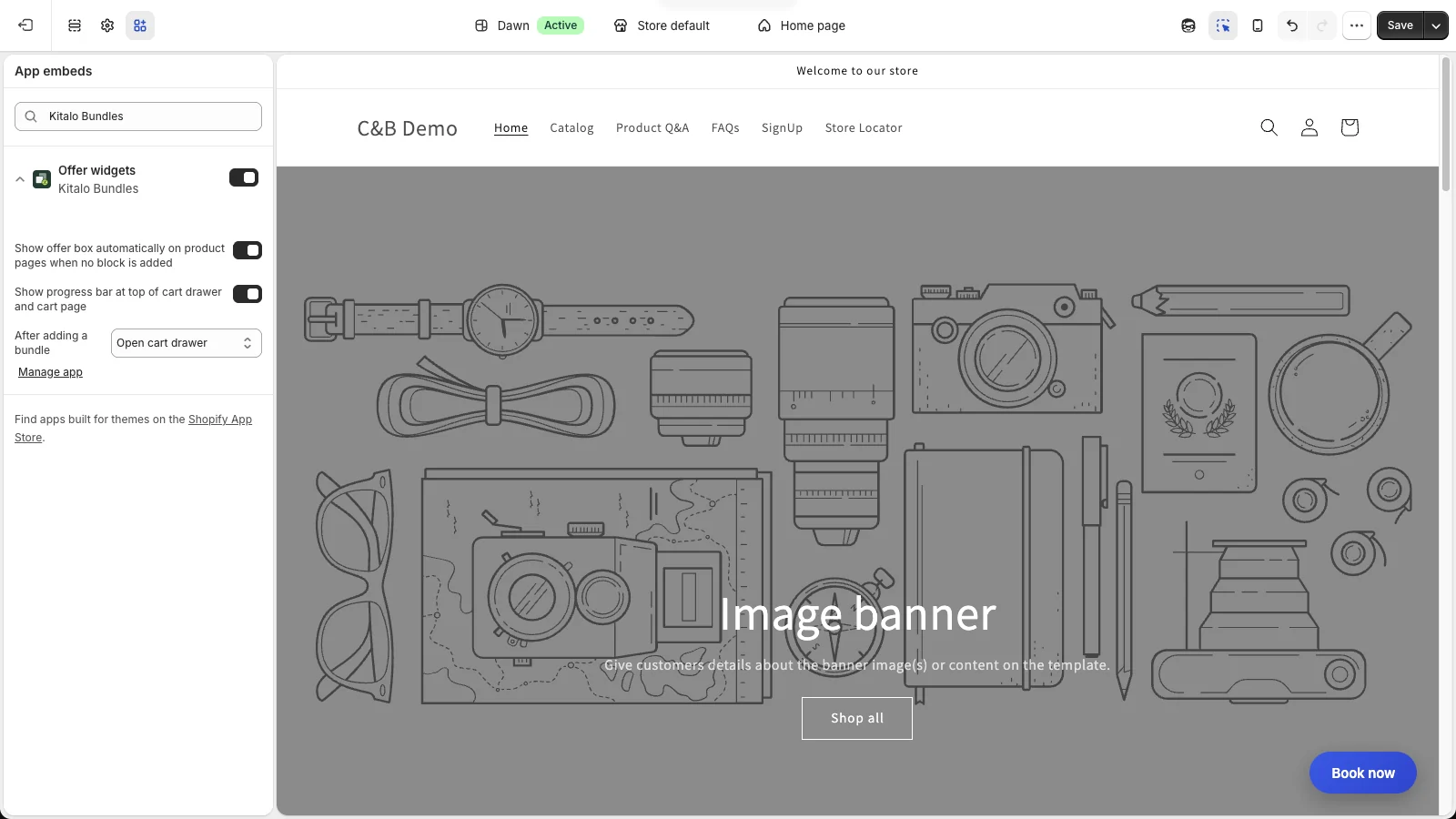
The app embed has three options in the theme editor:
| Option | What it does |
|---|---|
| Show offer box automatically on product pages when no block is added | Places the offer box just above the Add to cart button. Turn it off if you add the Offer box block yourself (Where offers appear). |
| Show progress bar at top of cart drawer and cart page | Shows free gift, order discount and free shipping goals in the cart. |
| After adding a bundle | What happens after Add bundle to cart: open the cart drawer, go to the cart page, or stay on the page. |
3. Create your first offer
- Click Offers in the Kitalo menu, then Create offer.
- Type what you want in Describe your offer, for example
Buy 3 save 15%, and click Build it. Or click Use template under one of the templates. - Choose the products, check the discount, and click Create offer.
The full walkthrough is in Create and edit an offer. Each offer type has its own page under Offer types.
4. Check the offer on your store
- Open a product the offer applies to on your online store. The offer box shows near the Add to cart button.
- Add the products to the cart. The cart shows the discount under the name you gave it in Discount message.
- Go to checkout. The discount is the same: Shopify calculates it.
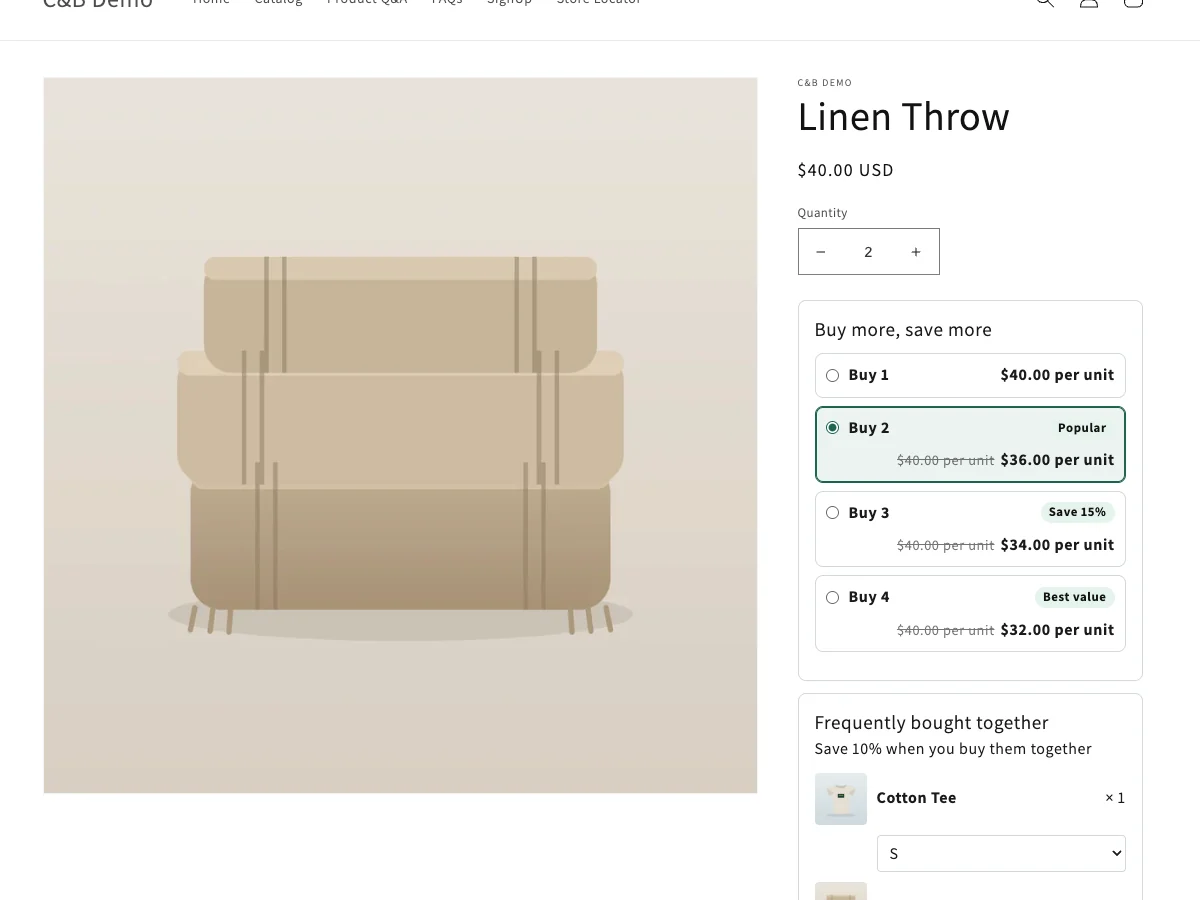
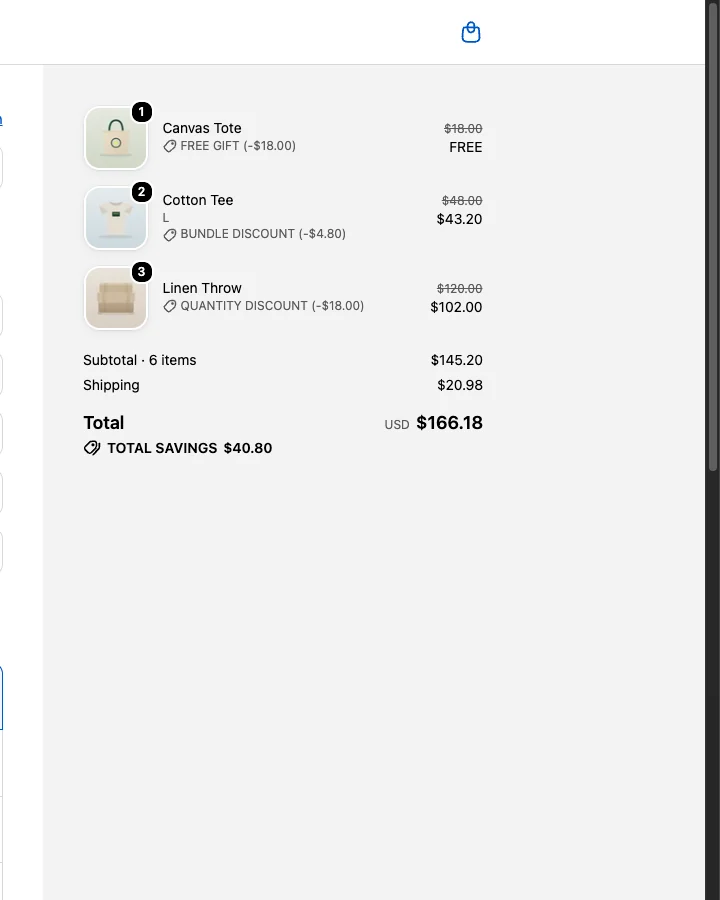
5. Optional: place the offer box yourself
The offer box appears above Add to cart automatically. To put it somewhere else on the product page:
- In Kitalo, on Home, click Open theme editor in step 3. Add offer box to product pages.
- In the product information section, click Add block → Apps → Offer box.
- Drag the block where you want it, for example just above the buy buttons, and click Save.
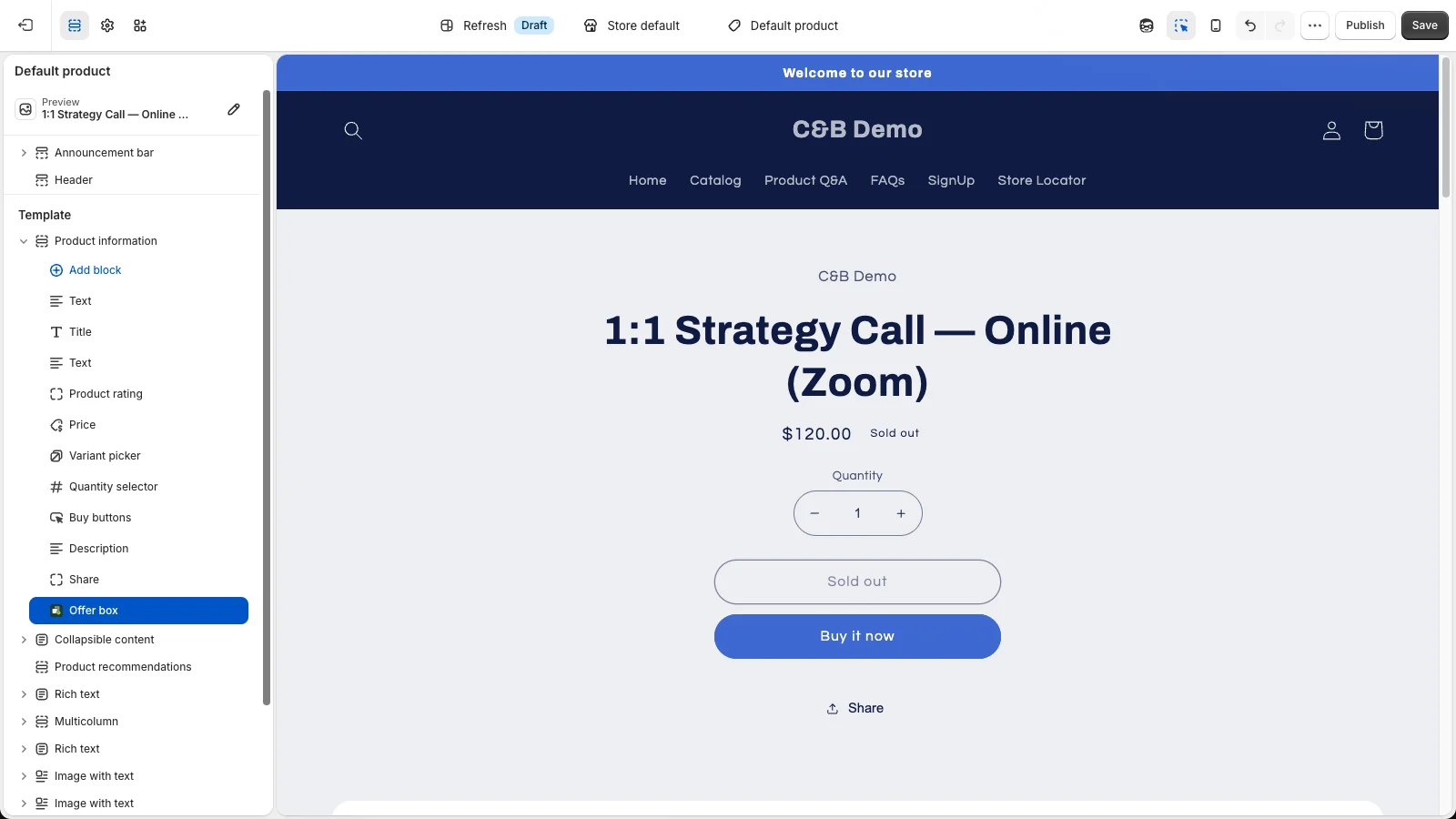
When the block is on the page, the automatic offer box is not added, so offers never show twice.
Next steps
- Make the widgets match your theme: Design and texts.
- Choose where else offers appear: Where offers appear.
- Let offers stack with each other and with discount codes: Combine offers.