
Mix & match
"Any 3 items from the Accessories collection get 15% off." Shoppers mix products freely: every item from the selected products or collections counts toward the same tier.
Available on every plan.
Create a mix & match offer
- Go to Offers → Create offer and click Use template under Mix & match.
- Name and Discount message, for example "Mix & match discount".
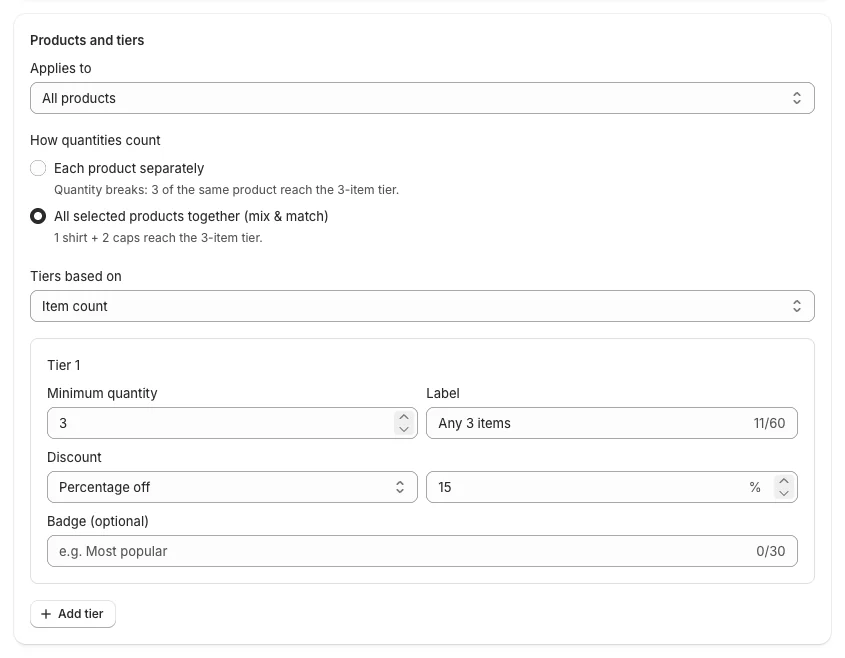
- In Products and tiers:
- Applies to: usually Specific collections (for example "Accessories") or Specific products.
- How quantities count is already set to All selected products together (mix & match).
- Tiers based on: Item count.
- Tier 1: Minimum quantity 3, Label "Any 3 items", Discount 15%. Add more tiers if you like (any 5 items get 20%).
- Storefront: the heading of the offer box on the product pages of these products.
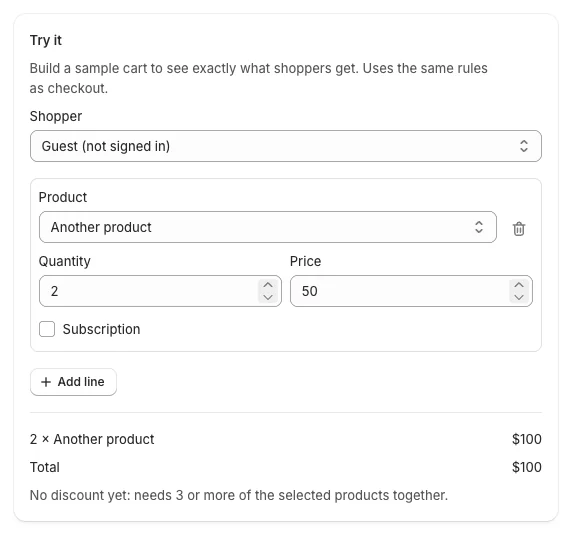
- Check Try it: add two different products with quantities that add up to 3. Both lines get the discount.
- Click Create offer.
What shoppers see
- On the page of each product in the offer, the offer box shows the tiers ("Any 3 items — Save 15%").
- The discount applies in the cart once the items from the offer add up to the tier, in any combination.
Good to know
- The difference with Quantity breaks is only How quantities count: separately (3 of the same product) or together (any 3).
- Tiers can be based on the amount spent instead of the item count: "spend $100 on accessories, save 10%".