
Design and texts
Design sets how the offer box, progress bars, popups and gift picker look.
Match your theme
Design sets how the offer box, progress bars, popups and gift picker look. The live preview on the right uses the real storefront widgets.
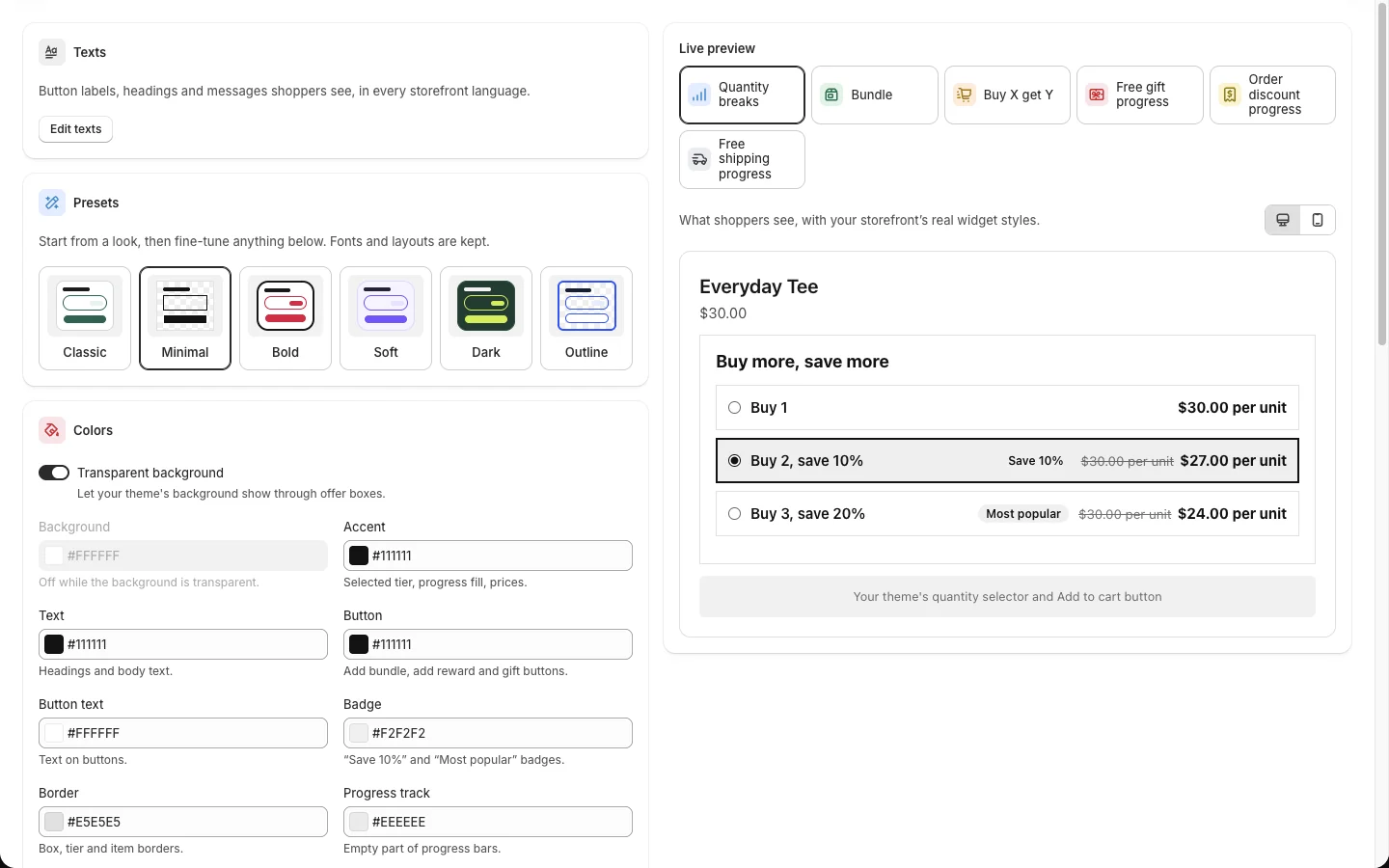
- Go to Design.
- Pick a Preset: Classic, Minimal, Bold, Soft, Dark or Outline. Fonts and layouts you changed are kept.
- Fine-tune Colors: background, accent (selected tier, progress fill, prices), text, button, button text, badge, border and progress track.
- Set the Typography (fonts), Shape (corner radius), Layouts of the quantity break and bundle boxes, and Savings (show the saving next to prices).
- Use the preview tabs to check each widget (quantity breaks, bundle, Buy X get Y, free gift progress, order discount progress, free shipping progress), on desktop or phone.
- Click Save.
Good to know:
- On dark themes, turn on Transparent background so the offer box takes the theme's background.
- Custom CSS (Growth and Pro) is at the bottom of Design, for anything the settings do not cover.
- The Texts card on Design opens the Texts page (Edit texts).
Change any text shoppers see
Texts holds every word in the offer boxes, progress bars, popups, gift picker, flash sale countdown and floating deals button.
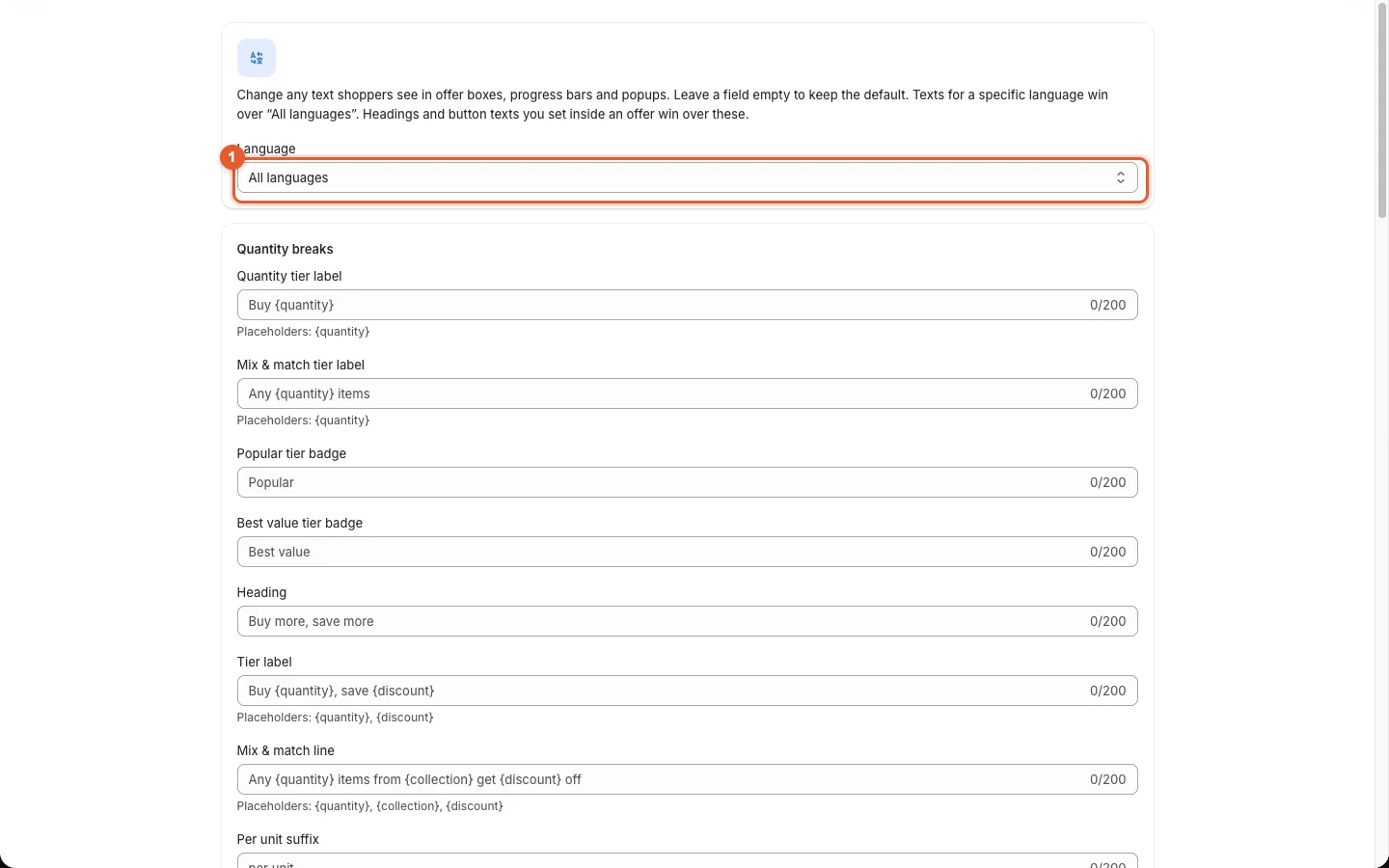
- Go to Texts.
- Choose the Language ①: All languages, or one language of your store.
- Type your text in the fields you want to change. The grey placeholder shows the default. Placeholders in braces are filled in for you, for example
Buy {quantity}orSpend {amount} more to save {discount}. - Click Save.
Which text wins:
- A heading or button text set inside an offer (its Storefront card, or its Translations card for one language) wins over Texts.
- Texts for a specific language win over All languages.
- Empty fields keep Kitalo's built-in text, translated into the shopper's language (Languages).