
Send booking emails from your own domain with SMTP
Connect your mail service and set a familiar sender address for booking notifications.
On this page
Custom SMTP lets booking emails come from your own address. It requires the Growth plan or above and an SMTP service authorized to send from your domain.
Connect your SMTP service
- Open Settings → Custom SMTP and turn on Use custom SMTP.
- Enter SMTP Host, Port, Username, and Password from your mail provider. Port 587 is common, but use the value your provider gives you.
- Set Use TLS/SSL (secure connection) according to that provider's instructions.
- Enter Sender Email on a domain your SMTP service is authorized to use, and add Sender Name.
- Click Save.
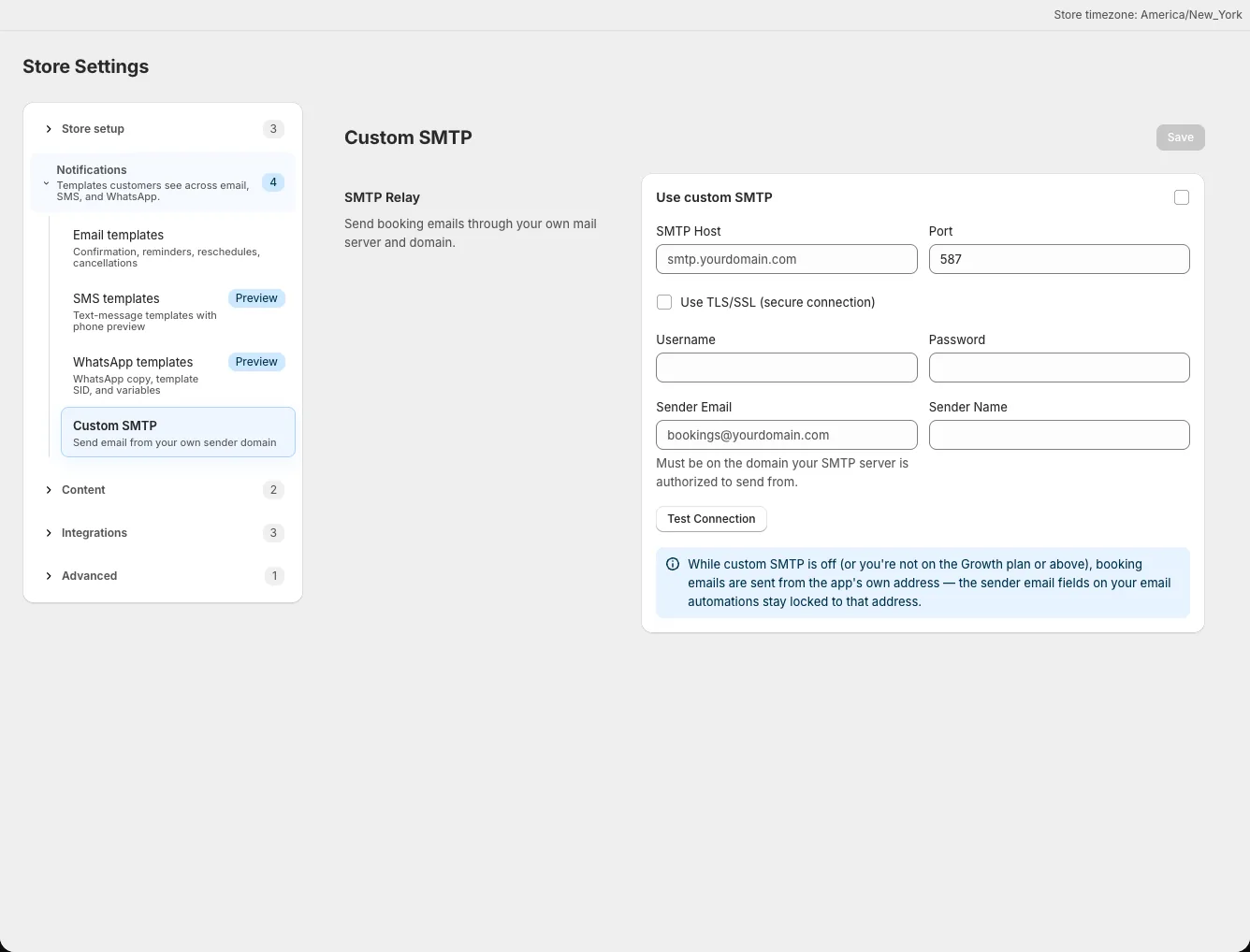
The saved password is not shown again. Leave its field blank when editing other settings to keep the existing password; enter a new one to replace it.
Test the connection
Click Test Connection after entering the credentials. A successful test displays a connection success message. If it fails, check the host, port, secure connection setting, credentials, and sender authorization with your mail provider. Save corrected settings and test again.
A connection test checks the mail server credentials. Preview an actual booking template separately in Settings → Email templates before relying on the customer-facing message.
Set the sender on email templates
Open Settings → Email templates → Sender settings to review the sender and Reply-To Email fields. The Custom Email Address and an automation's custom sender fields stay locked while custom SMTP is off. Reply-To Email is a separate field on the email settings page. Then open a confirmation template, select a demo booking, and click Preview to check its subject, links, and wording.
While custom SMTP is on, a sender set on an individual email template takes priority; templates without one use the Sender Email from Custom SMTP. Every sender address should be one your SMTP provider accepts. Send a test booking to an address you control and check the received sender and reply-to details.
Check your plan
If Custom SMTP shows a Growth-plan warning, open Account to review the available plans. Booking emails can still use the app's default sender while custom SMTP is unavailable. See Set up booking emails for template editing and the Notification Log.