
Send form emails from your own address with SMTP
Replace the default sender with your own email address using SMTP credentials from SendGrid, Amazon SES, Mailchimp Transactional or another provider.
On this page
By default, Form Builder Pro sends form emails from [email protected]. To send them from your own address — for example [email protected] — connect an SMTP service. Your emails then carry your brand and are more likely to land in the inbox.
What you need
SMTP credentials from an email provider: server address, port, username and password (often an API key). Most providers document these under "SMTP credentials":
- SendGrid (opens in a new tab)
- Amazon SES (opens in a new tab)
- Mailchimp Transactional (Mandrill) (opens in a new tab)
New to SMTP? Compare the providers' pricing pages — low-volume sending is usually inexpensive.
Connect your SMTP service
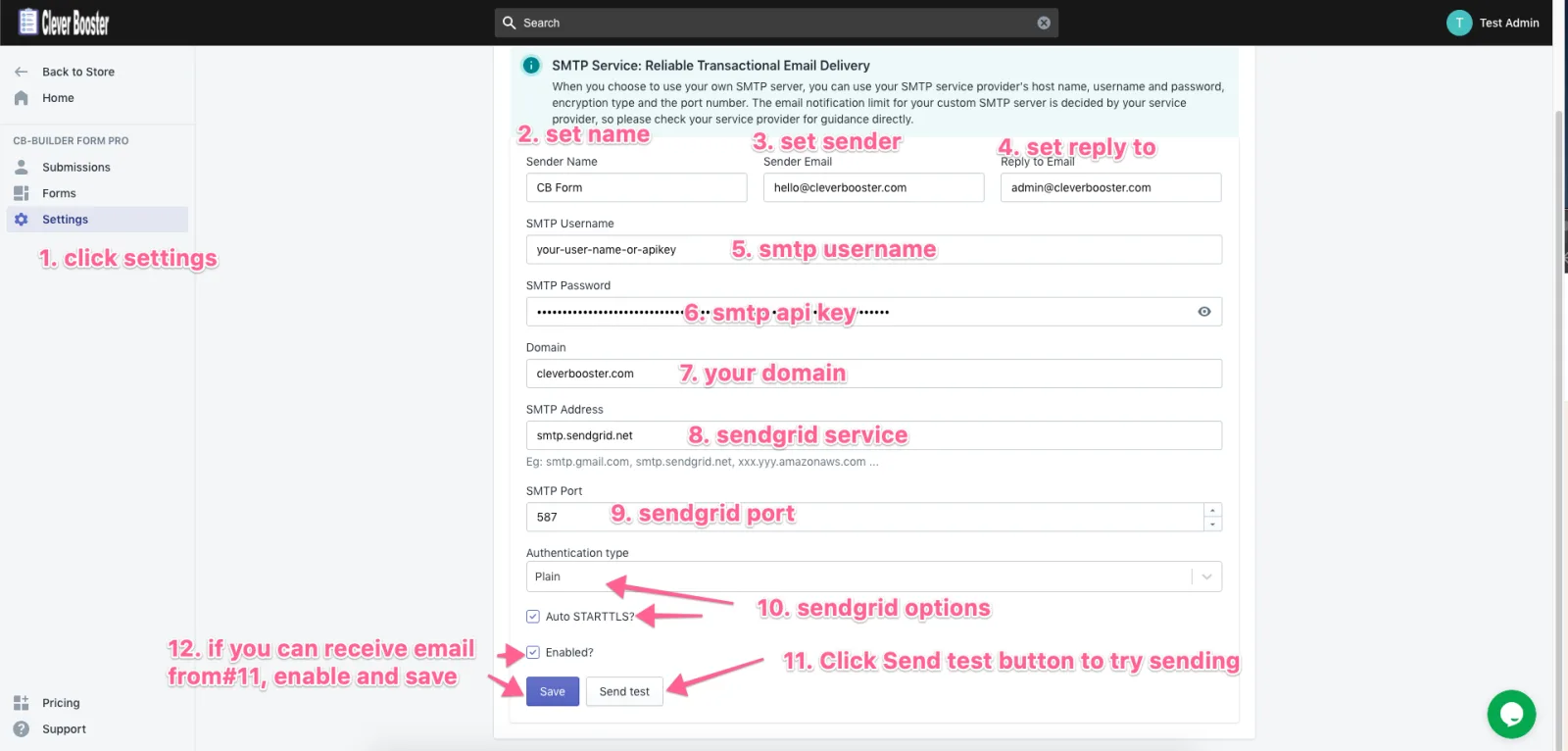
- Open Settings → SMTP email in Form Builder Pro.
- Fill in the sender name, sender email and reply-to address.
- Enter your provider's SMTP username, password or API key, domain, server address and port, and choose the authentication options your provider requires.
- Click Send test to send yourself a test email.
- If the test email arrives, tick Enabled and click Save.
Once SMTP is enabled you can also change the sender of each automatic email.