
Create and edit an offer
Every offer type uses the same editor.
On this page
- Start a new offer
- Describe it in a few words
- Pick a template
- The editor at a glance
- 1. Offer
- 2. Products and the discount
- 3. Discount limit (Pro)
- 4. A/B test (Pro)
- 5. Eligibility
- 6. Storefront
- 7. Translations
- 8. Schedule
- 9. Combinations
- 10. Targeting
- 11. Activation
- 12. Status
- Try it — check before you save
- Save the offer
- The Offers list
- Related articles
This page walks through it from top to bottom. The pages under Offer types explain the part that is different for each type.
Start a new offer
Go to Offers → Create offer. You can start in two ways.
Describe it in a few words
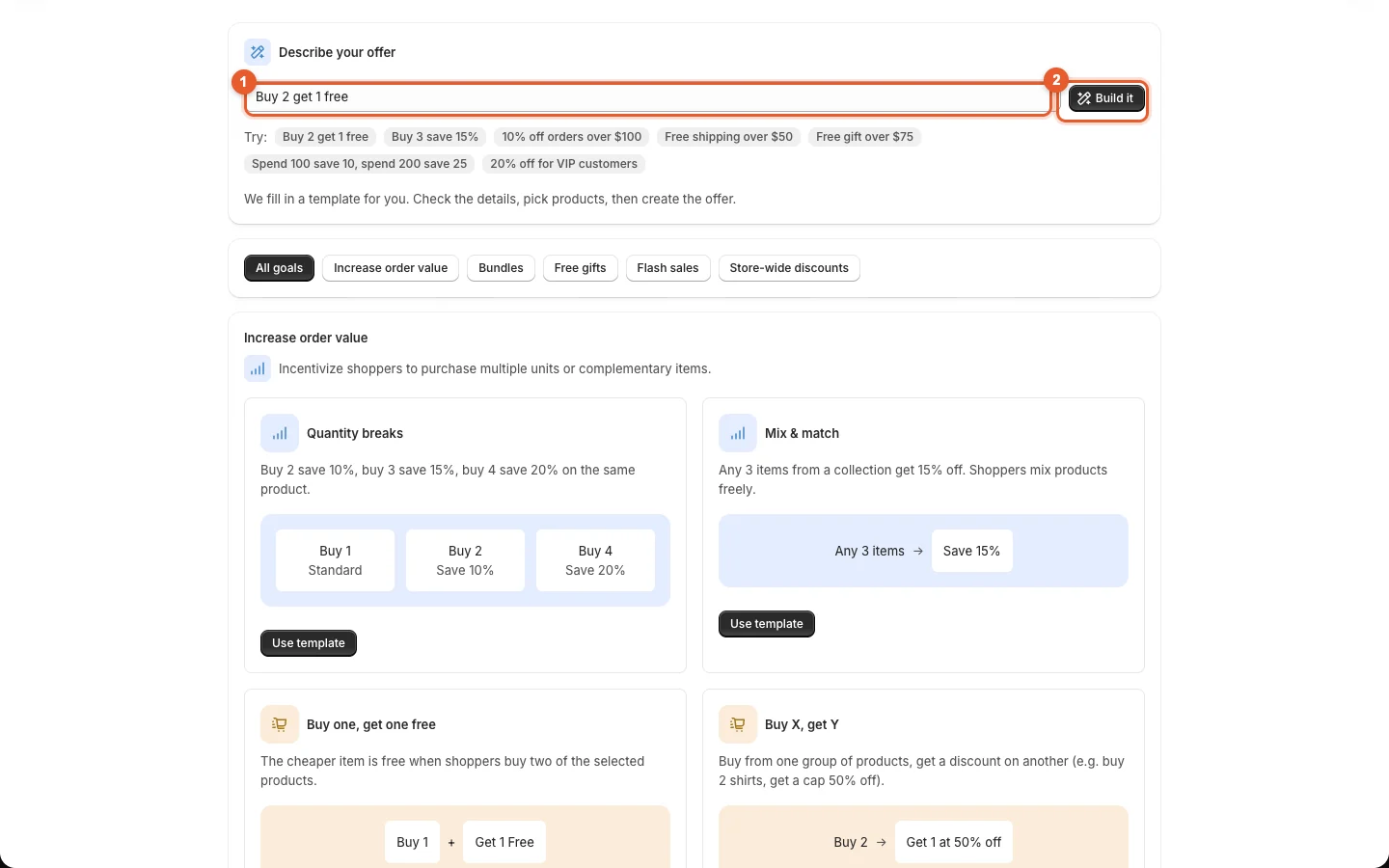
- Type the offer in Describe your offer ①, for example
Buy 2 get 1 free,Buy 3 save 15%,10% off orders over $100,Free shipping over $50,Free gift over $75,Spend 100 save 10, spend 200 save 25or20% off for VIP customers. You can also click one of the examples under the box. - Click Build it ②. Kitalo opens the matching template with your numbers filled in.
Pick a template
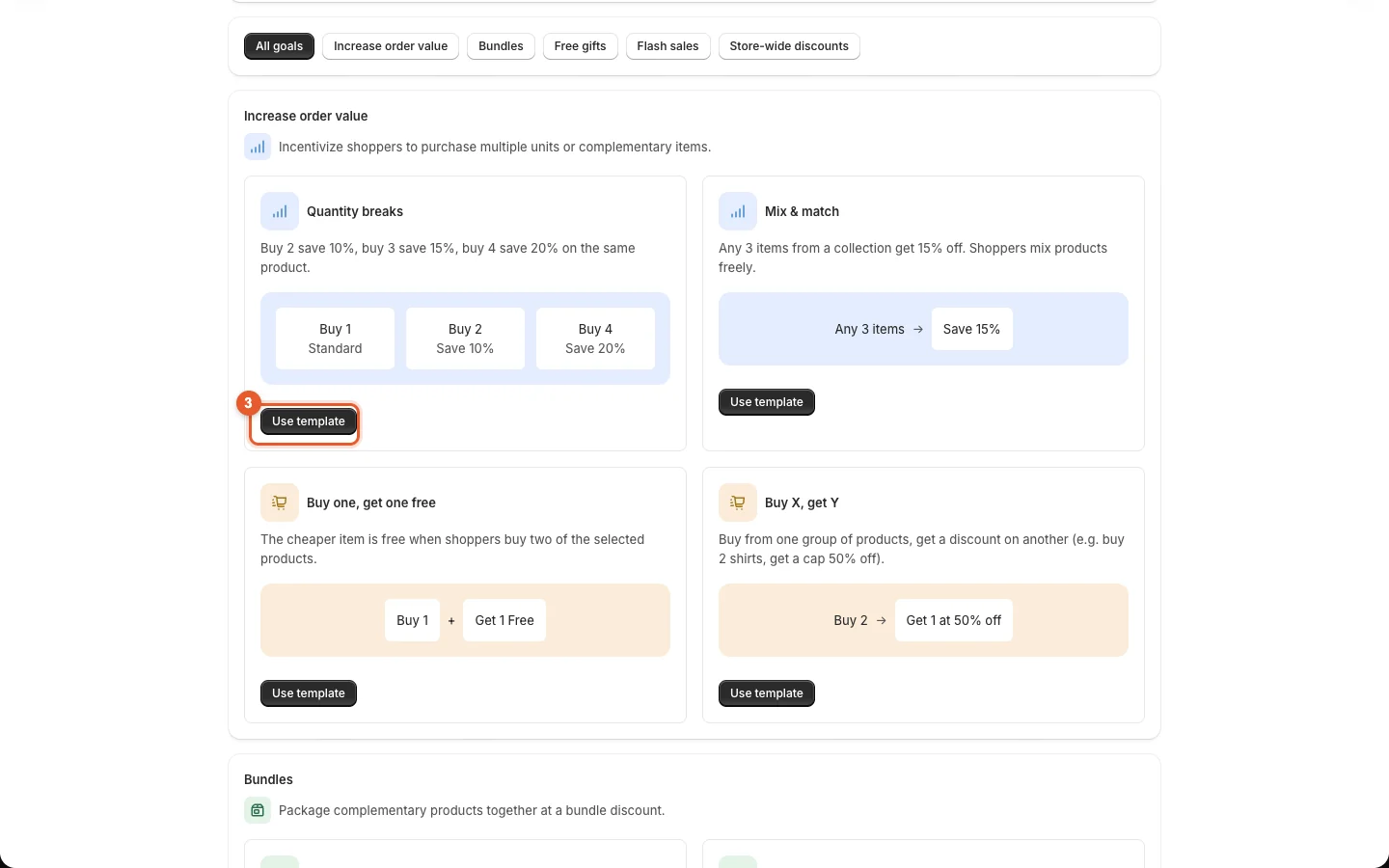
Templates are grouped by goal: Increase order value, Bundles, Free gifts, Flash sales and Store-wide discounts. Use the buttons at the top to show one group.
- Click Use template ③ under the template you want.
| Template | Offer type | Page |
|---|---|---|
| Quantity breaks | Quantity breaks | Quantity breaks |
| Mix & match | Quantity breaks (products counted together) | Mix & match |
| Buy one, get one free | Buy X get Y | BOGO |
| Buy X, get Y | Buy X get Y | Buy X, get Y |
| Product bundle | Bundle | Bundles |
| Frequently bought together | Bundle | Bundles |
| Free gift over a spend | Free gift | Free gifts |
| Choose a free gift | Free gift | Free gifts |
| Tiered order discount | Order discount | Spend more, save more |
| Free shipping | Shipping discount | Free shipping |
| Flash sale | Quantity breaks with a countdown | Flash sales |
The editor at a glance
The left column holds the settings. Try it on the right builds a sample cart with the same rules as checkout.
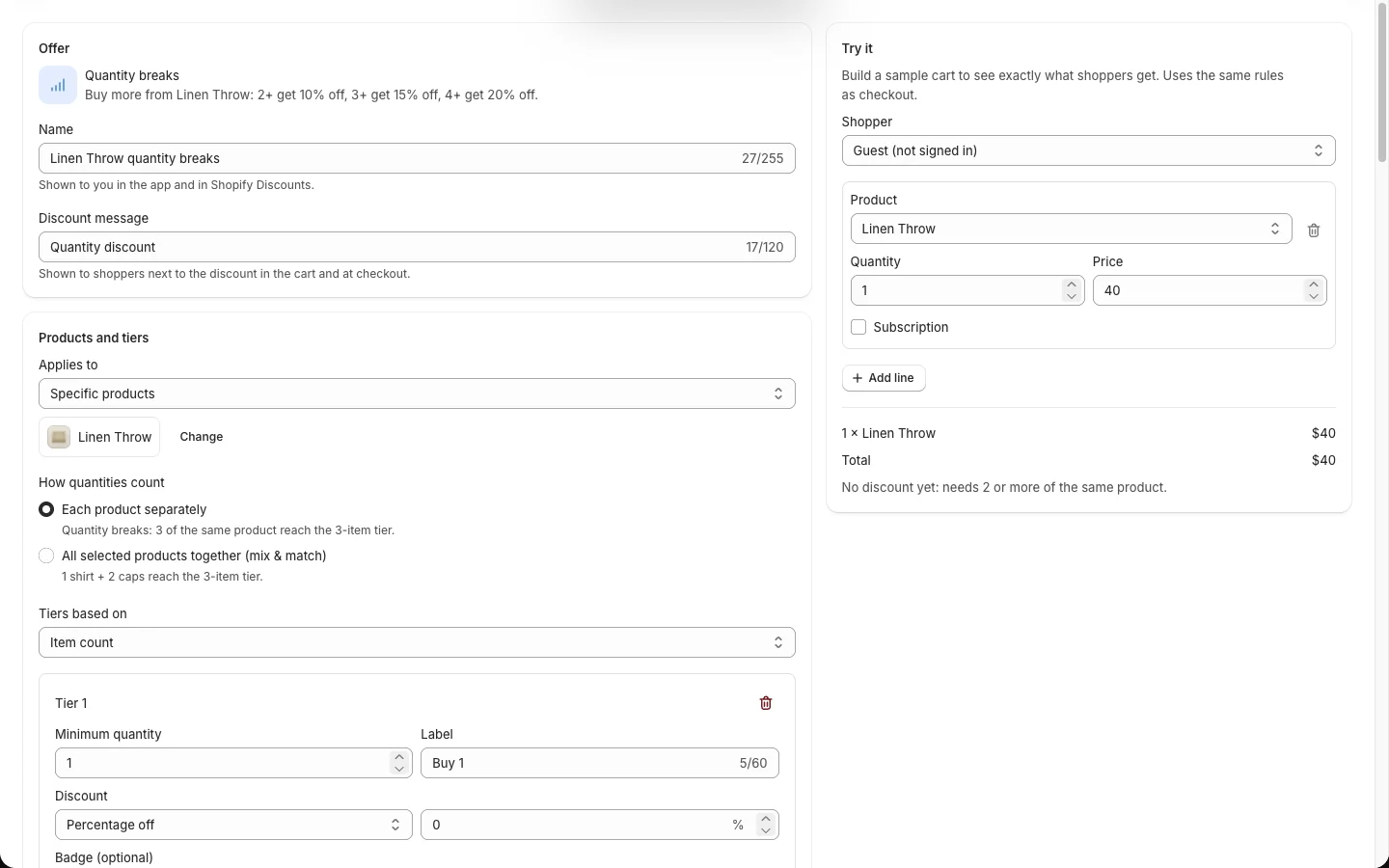
Work through the cards from top to bottom. Cards that do not apply to an offer type are not shown.
1. Offer
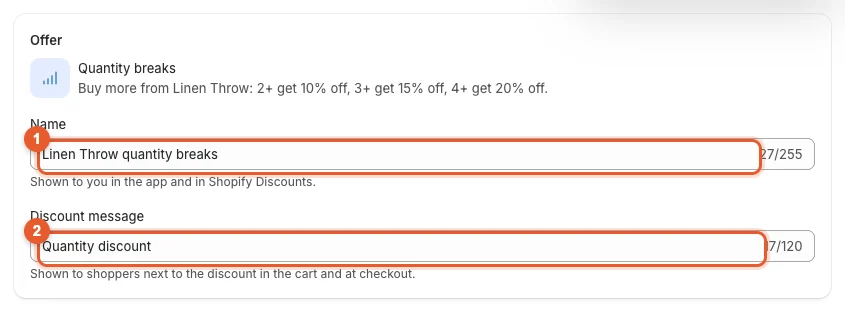
- Name ① — for you. It is shown in Kitalo and in Shopify admin under Discounts.
- Discount message ② — for shoppers. It is shown next to the discount in the cart and at checkout, for example "Quantity discount".
The summary at the top of the card ("Buy more from Linen Throw: 2+ get 10% off…") updates as you change the offer.
2. Products and the discount
This card is different for each offer type: tiers for quantity breaks, the products of a bundle, "Customer buys / Customer gets" for Buy X get Y, gift rules for free gifts, and so on. See the page for your offer type.
For quantity breaks it looks like this:
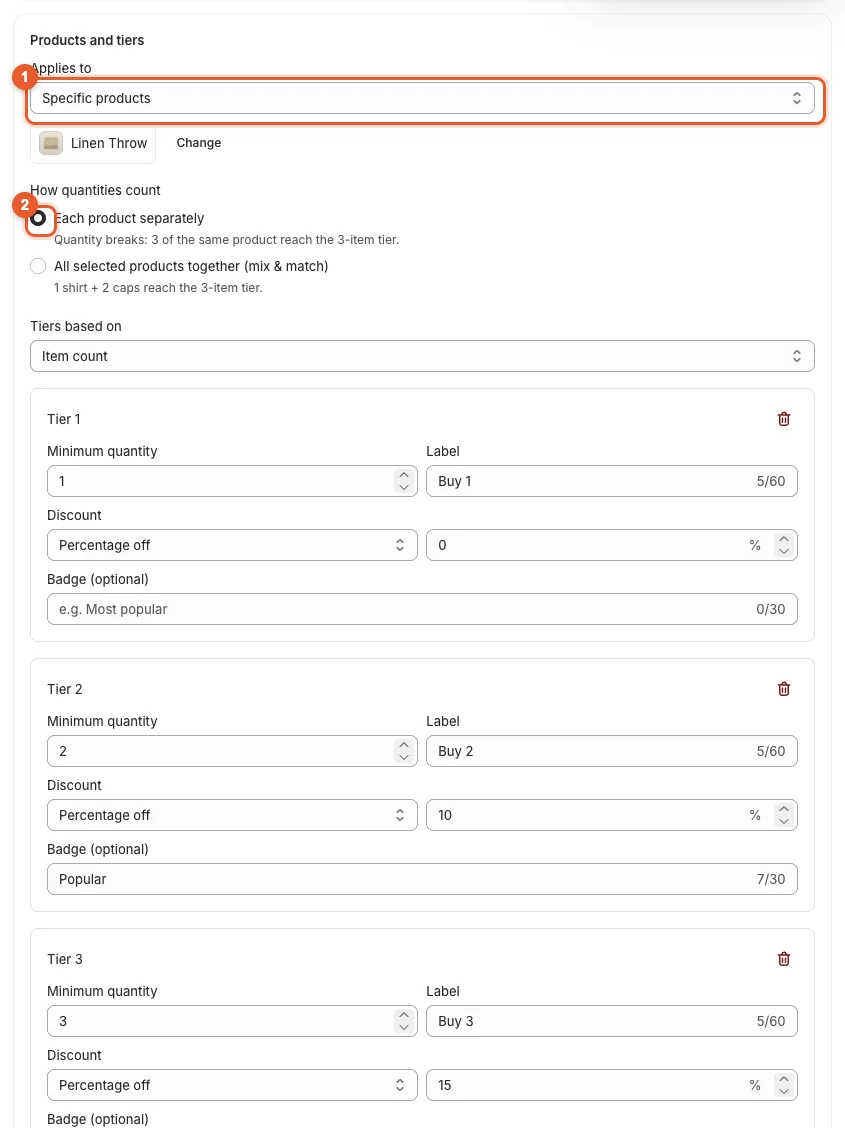
- Applies to ①: All products, Specific products or Specific collections. When you choose specific products or collections, Shopify's picker opens: search, tick the items and click Select. Click Change to edit the list later.
- How quantities count ②: each product separately, or all selected products together (mix & match).
- Tiers: click Add tier ③ for another tier; click the trash icon to remove one.
3. Discount limit (Pro)

Max discount per order caps what one order can save from this offer, in your store currency. Leave it empty for no limit. Not available on free gifts and free shipping.
4. A/B test (Pro)

Turn on Test a second version to test different discount values. See A/B test an offer.
5. Eligibility
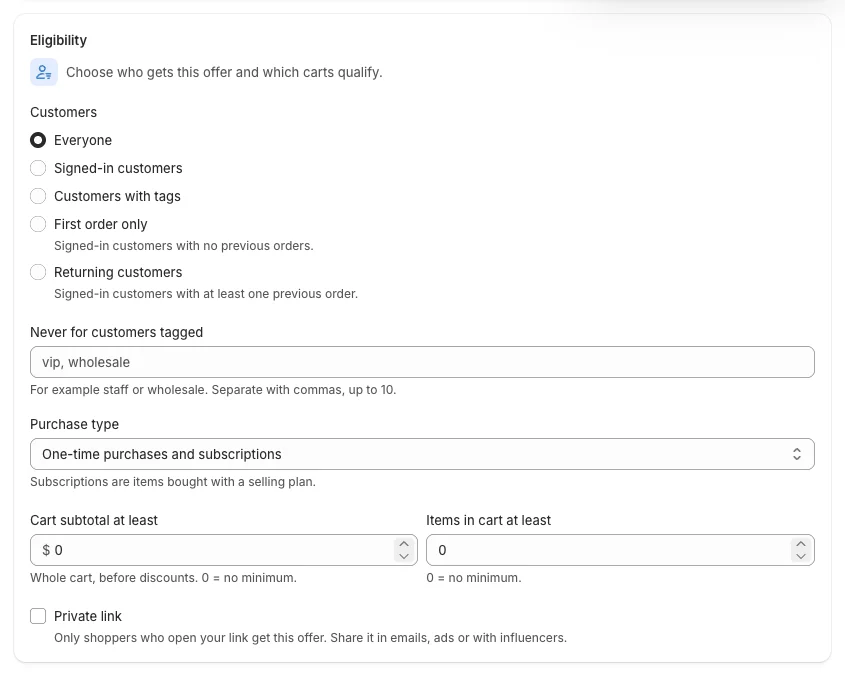
Choose which shoppers get the offer and which carts qualify: everyone, signed-in customers, customers with tags, first order only or returning customers; excluded tags; one-time purchases or subscriptions; a minimum cart subtotal or item count; and a private link. See Who gets an offer.
6. Storefront
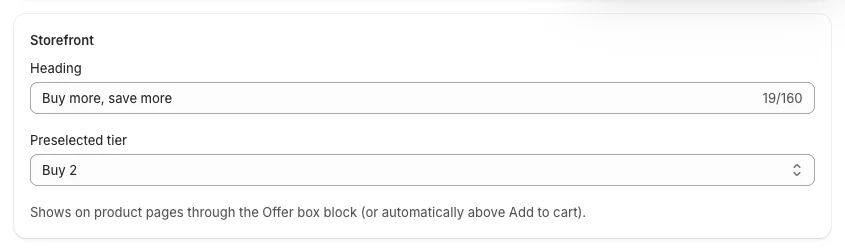
What shoppers read in the offer box or progress bar: the heading, and depending on the type a subheading, button text, progress message or the tier selected when the page opens. Leave the defaults, or write your own.
7. Translations
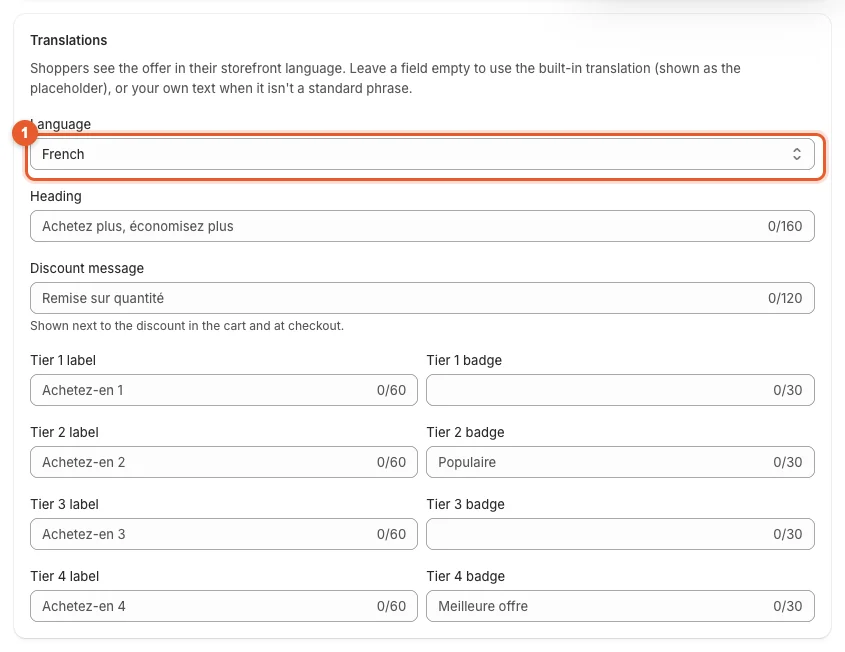
- Pick a Language ①. The fields show the built-in translation as a grey placeholder.
- Type your own text only where you want to change it.
See Languages and translations.
8. Schedule

Start date and an optional End date. A scheduled offer shows as Scheduled on the Offers list until it starts. Flash sales use a start and end date and time instead (Flash sales).
9. Combinations
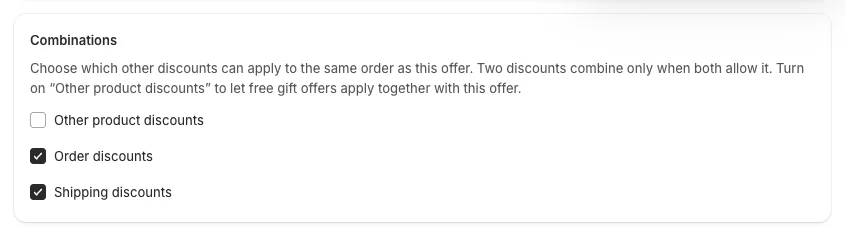
Which other discounts can apply to the same order. Two discounts combine only when both allow it. See Combine offers with other discounts.
10. Targeting
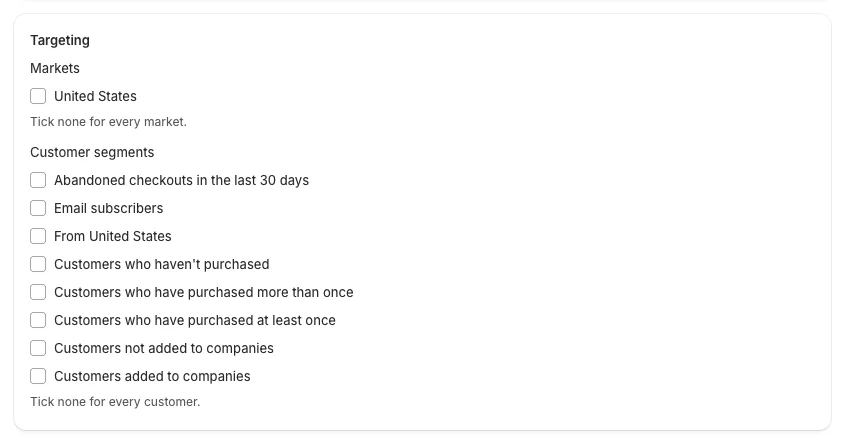
Limit the offer to some Markets (Growth) or Customer segments (Pro). Tick none for every market or every customer. See Who gets an offer.
11. Activation
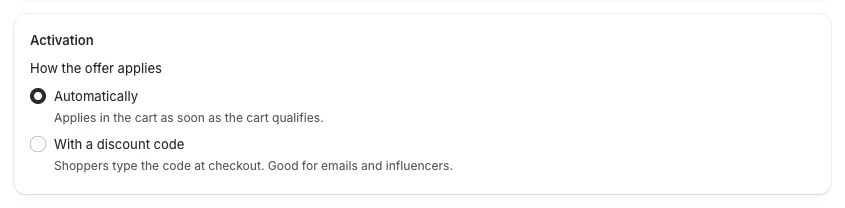
- Automatically: applies in the cart as soon as the cart qualifies.
- With a discount code (Pro): shoppers type the code at checkout. See Discount codes.
12. Status

Turn off Offer is active to keep the offer as a draft. A draft does not apply and does not show in your store.
Try it — check before you save
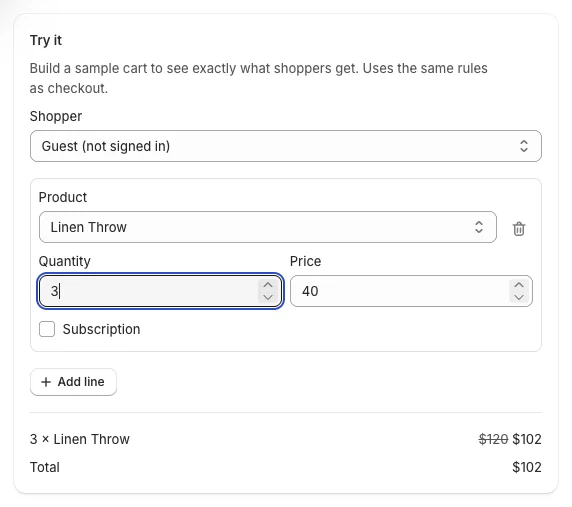
- Choose the Shopper (guest, signed in, tagged, first order…) to test eligibility rules.
- Pick a Product, set the Quantity and Price, tick Subscription if needed. Click Add line for more products.
- The lines show each price before and after the discount, and the Total is what checkout will charge.
When no discount applies yet, a note says why, for example "needs 2 or more of the same product" or "Add $57 more to qualify".
Save the offer
Click Create offer in the top bar (Save when you edit an offer). Kitalo saves the offer and creates its Shopify discount. If a field needs attention, the editor keeps your changes and shows the message next to the field.
While you have unsaved changes, the top bar shows Discard and Save. If you leave the page, Shopify asks before your changes are lost.
The Offers list

Offers lists every offer with its status (Active, Scheduled, Draft, Expired), type, schedule and how many orders used it. Use the tabs at the top to show only active, scheduled or draft offers.
On each row:
- click the offer name or the pencil icon to edit it;
- the ⋯ menu has Pause (or Activate), Duplicate, Check with Sidekick and Delete.
Deleting an offer also deletes its Shopify discount. Pausing keeps it as a draft.
Every Kitalo offer also appears in Shopify admin under Discounts. Edit offers in Kitalo, not there: Kitalo keeps the widget, the discount and the analytics in step.