
Fix booking times that look wrong or are off by hours
Find the timezone used for a schedule and distinguish it from the timezone used to display dates and times.
On this page
A booking time can look shifted when the availability, event, store, and viewer use different timezones. Check the schedule's timezone before changing its hours.
Symptom: Booking times look wrong or shifted
Check 1: The schedule timezone
- Check: The app resolves timezones in a strict order. The assigned availability's timezone always wins.
- Fix:
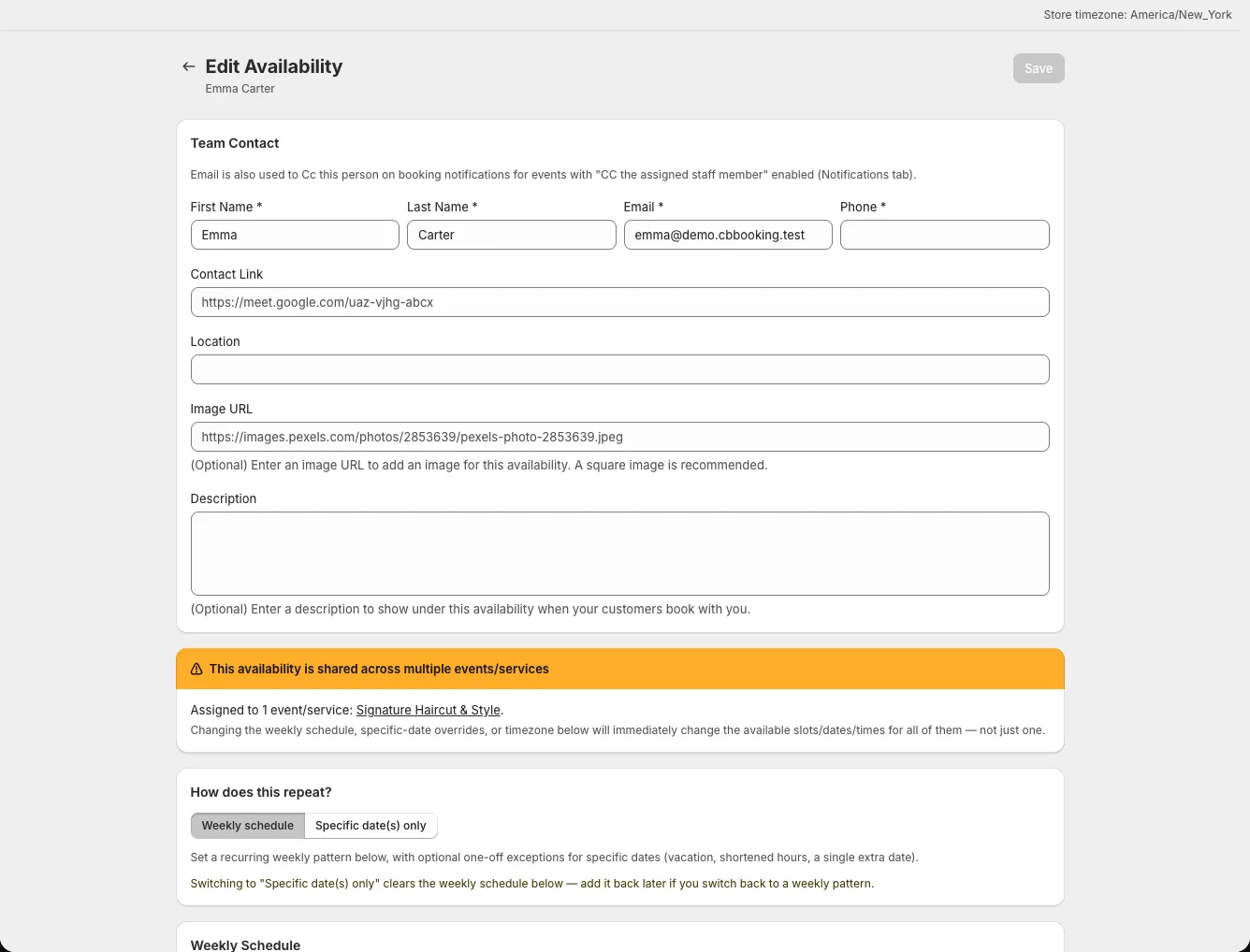
- Open Resources → Availabilities.
- Select the assigned availability.
- Check View in Timezone next to the Weekly Schedule or specific dates.
- Correct the timezone or hours if they are wrong.
- Open the event's Availability tab to confirm which availability is assigned.
- Test a known date on the live product page.
Check 2: The admin timezone warning
- Check: Your browser timezone might differ from the store's timezone.
- Fix: Read the admin banner warning. Dates and times in the admin follow the store timezone. Be careful when editing bookings from another region.
Check 3: The customer's viewing timezone
- Check: The widget might display a local timezone selected by the customer.
- Fix: Compare the same booking in the admin and the storefront using the named timezone. Do not just look at the clock reading. Use Settings → Debug Timeslots if times still look wrong.